
Extra Product and Video Tabs with Admin Memo
This extension enhances Product management and the storefront product page using events and OCMOD (no core edits).
What it adds to each product
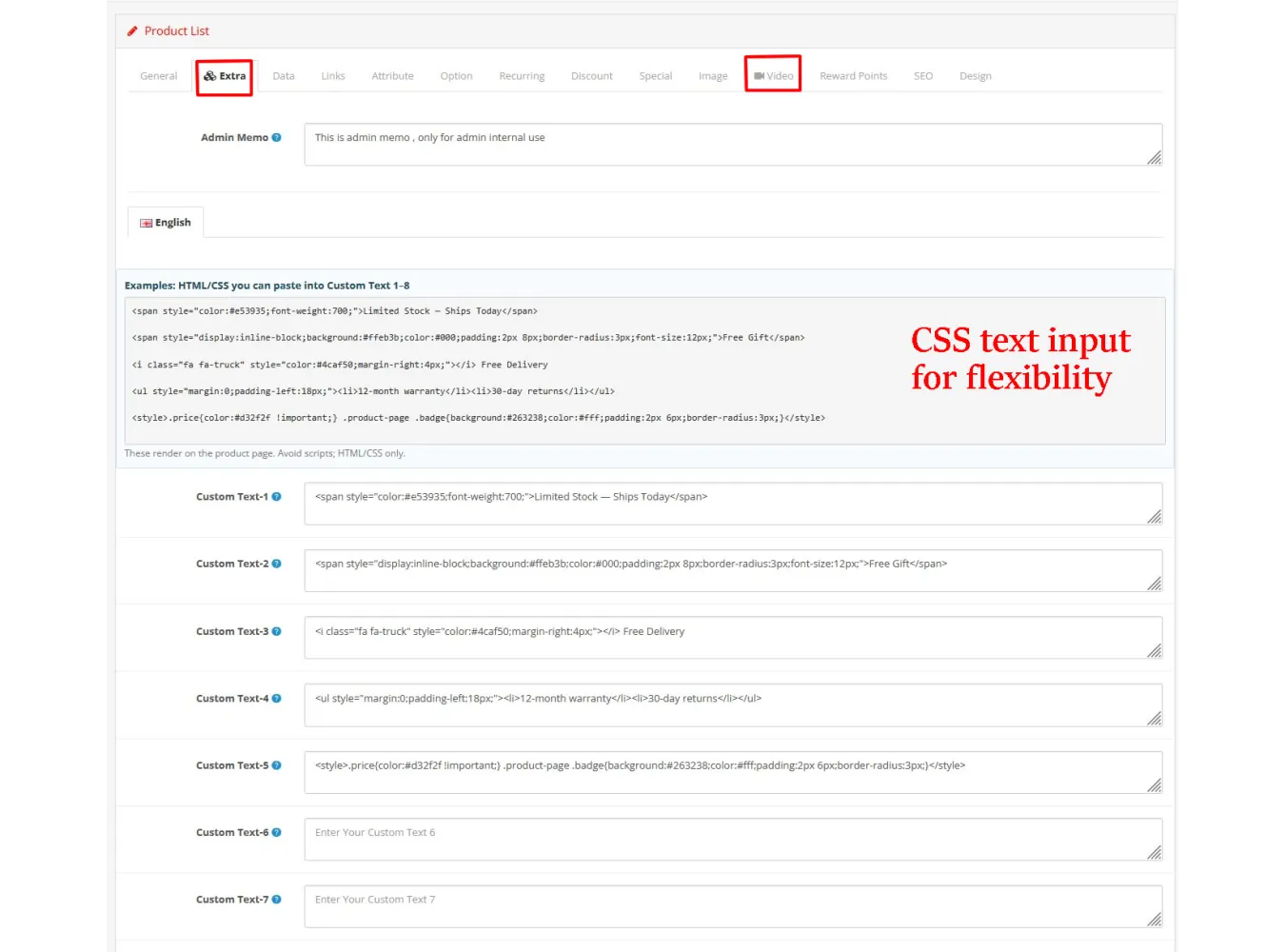
- Admin Memo (admin-only): A private notes field visible only in Admin. Never rendered on the storefront.
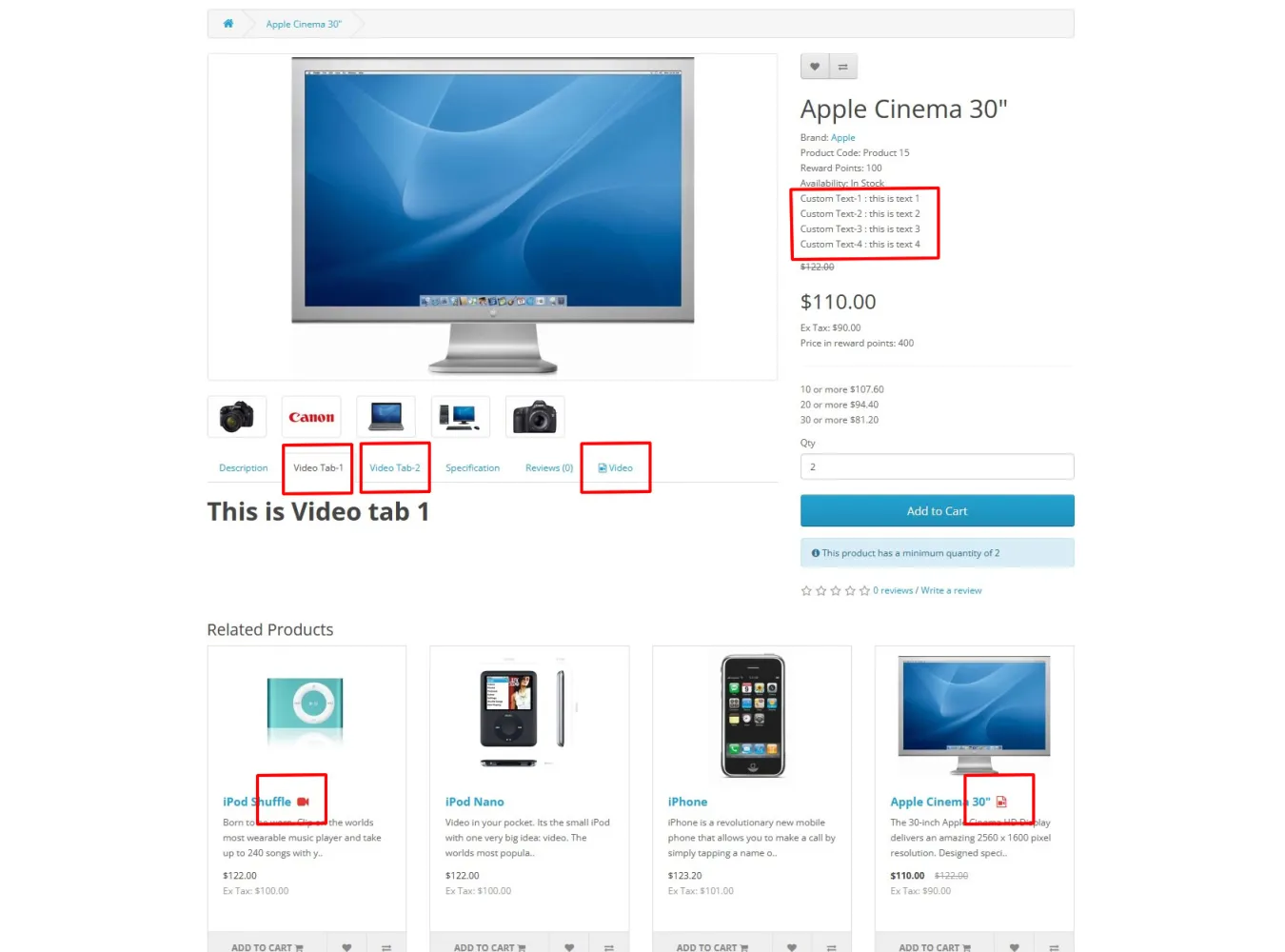
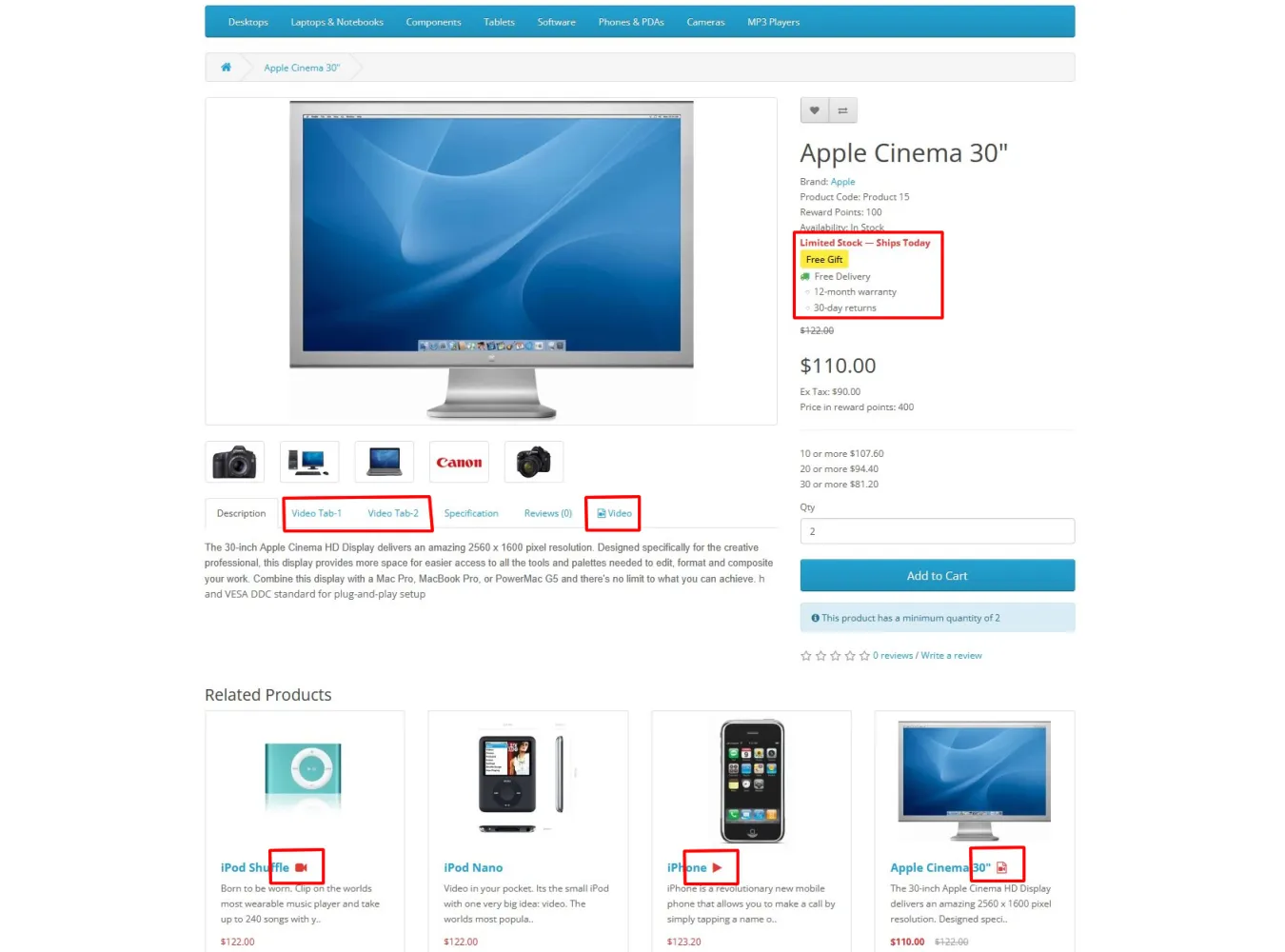
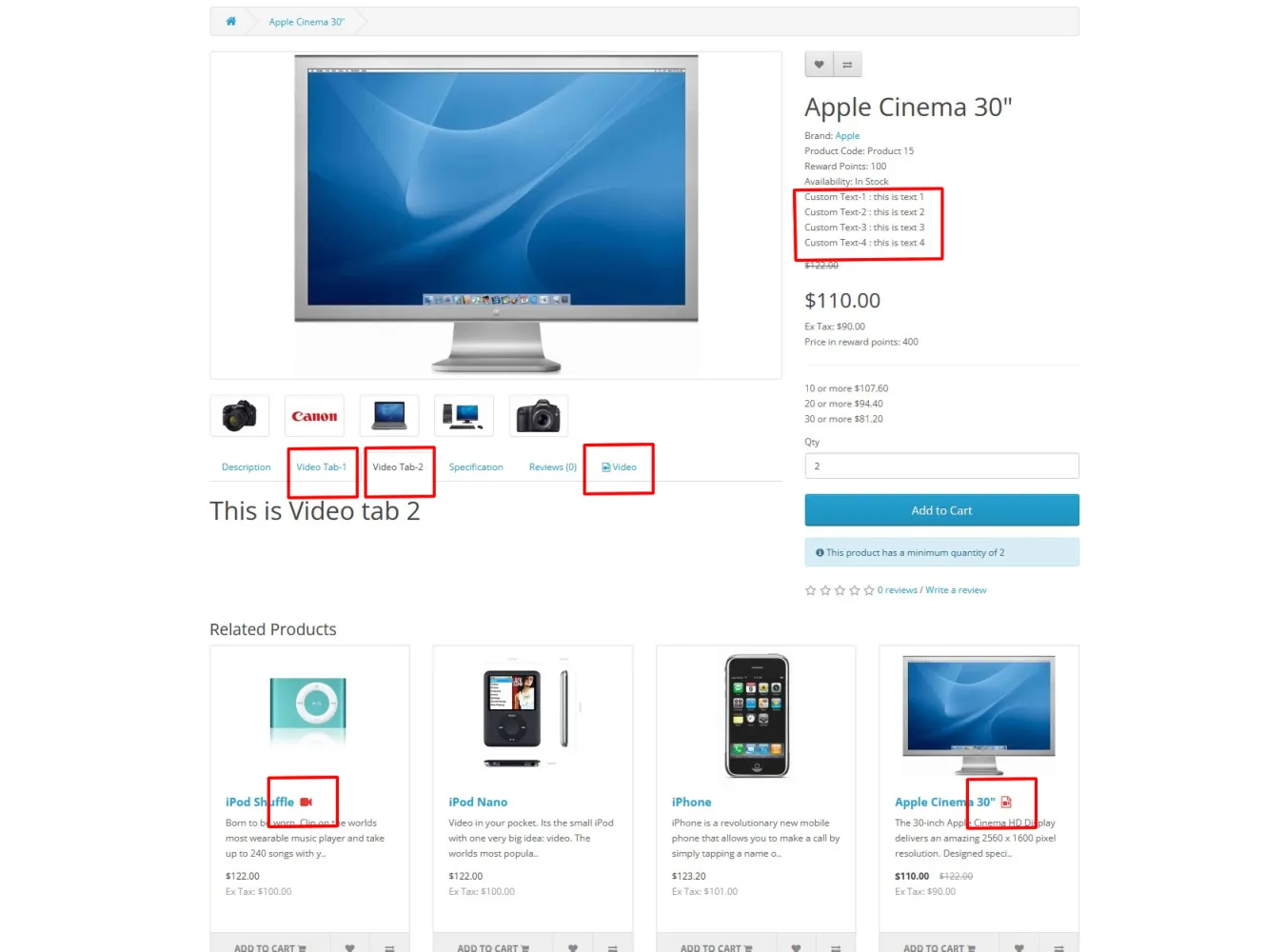
- Custom Text 1–8: Eight short text lines that appear on the product page (e.g., “Free Shipping”, “Brand New”).
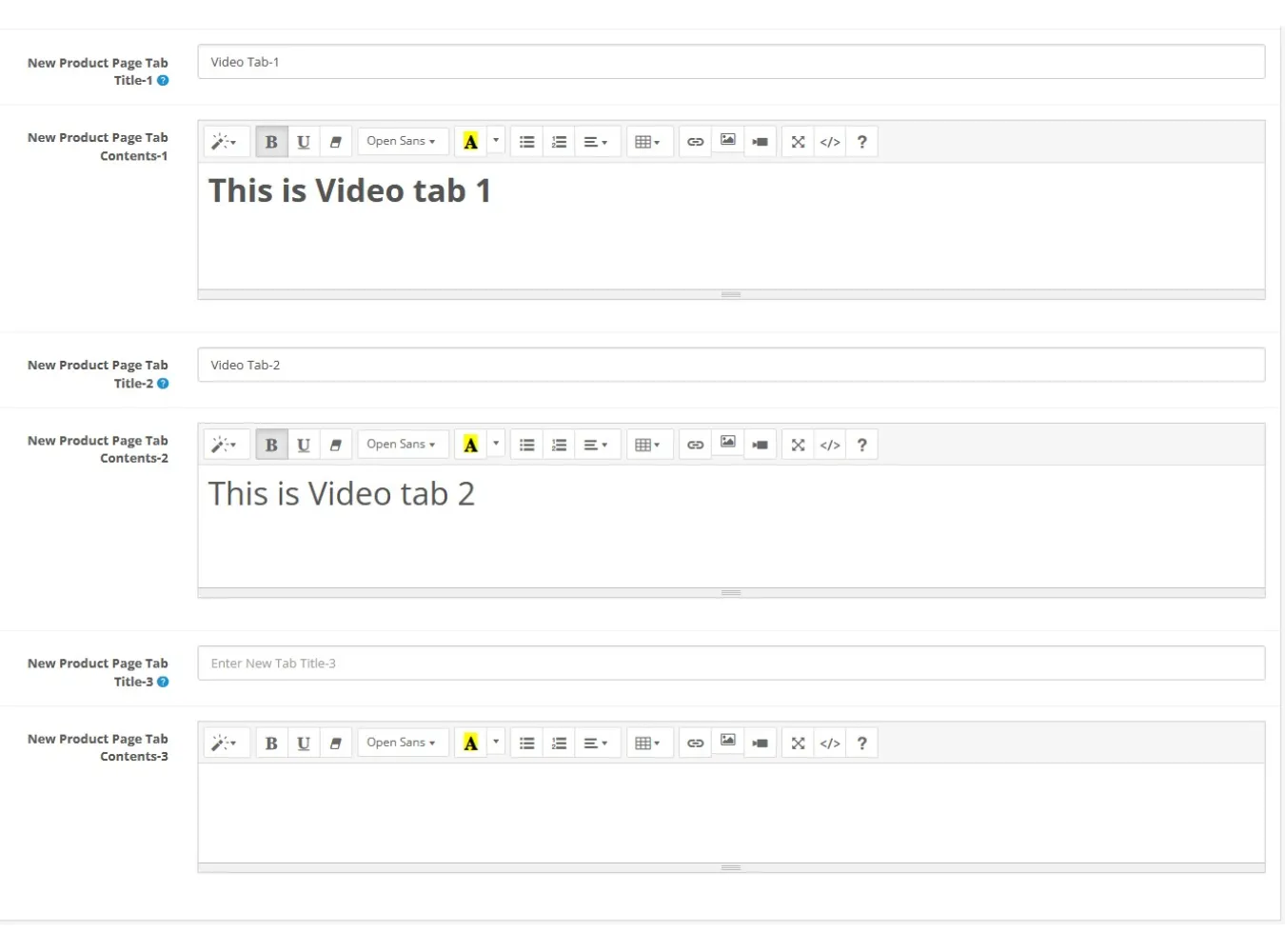
- New Product Page Tabs x 3: Three customizable tabs (per-language title and content) rendered alongside the default tabs on the product page.
- Product Video:
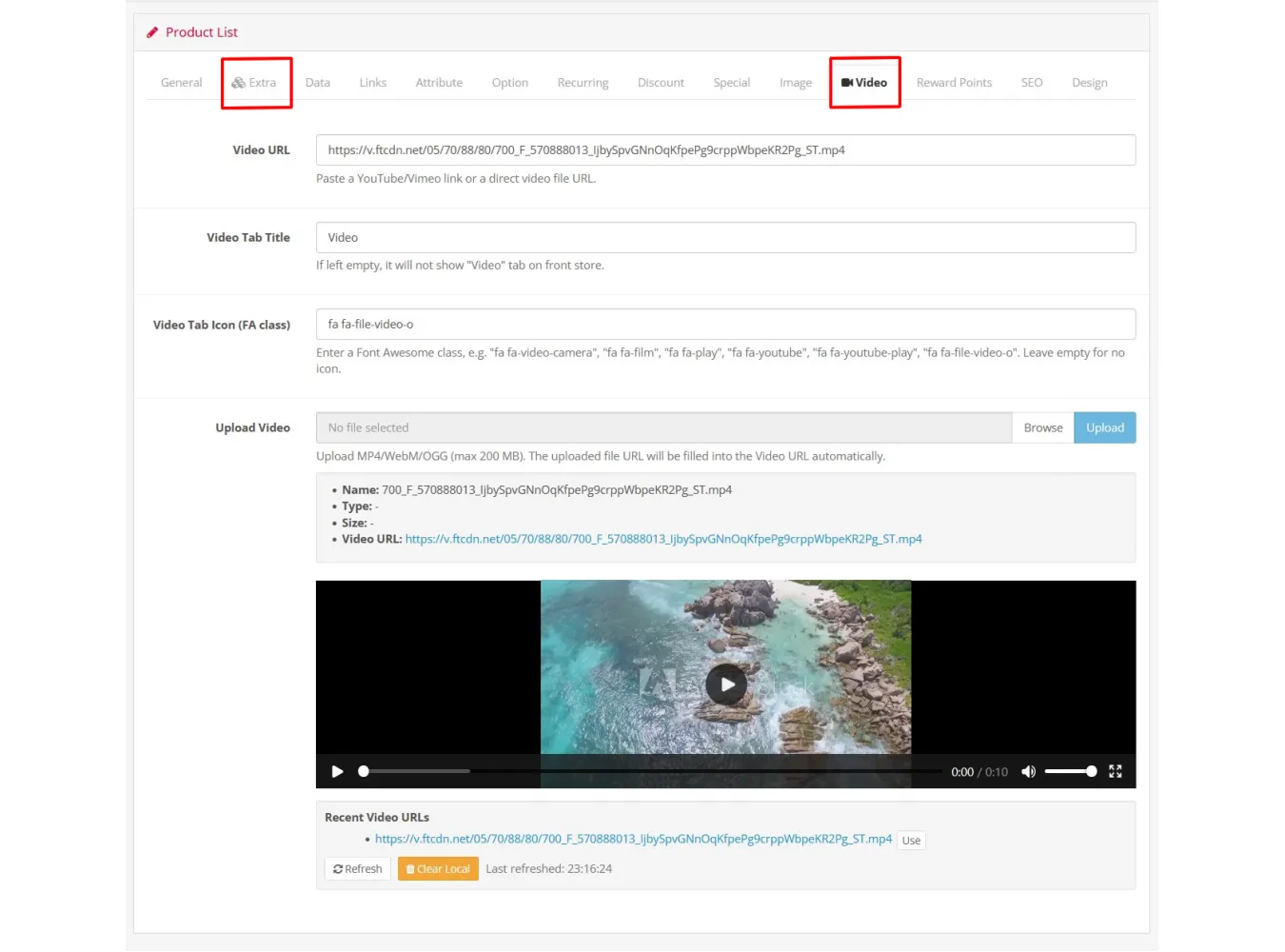
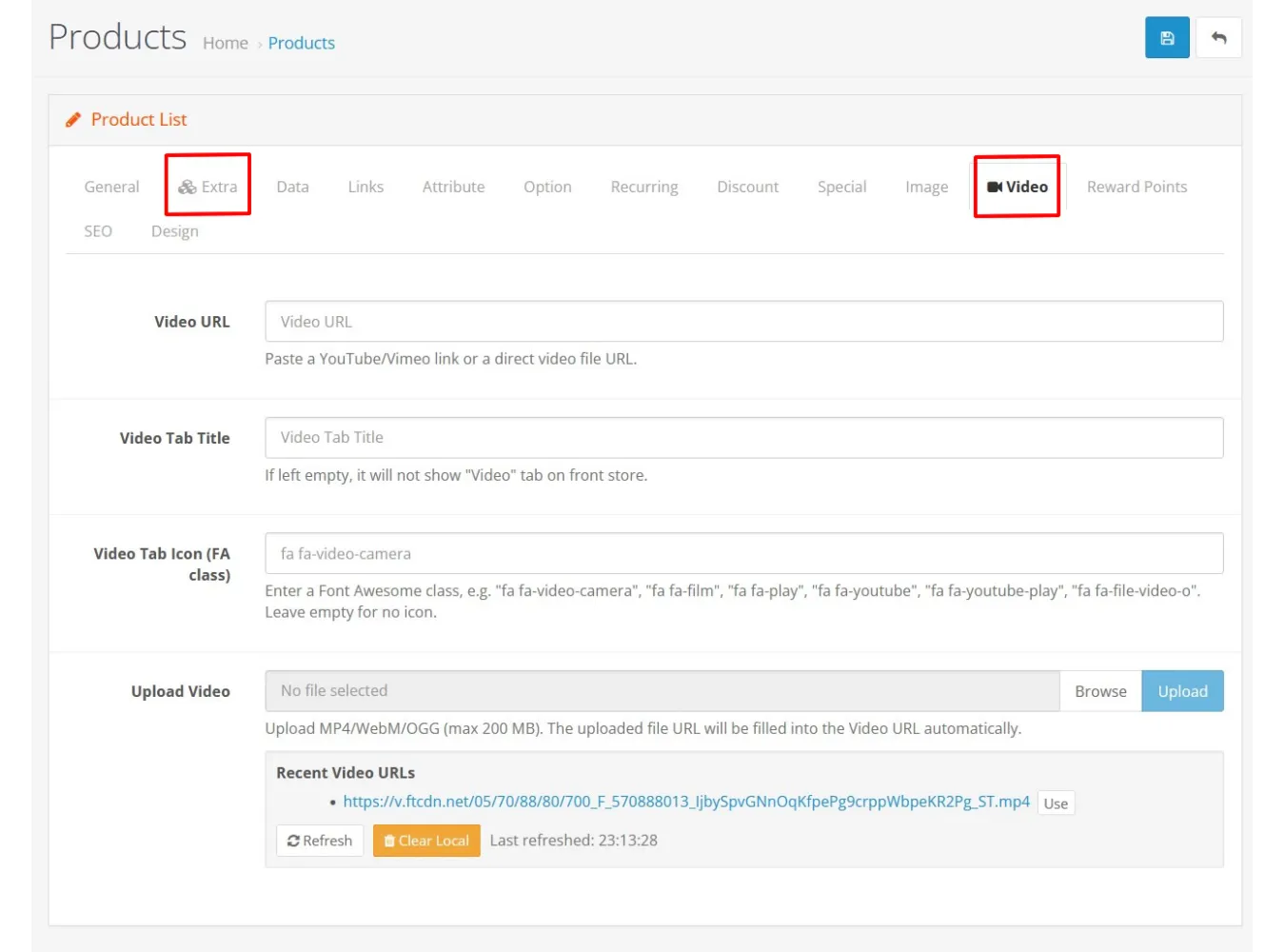
- Admin: A “Video” tab (next to Image) to paste a YouTube/Vimeo/direct-file URL, set a Video Tab Title, pick a tab icon class (Font Awesome), upload files with progress, preview, and manage a recent-URL history (with per-item delete for locally hosted files).
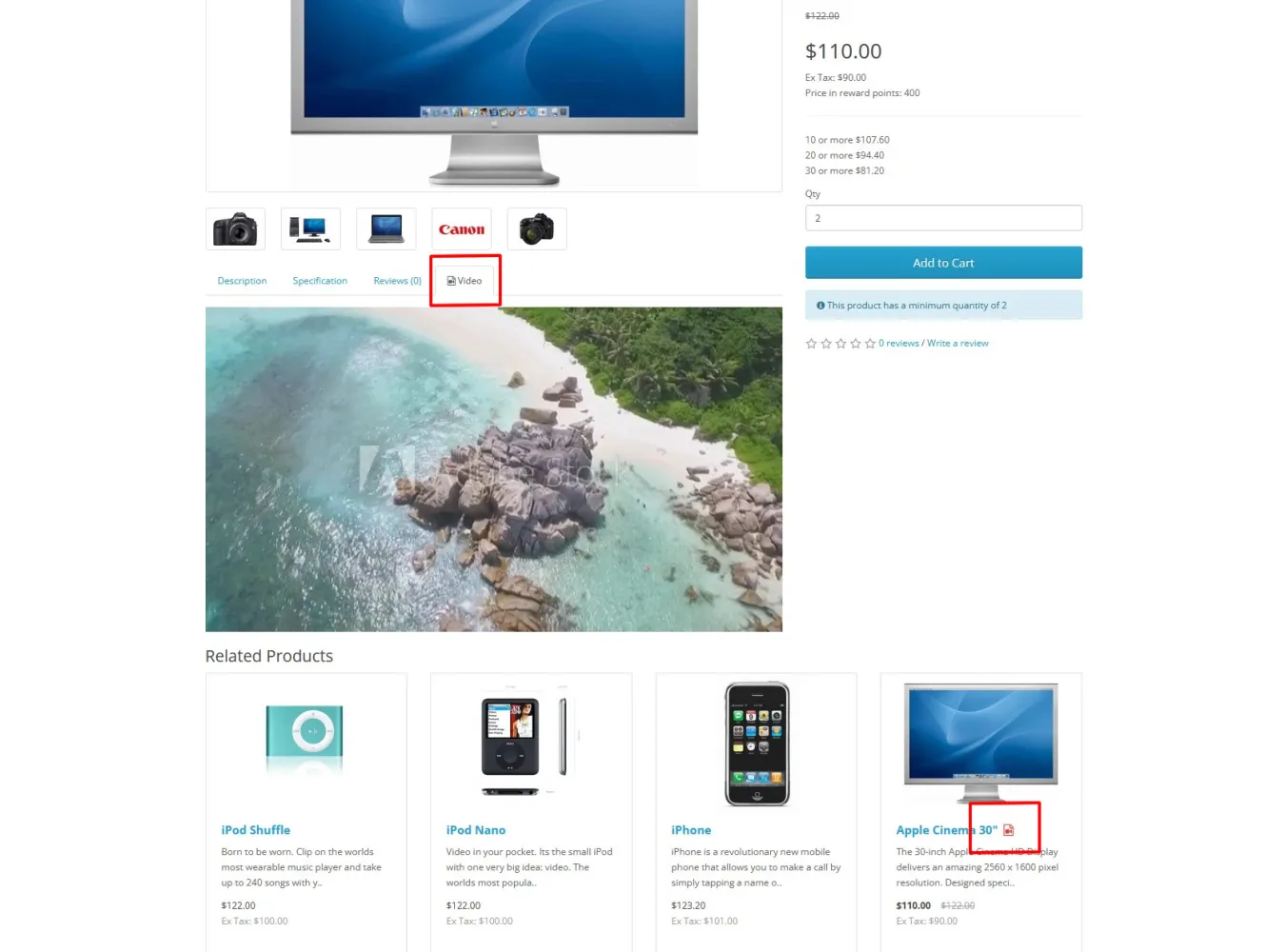
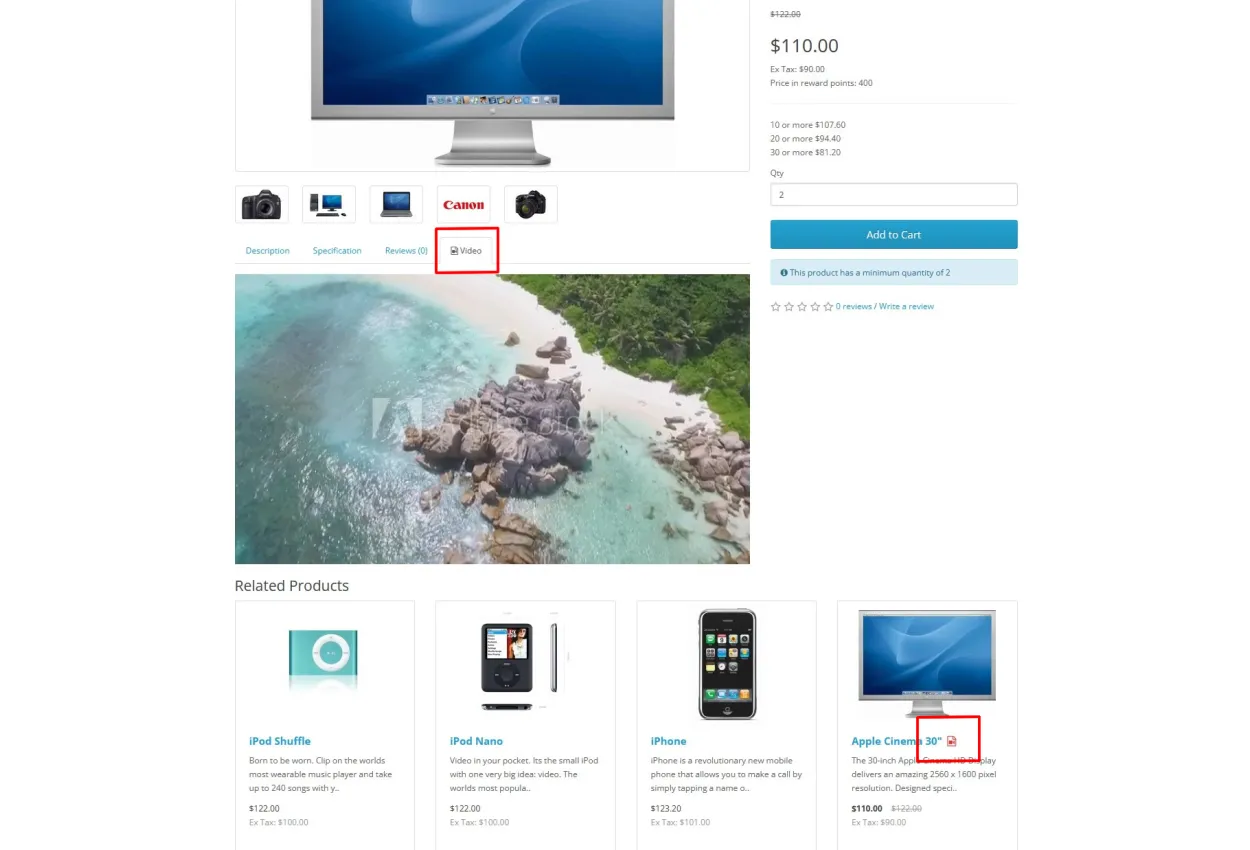
- Storefront: A Video tab is rendered when a video is configured. YouTube/Vimeo links are embedded; direct files play via HTML5 video.
How the Video tab appears on the storefront
- Events-based insertion (all themes):
- The tab is added when BOTH “Video Tab Title” and “Video URL” are provided for the product.
- The tab label can include your chosen icon class (e.g., “fa fa-video-camera”).
- Placement: added to the product tab bar; in most themes it appears after the existing tabs.
- Default OpenCart theme OCMOD:
- Additionally, the included OCMOD ensures the Video tab appears on the default theme when a Video URL exists.
- Placement: the tab header is inserted after the Reviews tab; the tab pane is added in the tab content block.
- Recommendation: always set a Video Tab Title and a Video URL to ensure consistent behavior across themes.
Notes on language support:
- Custom Text 1–8 and the 3 New Tabs are per-language.
- The Video Tab Title is a single value (not per-language).
Video icon on product titles
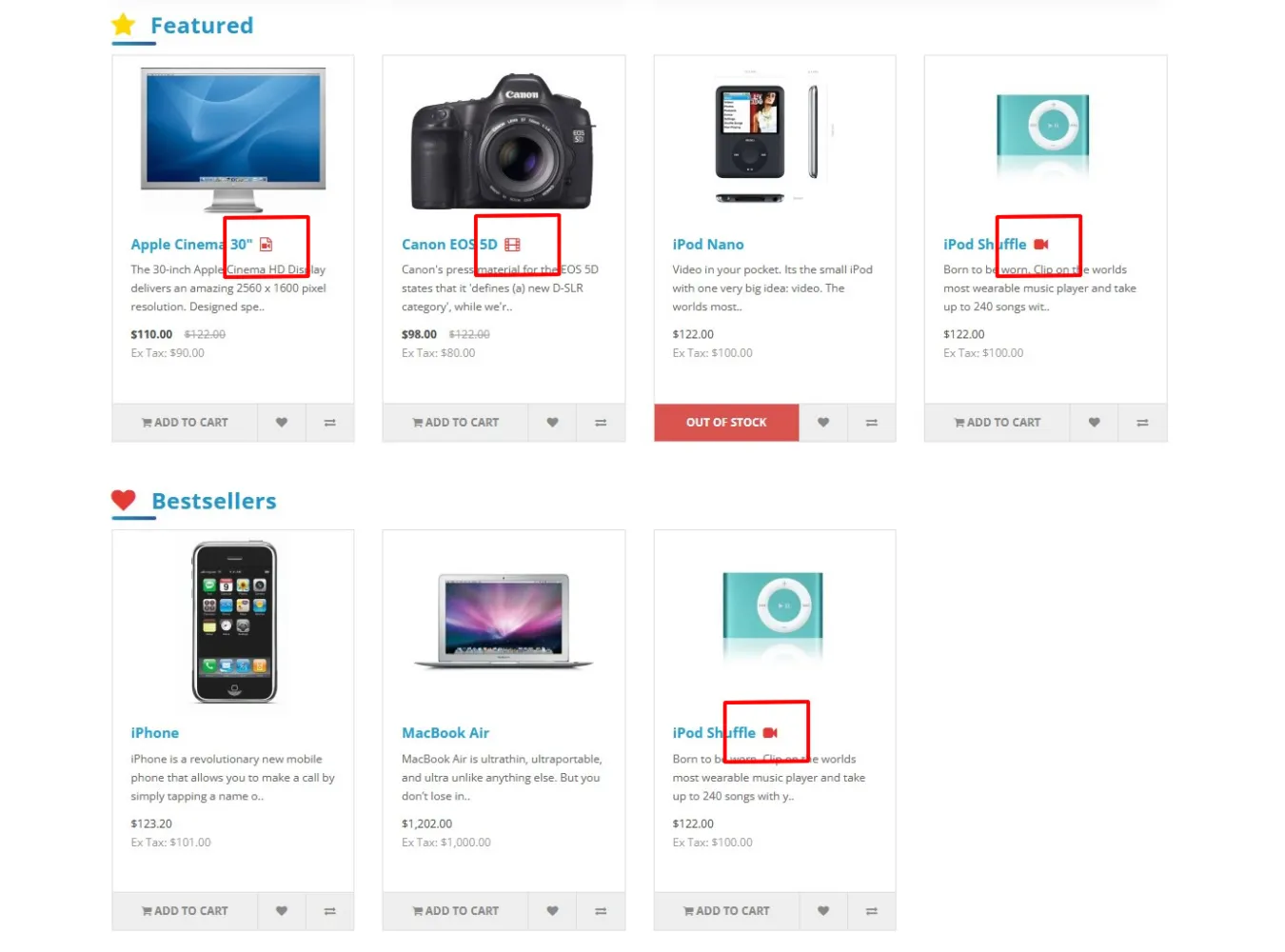
- Storefront lists: When enabled in module settings (“Show video icon on product titles”), a small video icon is appended to product titles on:
- Category, Search, and Product Related lists
- Featured, Latest, Special, and Bestseller modules
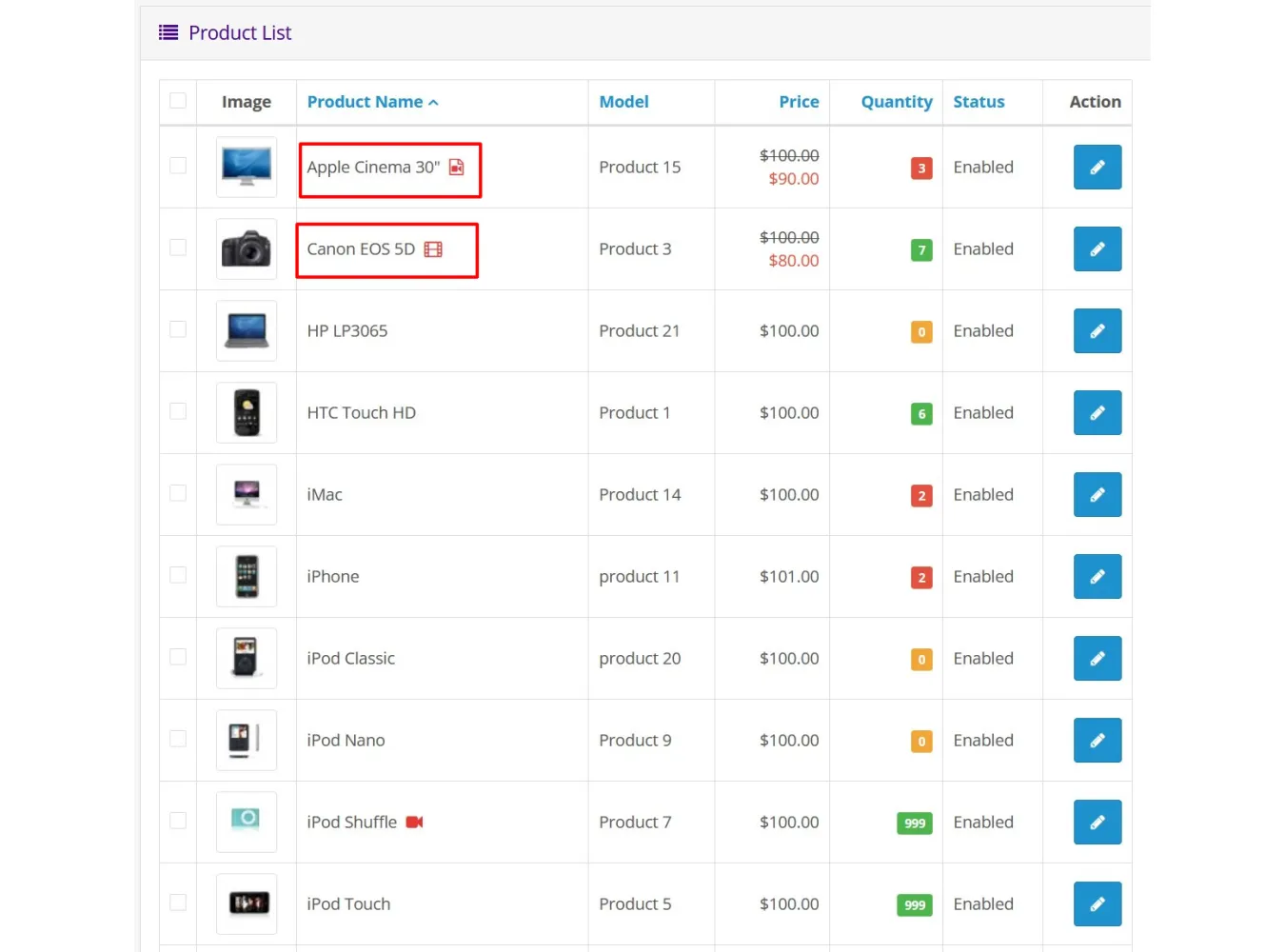
- Admin list (Catalog > Products): A small red video icon is injected next to the Product Name for products that have a video configured. This is independent of the storefront “Show icon” setting and does not change layout.
Benefits
- Enrich product pages without cluttering the main description (Size Guides, Care Instructions, Specs, etc.).
- Highlight selling points with Custom Text (e.g., “Condition: Brand New”, “Warranty: 2 Years”).
- Keep internal notes with Admin Memo (supplier, costs, reminders).
- Drive engagement with integrated videos (YouTube/Vimeo/direct files).
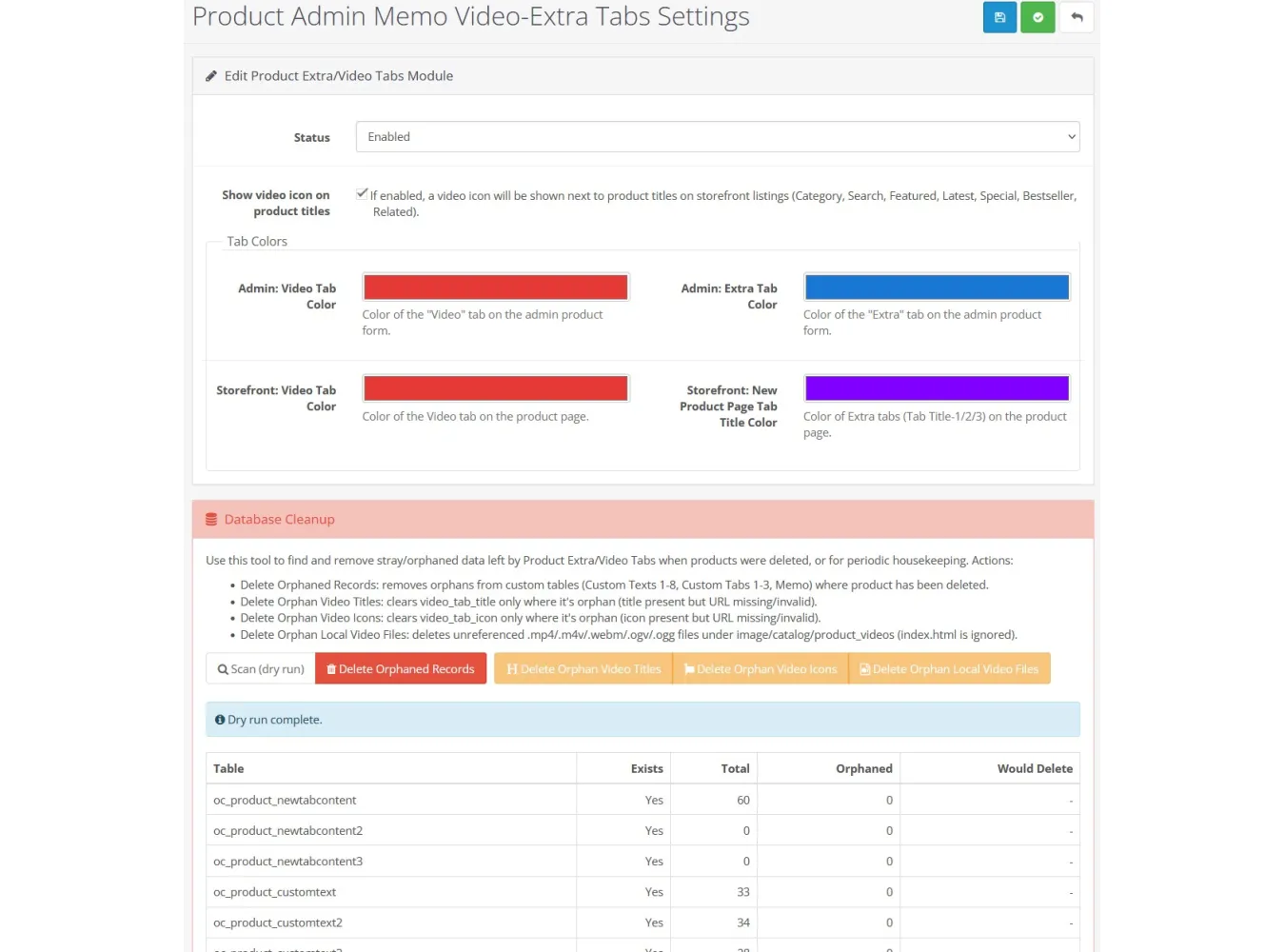
Settings (Extensions > Extensions > Modules > Product Extra/Video Tabs)
- Status: enable/disable the module.
- Show video icon on product titles: toggles storefront title icons on supported listings/modules (does not affect the Admin product list icon).
Installation
1. Go to Extensions > Installer and upload the .ocmod.xml.
2. Go to Extensions > Modifications and click Refresh.
3. (Recommended) Dashboard > Developer Settings > Clear Theme and SASS caches.
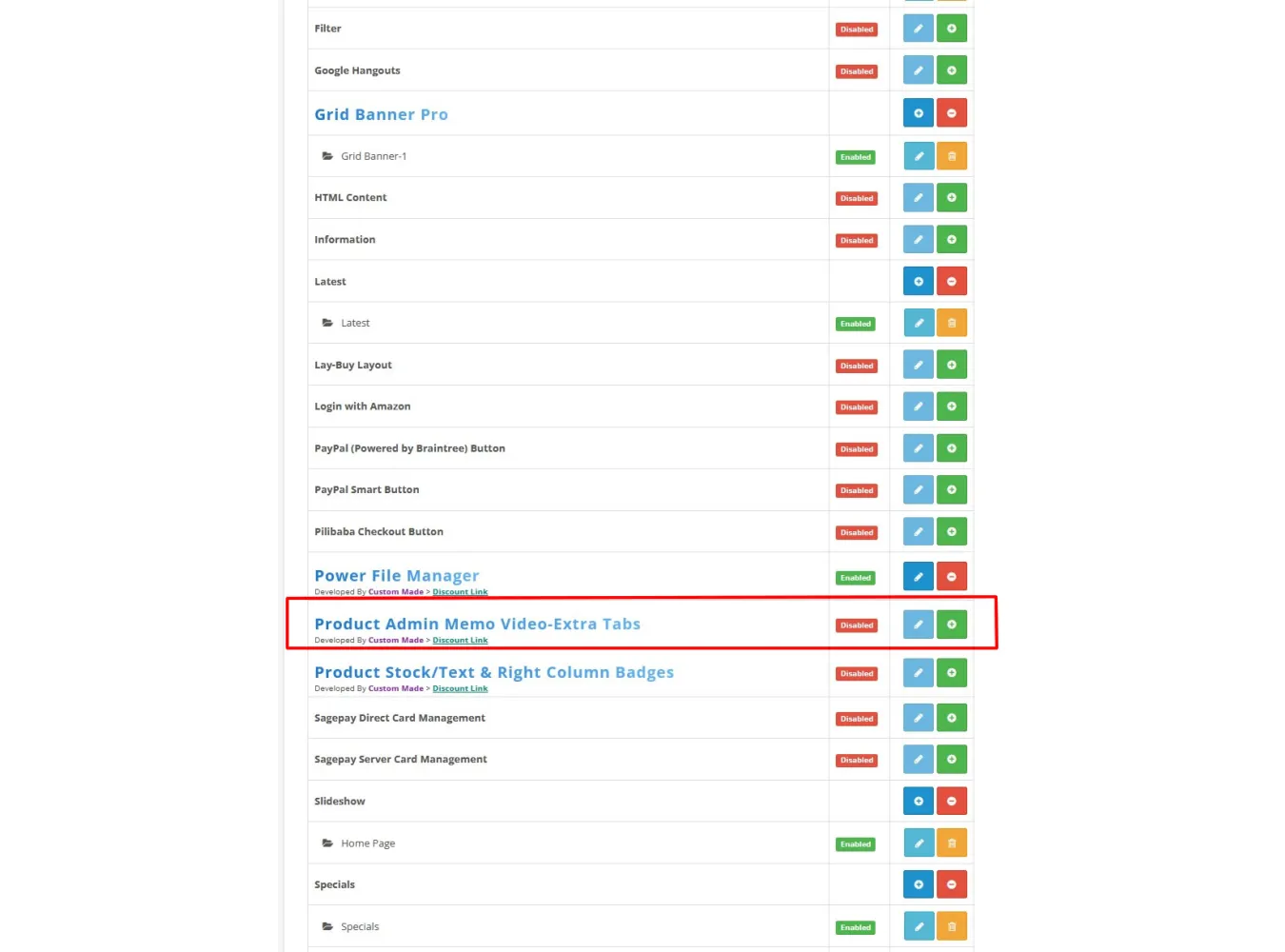
4. Go to Extensions > Extensions > Modules, find “Product Extra/Video Tabs”, click Install, then Edit to configure.
- Installing the module registers its event hooks and (on first run) creates/ensures the needed DB columns/tables.
Data storage
- Video fields are stored on the product record:
- video_url (string), video_tab_title (string), video_tab_icon (string)
- Extra fields use separate tables (created on first run if missing):
- product_memo, product_customtext(1–8), product_newtabcontent(1–3)
Uploads
- Uploaded videos are saved under image/catalog/product_videos/.
- The admin Video tab provides chunked uploads, progress, instant preview, server-side info, and a “Recent Video URLs” list with in-place delete for local files.
Usage
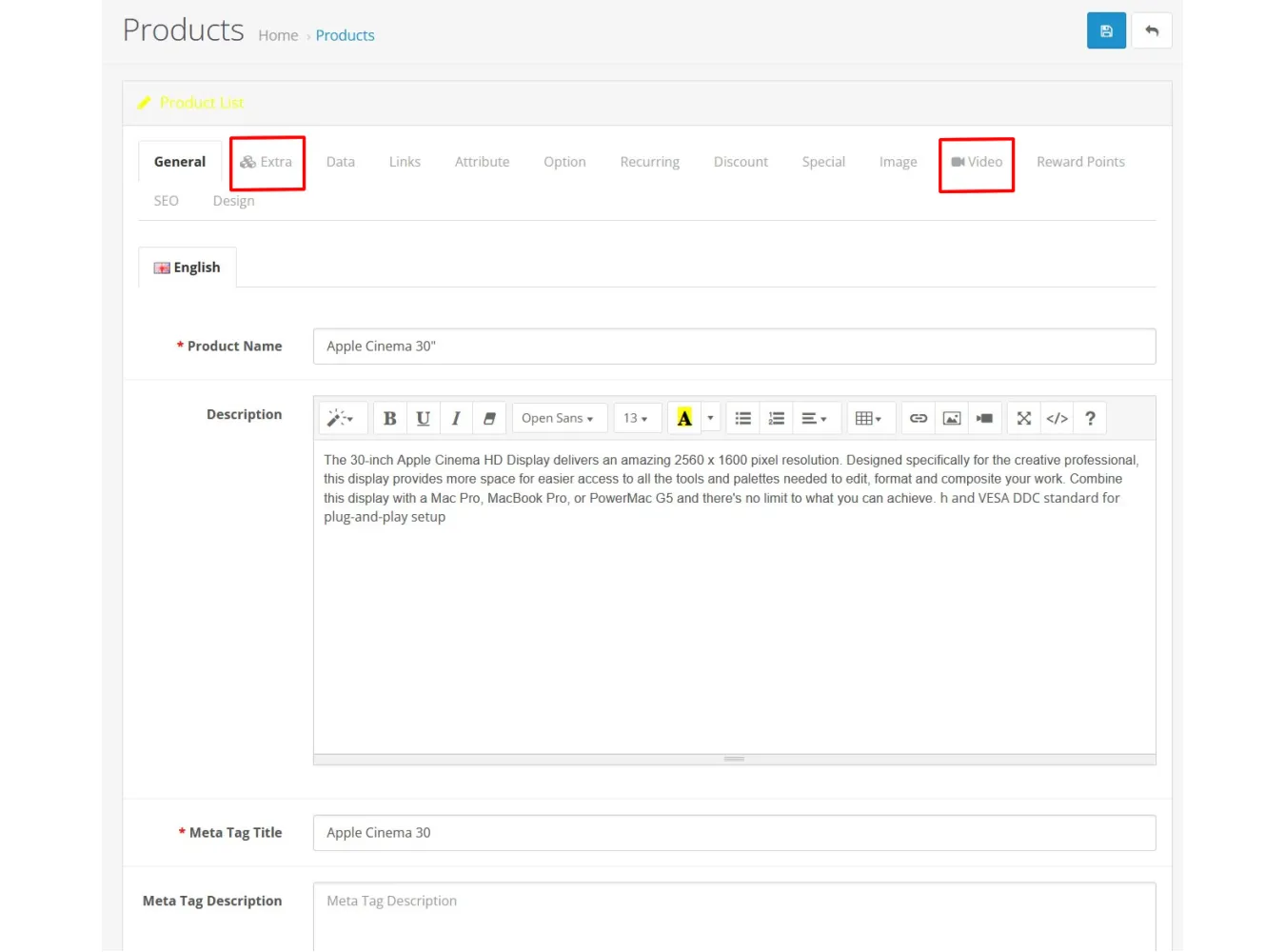
1. Admin > Catalog > Products > Add/Edit.
2. Extra tab:
- Fill Custom Text 1–8 and the three New Product Tabs (per-language title + content).
- Admin Memo is for internal notes only.
3. Video tab:
- Set a Video Tab Title (recommended for consistent storefront behavior).
- Paste a YouTube/Vimeo/direct-file URL, or upload a video to auto-fill the URL.
- Optionally set a Font Awesome class for the tab icon (e.g., “fa fa-video-camera”).
4. Save the product.
Storefront result
- Custom Text items render in the product details section.
- New Product Tabs render alongside default tabs.
- Video tab renders with your chosen label/icon and embeds the video.
Un-installation
- To remove the OCMOD:
1) Admin > Extensions > Modifications: delete the modification, then click Refresh.
2) (Recommended) Clear Theme and SASS caches.
- To remove the module:
- Extensions > Extensions > Modules > Product Extra/Video Tabs > Uninstall.
- Uninstalling the module removes the product columns video_url, video_tab_title, and video_tab_icon.
- Extra-field tables (custom texts, new tabs, memo) are left intact to avoid data loss. Remove manually if desired.
- Uploaded files under image/catalog/product_videos/ are not deleted automatically.
Technical notes
- Implementation uses only OCMOD and events; no core file edits.
- Admin “Products” list icon injection is row-scoped and touches only the Product Name cell; it won’t affect the image cell or action buttons.
- The storefront icon injection runs only on supported listing/search/module outputs and is controlled by the module setting.
Extra Product and Video Tabs with Admin Memo
Related Products

Grid Banner Pro v3.7
Grid Banner Pro Version 3.7 The Ultimate Visual Layout Builder for OpenCart 3.x.x.x Stop settling fo..
SGD$55.00

Task Manager Pro v4.1
1. Extension Description Task Manager Pro is a powerful, fully integrated productivity tool fo..
SGD$58.00
FlexiDoc Document Manager
Extension Description FlexiDocs is a comprehensive, professional-grade document management system bu..
SGD$70.00 SGD$80.00
Product Badge Manager
Description Product Badge Manager is a comprehensive OpenCart 3.x admin extension designed to boost ..
SGD$70.00 SGD$80.00
Advanced Survey Manager
Normal 0 false false false false EN-US JA X-NONE 1. Description The Advanced Survey Manager is a pow..
SGD$35.00