
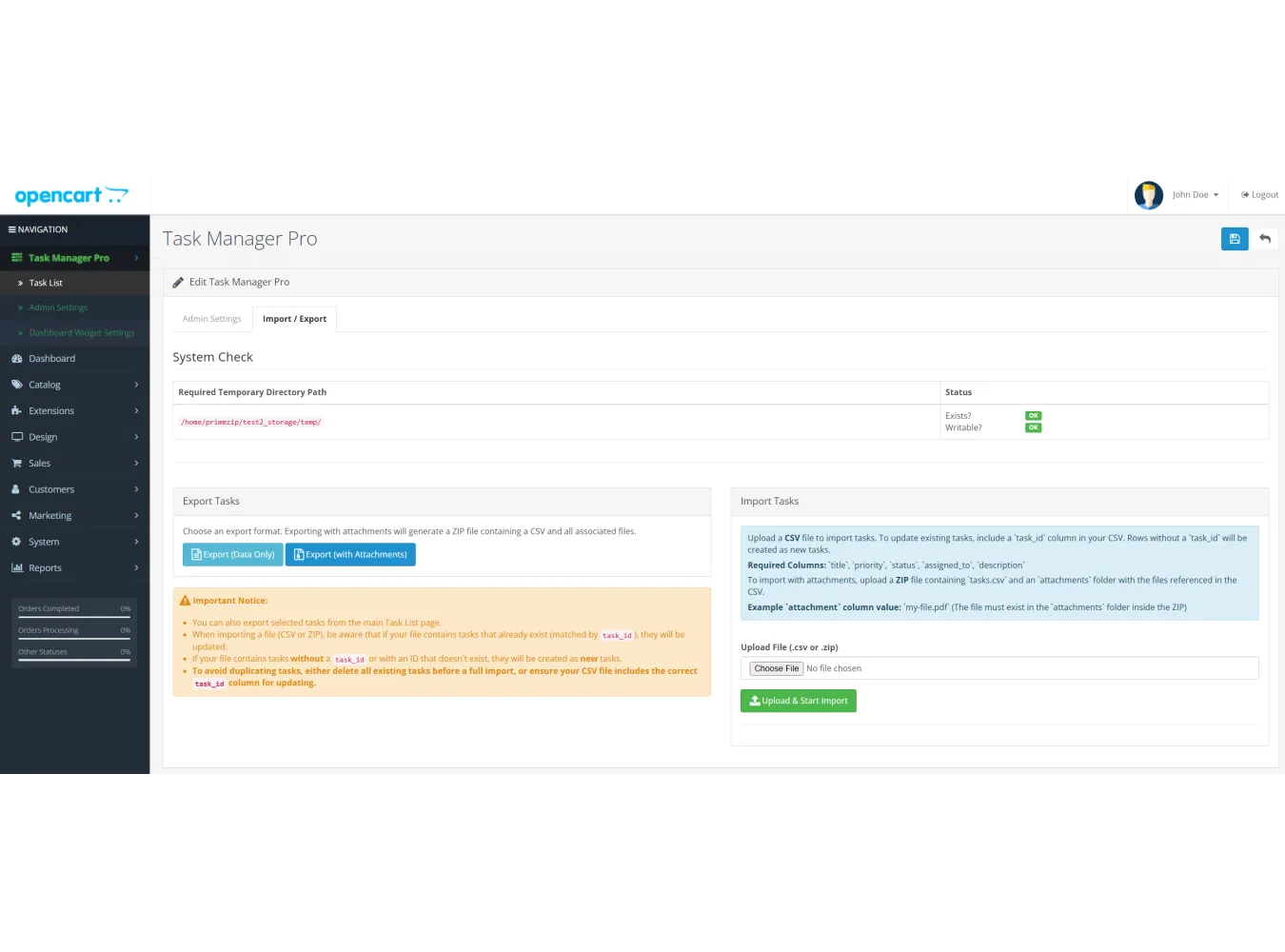
1. Extension Description
Task Manager Pro is a powerful, fully integrated
productivity tool for your OpenCart 3.X admin panel. It allows you and your
team to create, manage, and track internal tasks directly within your
e-commerce environment, eliminating the need for external to-do list
applications.
From managing daily operational duties to tracking long-term
projects, Task Manager Pro provides a centralized hub for all your
administrative tasks. With features like status tracking, document attachments,
and multi-level reminders, it is designed to streamline your workflow, improve
team collaboration, and ensure no important task is ever forgotten.
2. Key Benefits
- Centralized
Workflow: Keep all your e-commerce and administrative tasks in
one place. No more switching between your store and a separate project
management tool.
- Improved
Team Collaboration: Assign tasks by name, track progress with
clear statuses (Pending, Completed, etc), and attach relevant documents to
ensure everyone is on the same page.
- Enhanced
Accountability: With start and end dates in color, it's easy to
see deadlines and manage priorities, ensuring tasks are completed on time.
- Never
Miss a Deadline: Utilize a flexible reminder system, including Highlighting
task row and visual "glowing text" alerts, to keep critical
tasks top of mind.
- Flexible
and Secure Attachments: Attach any file type directly to a
task—from product images (JPG/PNG) to crucial business documents (PDF,
DOCX, XLSX, ZIP). Our dual-upload system allows for quick uploads from
your PC or selection from the existing OpenCart file manager.
Seamless Integration: The extension is built to work within OpenCart admin panel, ensuring smooth and intuitive user experience.
Have you used this product? Please take a moment to complete our survey.
1. Installation and Setup
- Installation:
- Navigate
to Extensions > Installer.
- Click
the Upload button and select
the task-manager-pro.ocmod.zip file.
- Once
uploaded, go to Extensions > Modifications and click the
blue Refresh button in the top right corner.
- Activation:
- Navigate
to Extensions > Extensions.
- From
the "Choose the extension type" dropdown, select Modules.
- Find
"Task Manager Pro" in the list and click the green Install [+] button.
- Find
it again and click the blue Edit [ pencil ] button.
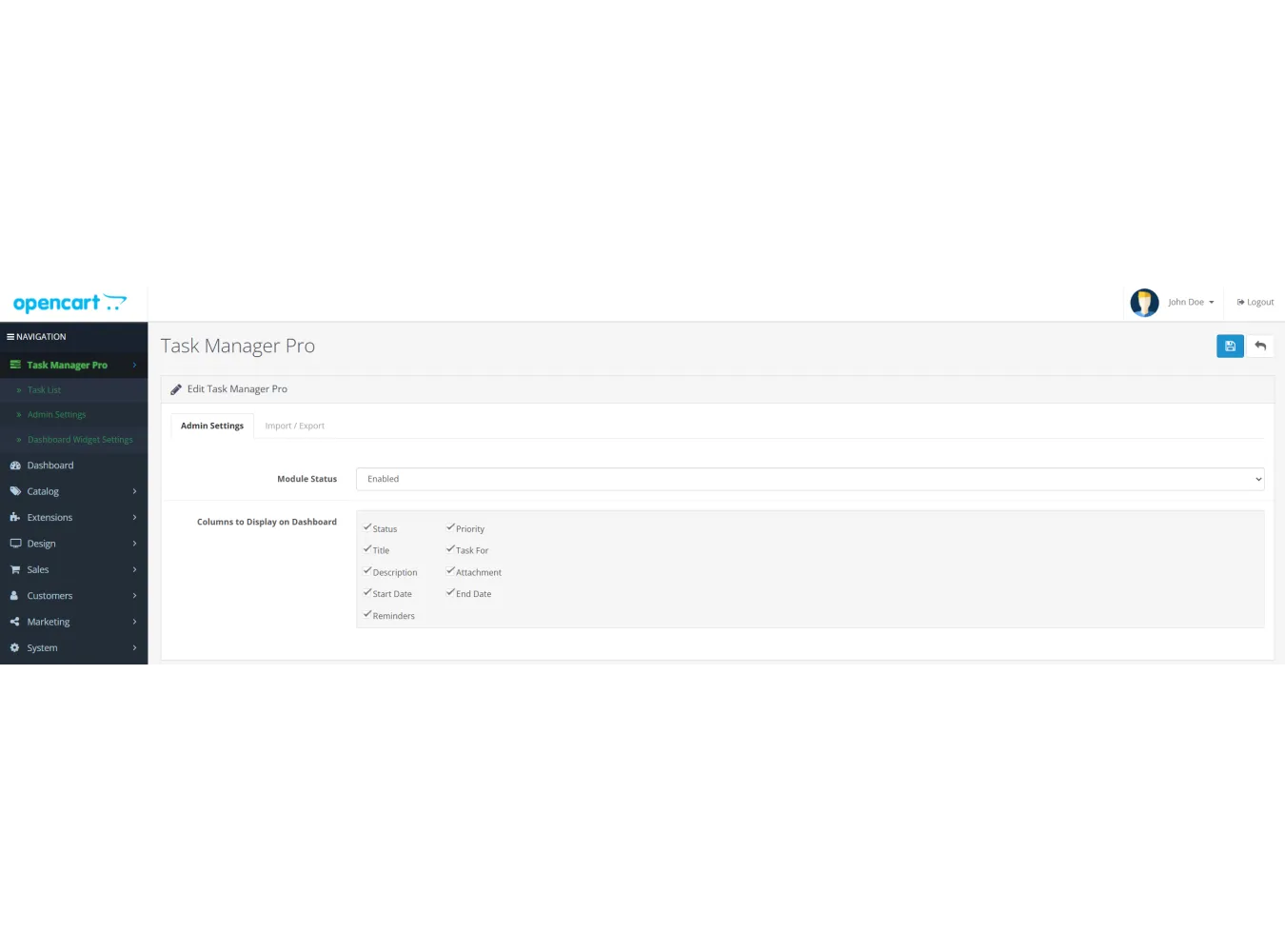
Set "Module Status" to Enabled and save.
- Dashboard
Widget Setup (Optional):
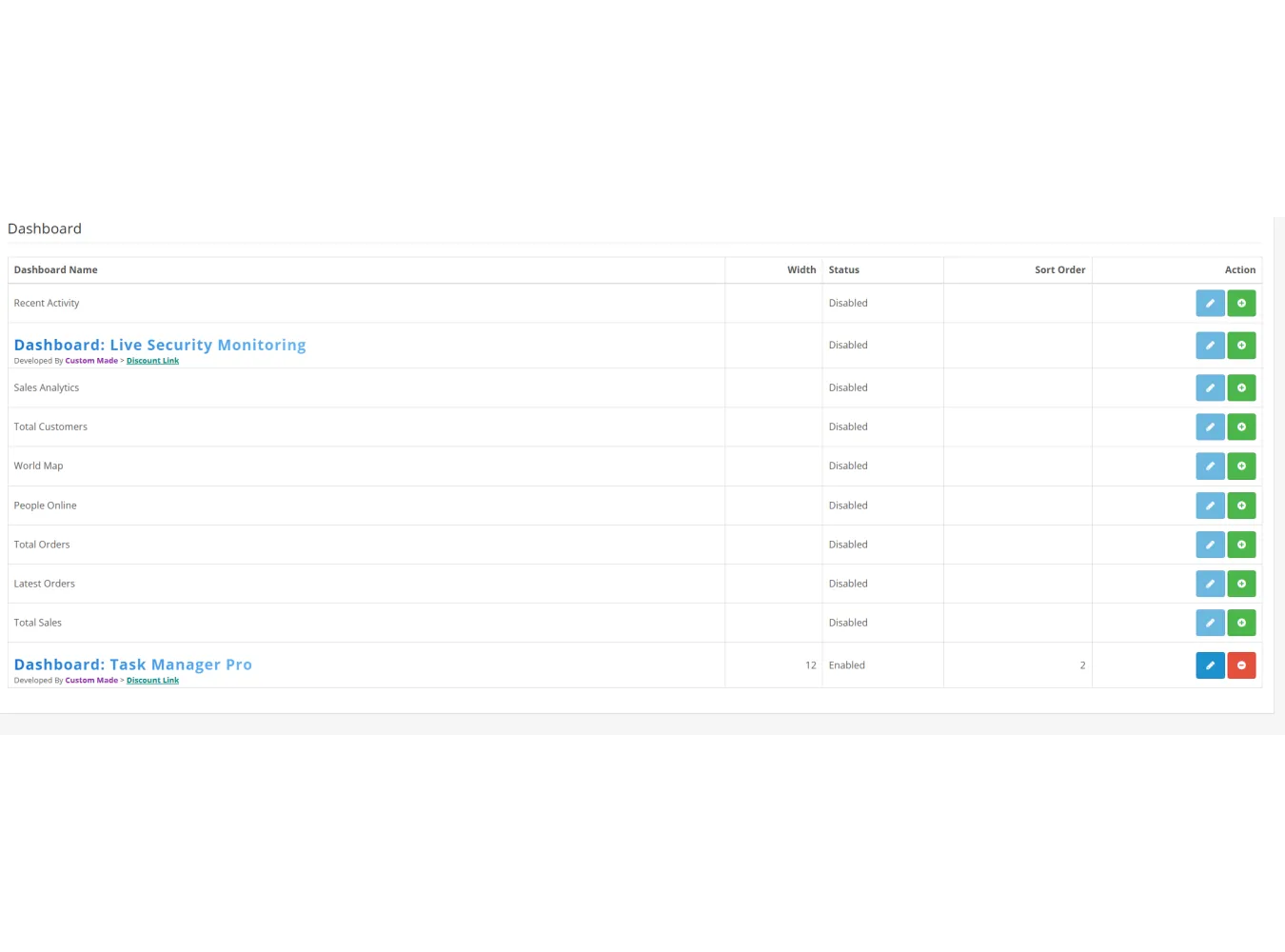
- Navigate
to Extensions > Extensions.
- From
the dropdown, select Dashboards.
- Find
"Dashboard: Task Manager Pro" and click the green Install [+] button.
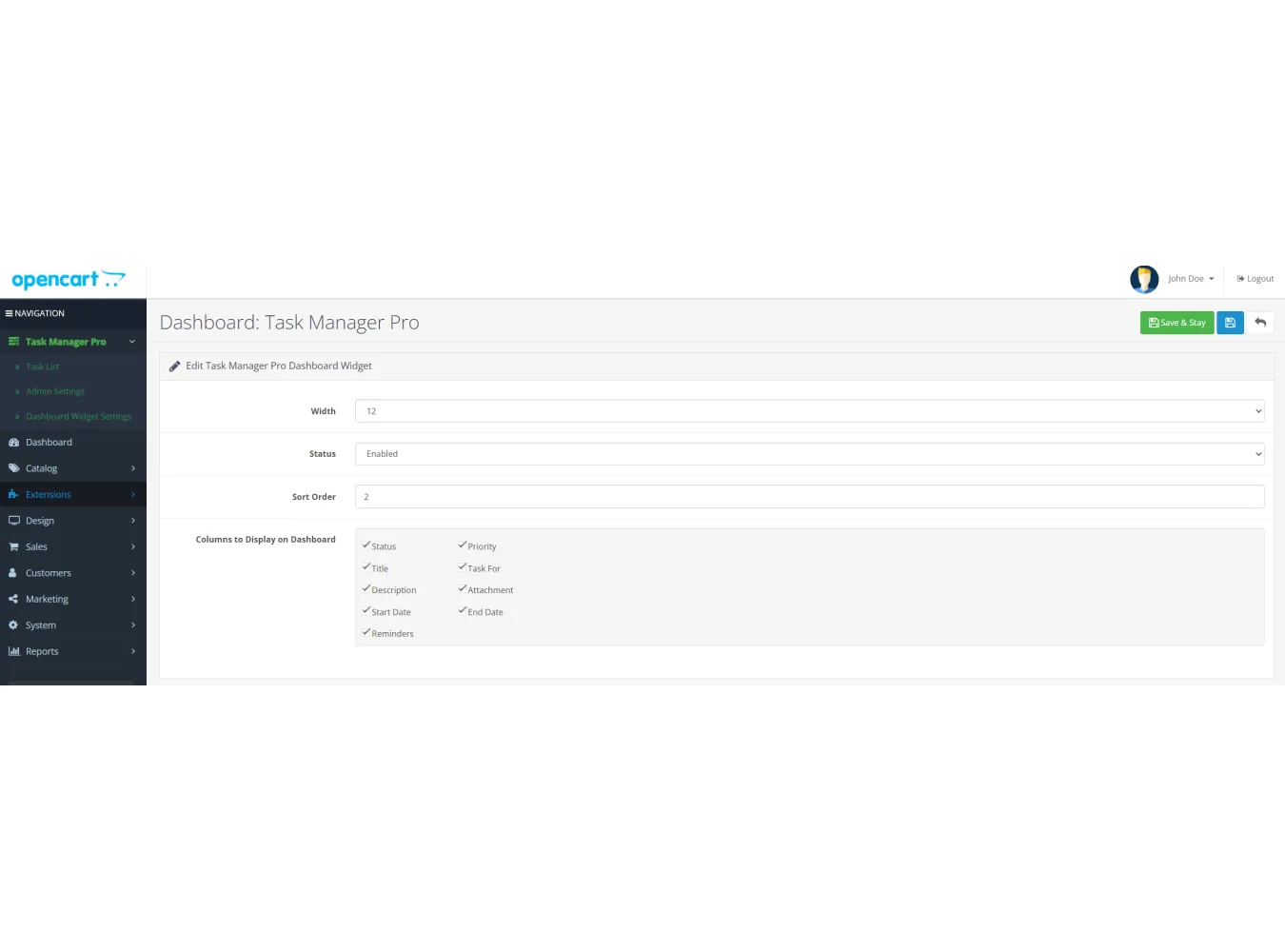
- Click the blue Edit [ pencil ] button to configure its status, width, and sort order on your main dashboard.
2. Using Task Manager Pro
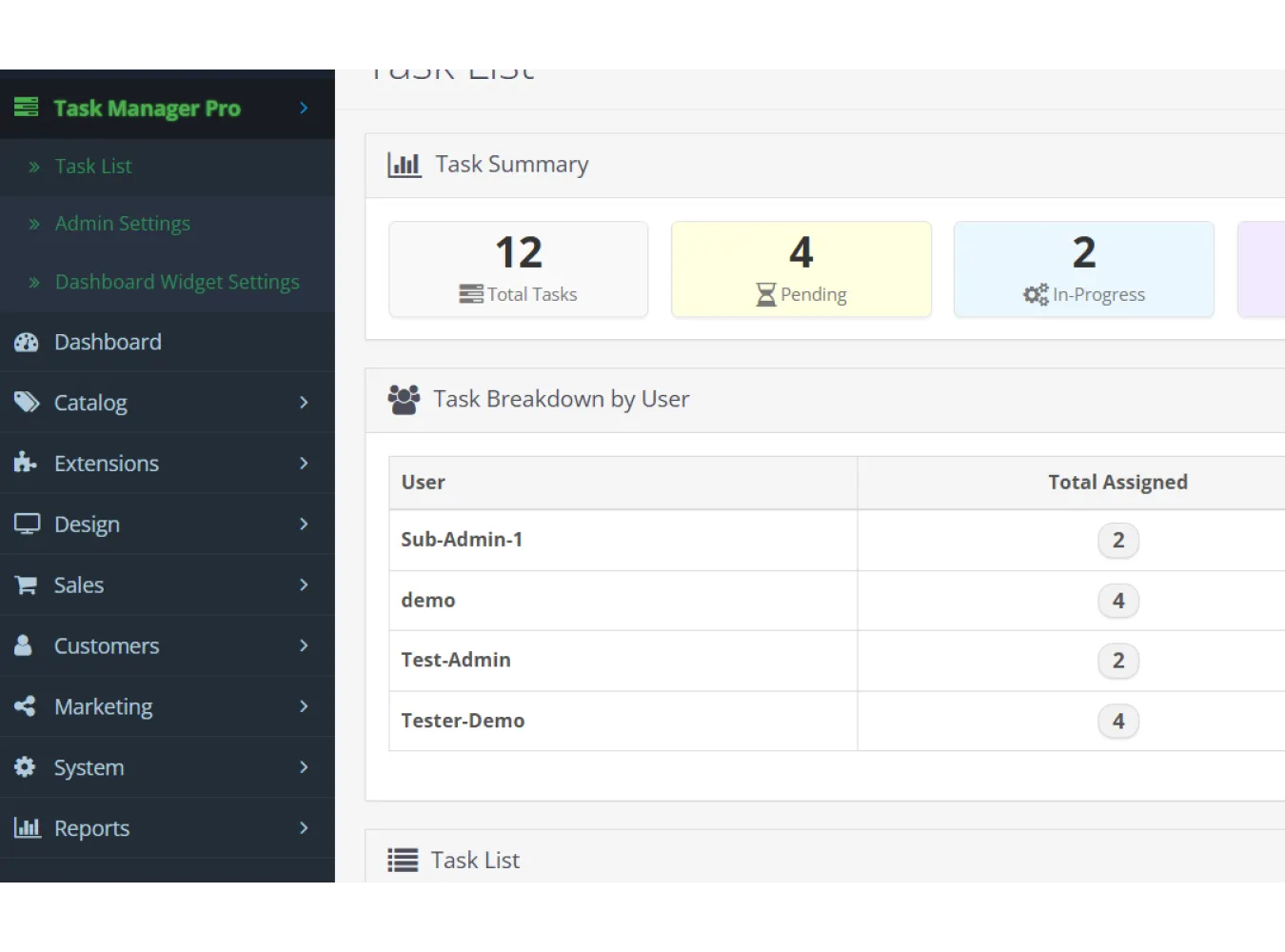
After installation, a new "Task Manager Pro" menu
will appear in your admin panel's left-hand navigation.
2.1 Creating and Editing a Task
- Navigate
to Task Manager Pro > Task List.
- Click
the blue Add New [+] button at the top right.
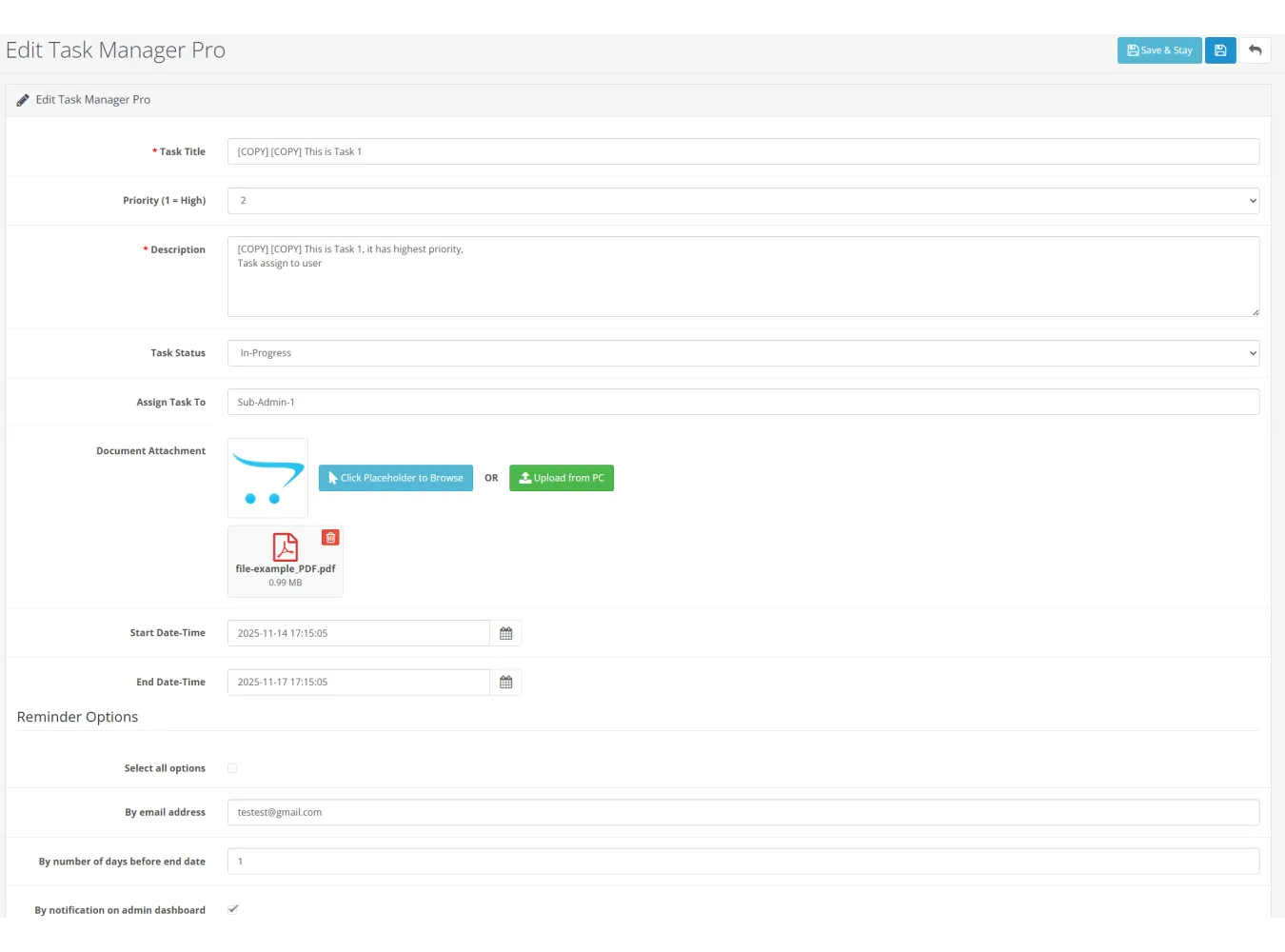
- Fill
out the Task Form:
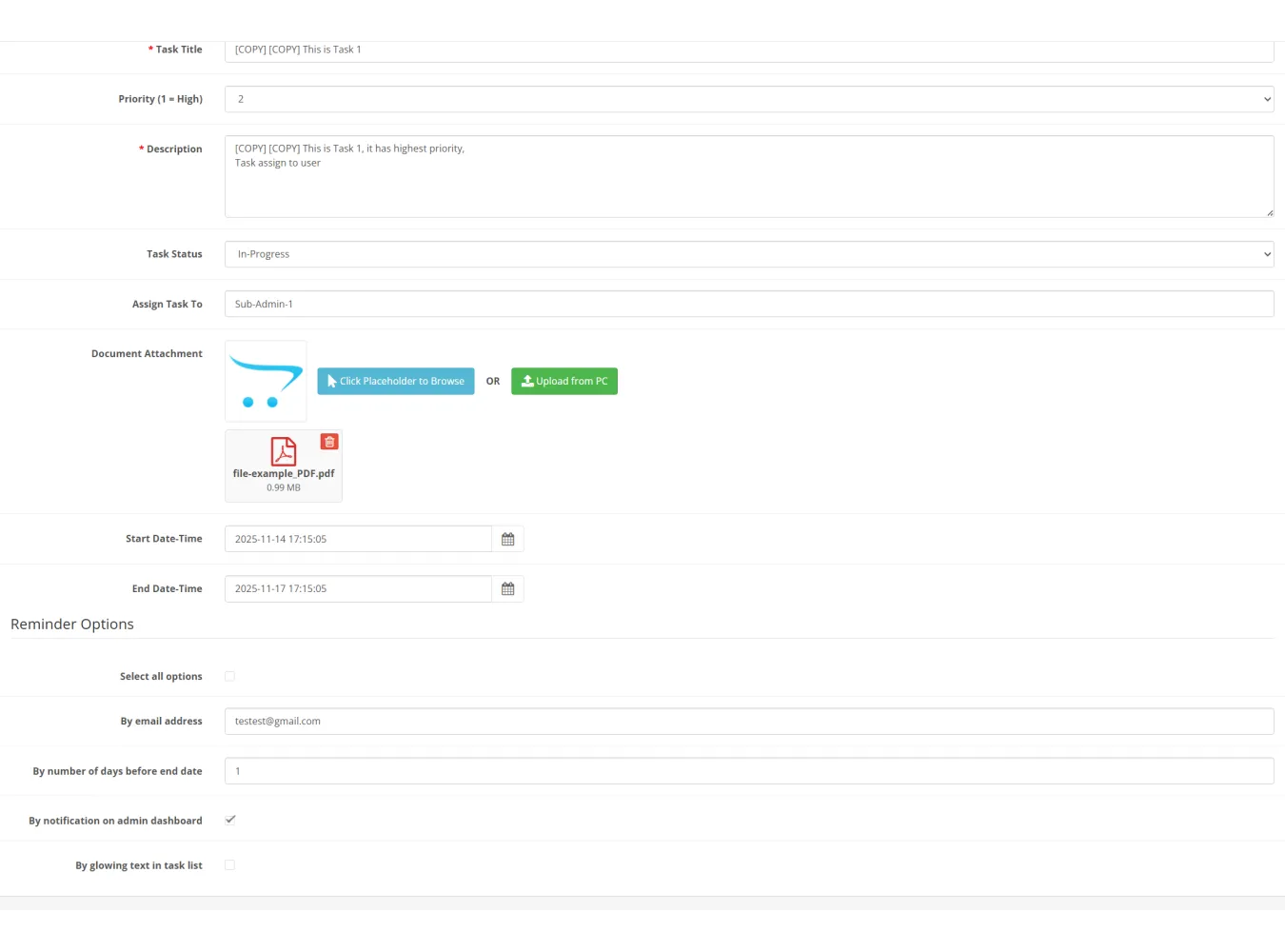
- Description: Enter
the details of the task. This field supports up to 5000 characters.
- Task
Status: Choose the current status (e.g., Pending, In-Progress).
- Document
Attachment:
- Option
A (OpenCart Browser): Click the image preview thumbnail to open
the standard OpenCart File Manager. You can select an existing file or
upload a new one (only JPG/PNG and other types you have allowed in your
store settings).
- Option
B (Direct Upload): Click the green "Upload from
PC" button to open your computer's file dialog. You can
select any file type (PDF, DOCX, ZIP, etc.) for a quick
and direct upload. *(not allow the file types
have preview/view)
- Start/End
Date-Time: Click the input field to open a calendar and select a
start and end date/time for the task.
- Reminder
Options:
- By
email: Enter an email address to be used for future email
reminder scripts (cron job required).
- By
number of days before: Enter a number (e.g., 3) to specify
when the email reminder should be sent.
- By
notification on admin dashboard: Check this box if you want
this task to appear in the dashboard widget.
- By
glowing text: Check this box to make the task's description
glow red in the main task list, highlighting its importance.
- Saving:
- Click Save to
save the task and return to the task list.
- Click Stay
& Save to save the task and remain on the edit page.
2.2 Managing Tasks in the Task List
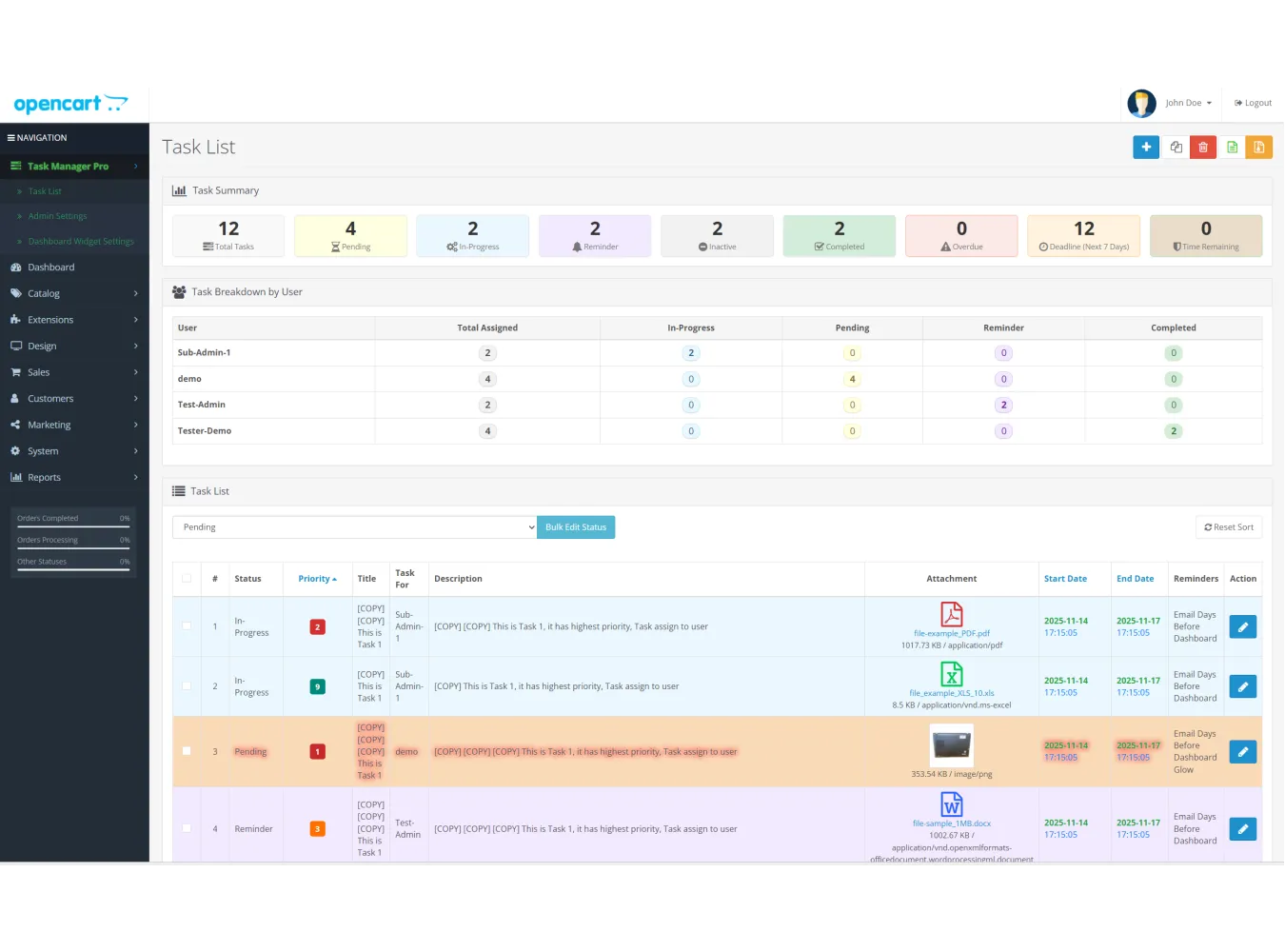
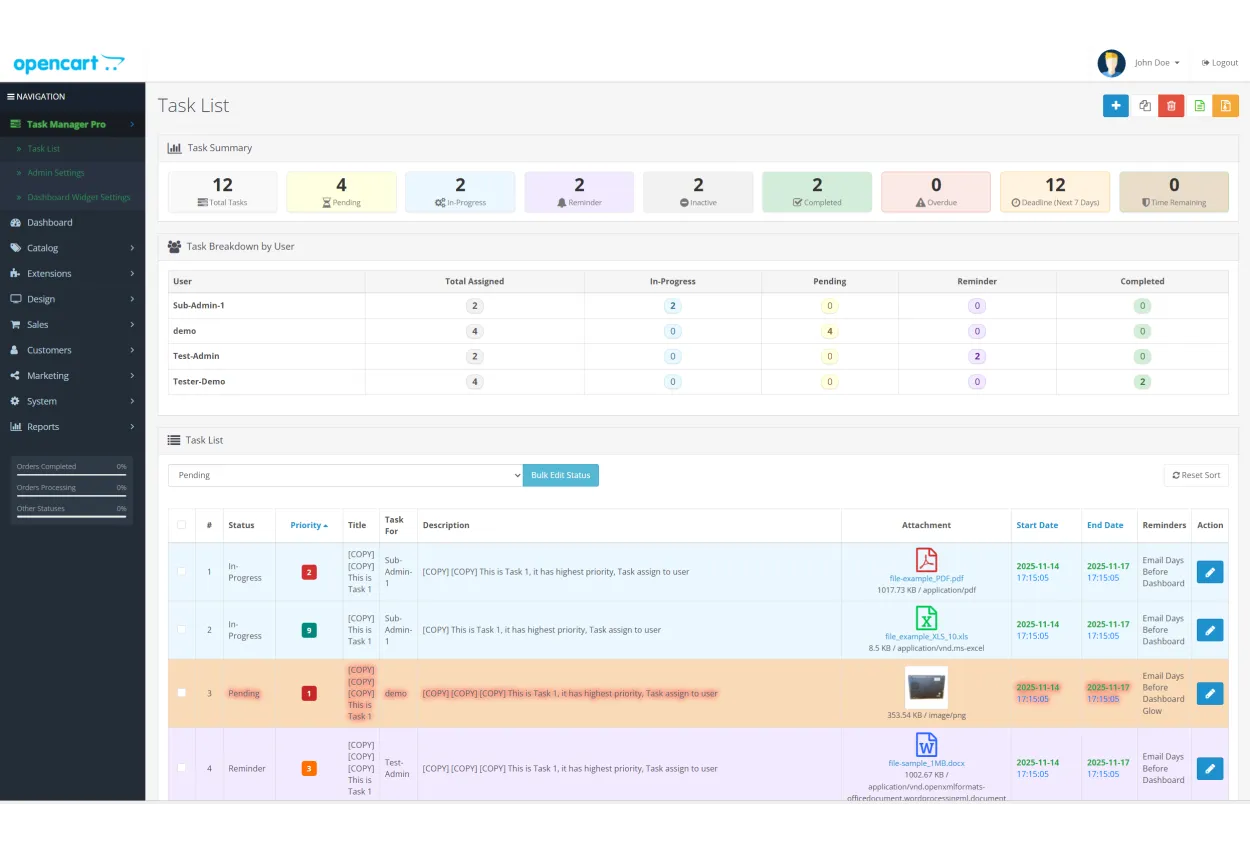
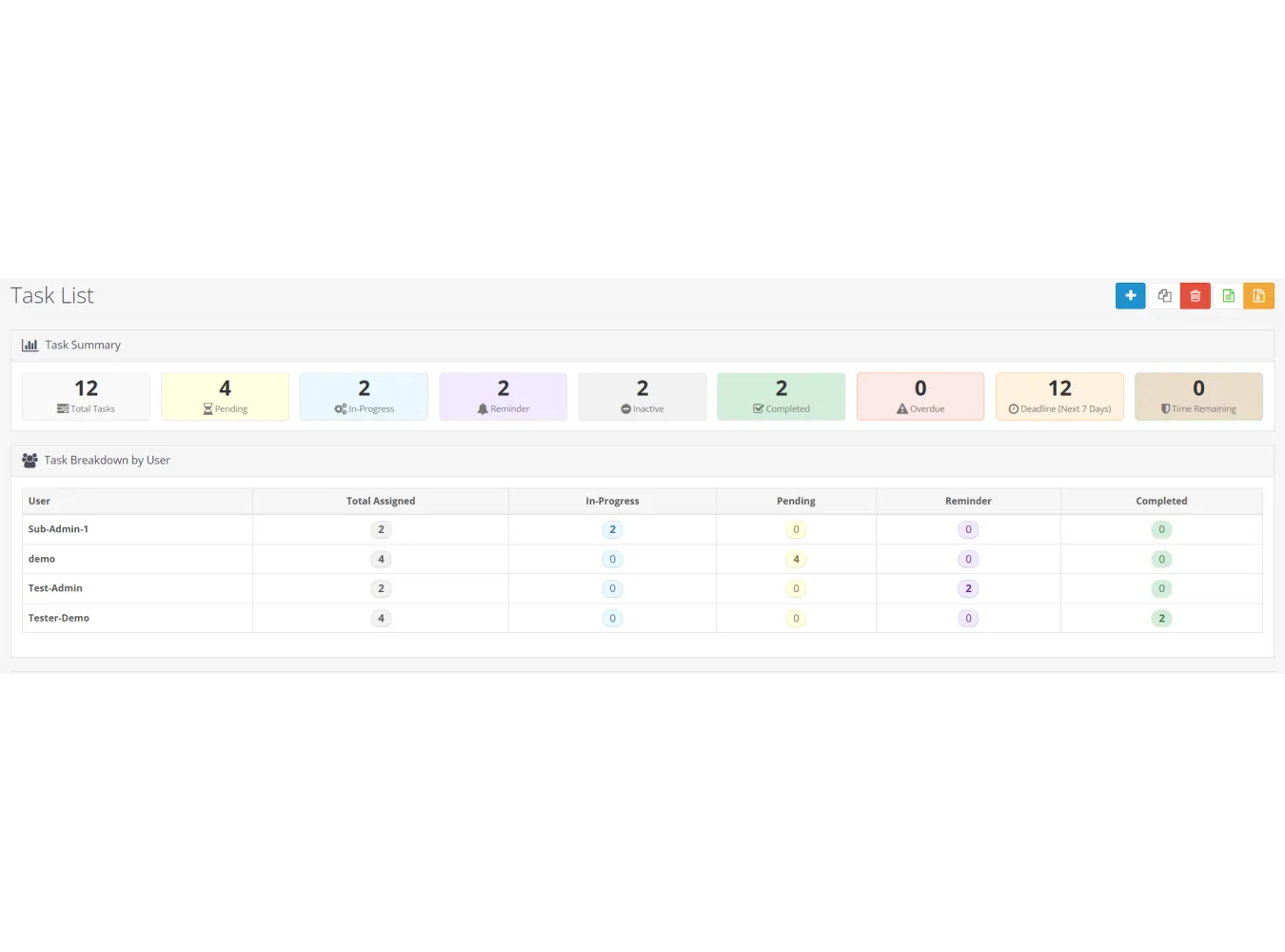
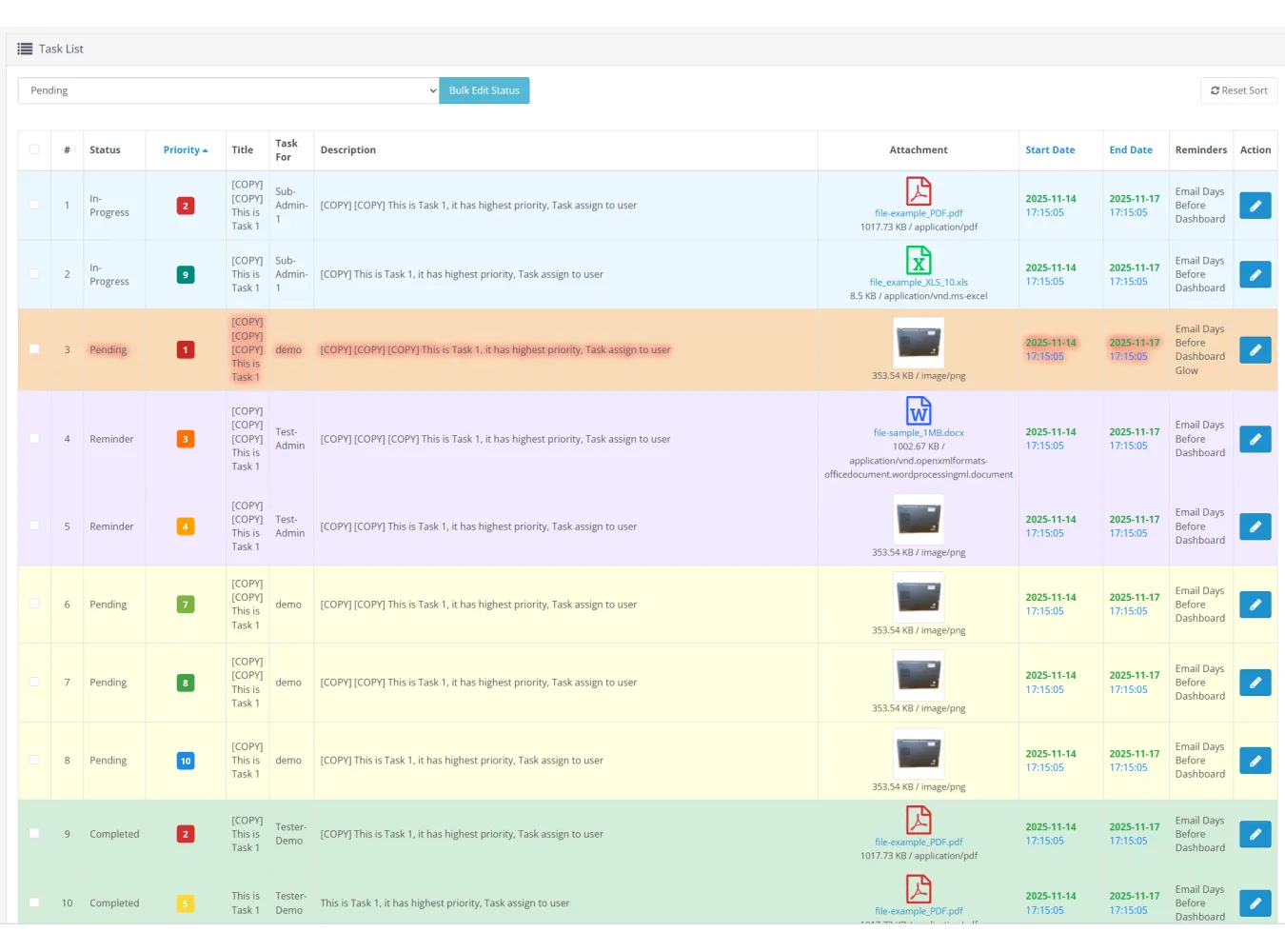
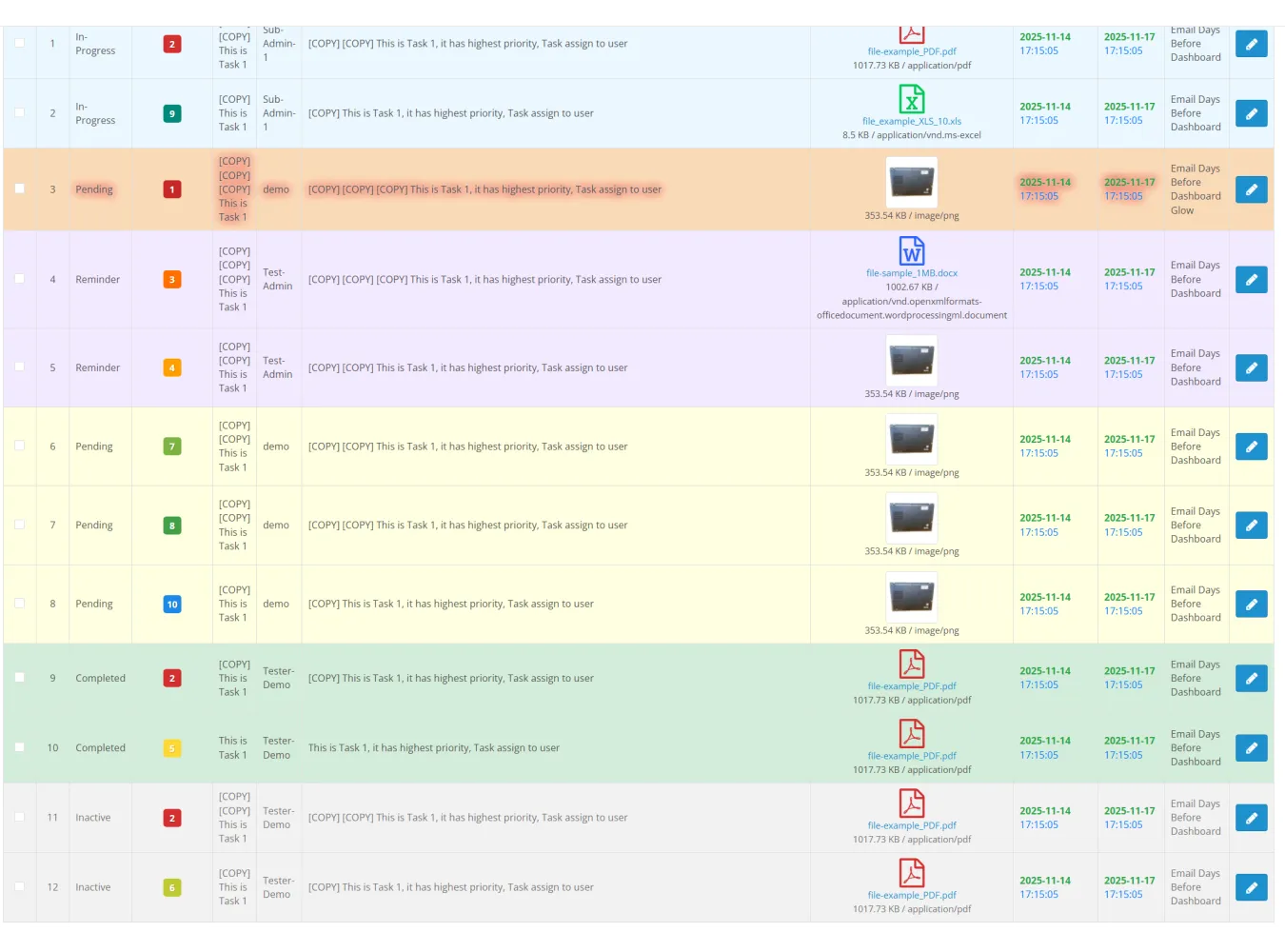
The Task List page (Task Manager Pro > Task List) is your
central hub for viewing all tasks.
- Colored
Dates: Start and End dates are color-coded for easy readability
(Date in green, Time in blue).
- File
Attachments:
- Image
files show a thumbnail preview.
- Document
files (PDF, ZIP, etc.) show a file-specific icon and the clean, original
filename.
- Clicking
any attachment opens it in a new browser tab. *(not
allow the file types have preview/view)
- Truncated
Descriptions: Long descriptions are neatly trimmed to 1.5 lines.
To see the more text, simply hover your mouse over the description OR go
to the edit page to see full details.
2.3 Bulk Actions
You can manage multiple tasks at once for maximum
efficiency.
- Select
Tasks: Use the checkboxes on the left side of the task list to
select one or more tasks.
- Perform
an Action:
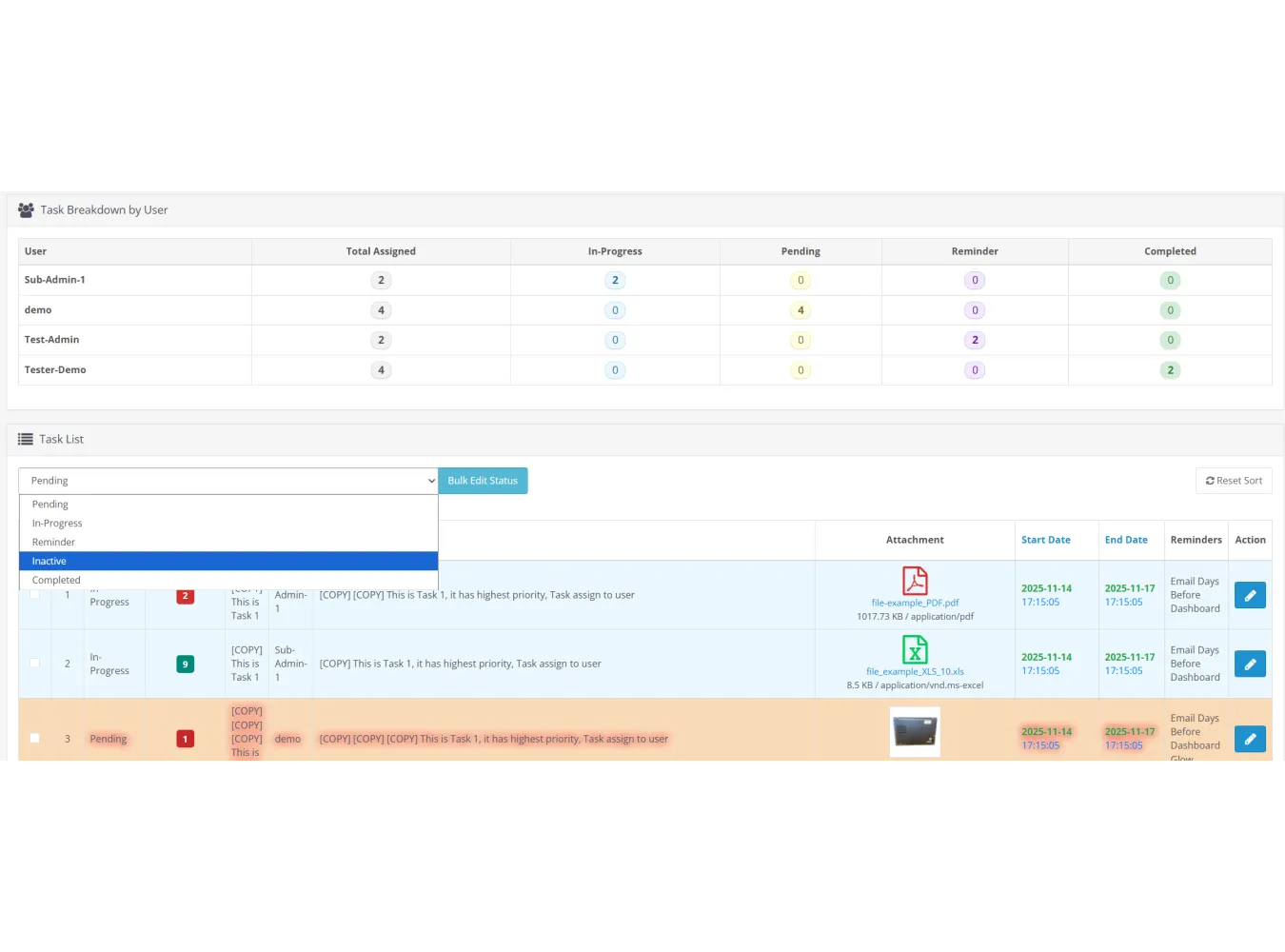
- Bulk
Edit Status: Choose a new status from the dropdown menu at the
top of the list and click the "Bulk Edit Status" button. A
confirmation dialog will appear.
- Copy/Clone
Tasks: Click the Copy/Clone [ copy icon
] button at the top right. A confirmation dialog will appear. This
creates duplicates of the selected tasks, prepended with [COPY].
- Delete
Tasks: Click the red Delete [ trash bin
] button at the top right. A confirmation dialog will appear.
A warning message will appear if you try to perform a Bulk OR
Copy/Clone action without selecting any tasks first.
Task Manager Pro v4.1
Related Products

Advanced Grid Banner
Extension Description Elevate your store's visual appeal with the Advanced Banner Grid module for Op..
SGD$0.00

Dashboard Tasks To-Do List
Description Stay organized and boost your productivity with the Dashboard Tasks To-Do List, a simple..
SGD$0.00

Grid Banner Pro v3.7
Grid Banner Pro Version 3.7 The Ultimate Visual Layout Builder for OpenCart 3.x.x.x Stop settling fo..
SGD$55.00

Power File Manager v3.4
Normal 0 false false false EN-US JA X-NONE Description Power File Manager is the professional-grade ..
SGD$60.00

Extra Product and Video Tabs with Admin Memo
Normal 0 false false false EN-US JA X-NONE Extra Product and Video Tabs with Admin Memo This extensi..
SGD$45.00
FlexiDoc Document Manager
Extension Description FlexiDocs is a comprehensive, professional-grade document management system bu..
SGD$70.00 SGD$80.00
Product Badge Manager
Description Product Badge Manager is a comprehensive OpenCart 3.x admin extension designed to boost ..
SGD$70.00 SGD$80.00