

Extension Description
FlexiDocs is a comprehensive, professional-grade document management system built directly into your OpenCart admin panel. It transforms your e-commerce platform into a powerful, centralized hub for securely storing, managing, and distributing files.
Unlike standard file managers, FlexiDocs supports **Multi-File Attachments**, meaning you can attach multiple files (PDFs, Images, Code, Zips) to a single Document record (e.g., a "Product Kit" containing a Manual, a Driver, and a Warranty PDF). It features granular access controls, download tracking, document expiry, and bulk import/export capabilities.
Key Benefits
* **Multi-File Support:** Attach multiple files to a single document entry. Customers can download individual files or "Download All" as a generated ZIP package.
* **Bulk Import & Export:** Easily migrate data or backup your documents using CSV or ZIP (CSV + Attachments) import/export tools.
* **Centralized Hub:** Keep business documents (PDF, DOCX, XLSX, ZIP, Code files) organized within OpenCart.
* **Granular Security:** Control access by Admin Group, Customer Group, or even **Specific Individual Customers**.
* **Professional Sharing:** Generate secure, unique sharing links. Code files (JSON, PHP, TXT) can be previewed directly in the browser.
* **Usage Insights:** Track download counts for every document to gauge popularity.
* **Automated Expiry:** Set expiry dates for time-sensitive documents (promotions, limited-time offers).
* **Server File Integration:** Upload files from your computer OR select existing files already on your server.
User Manual
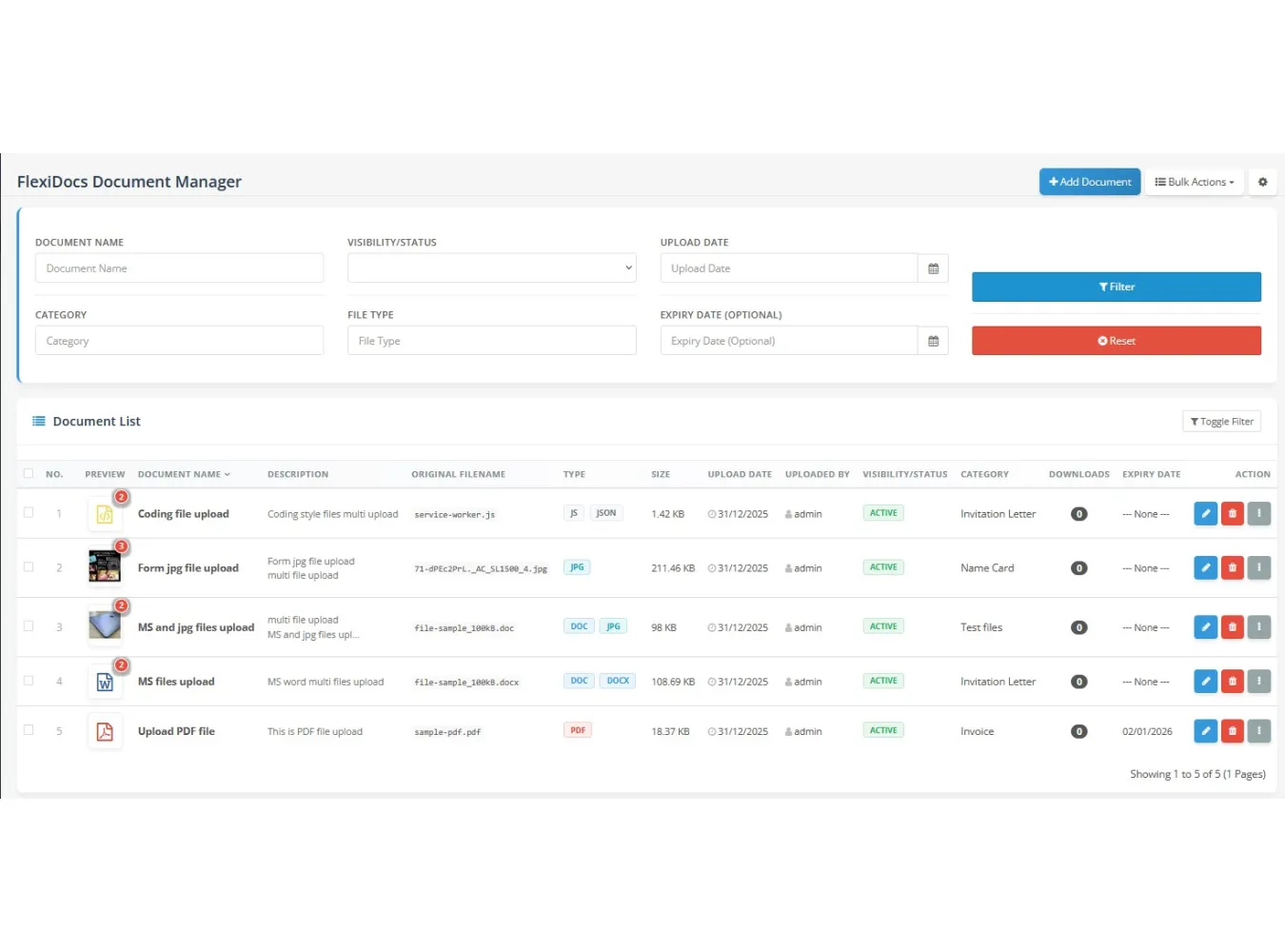
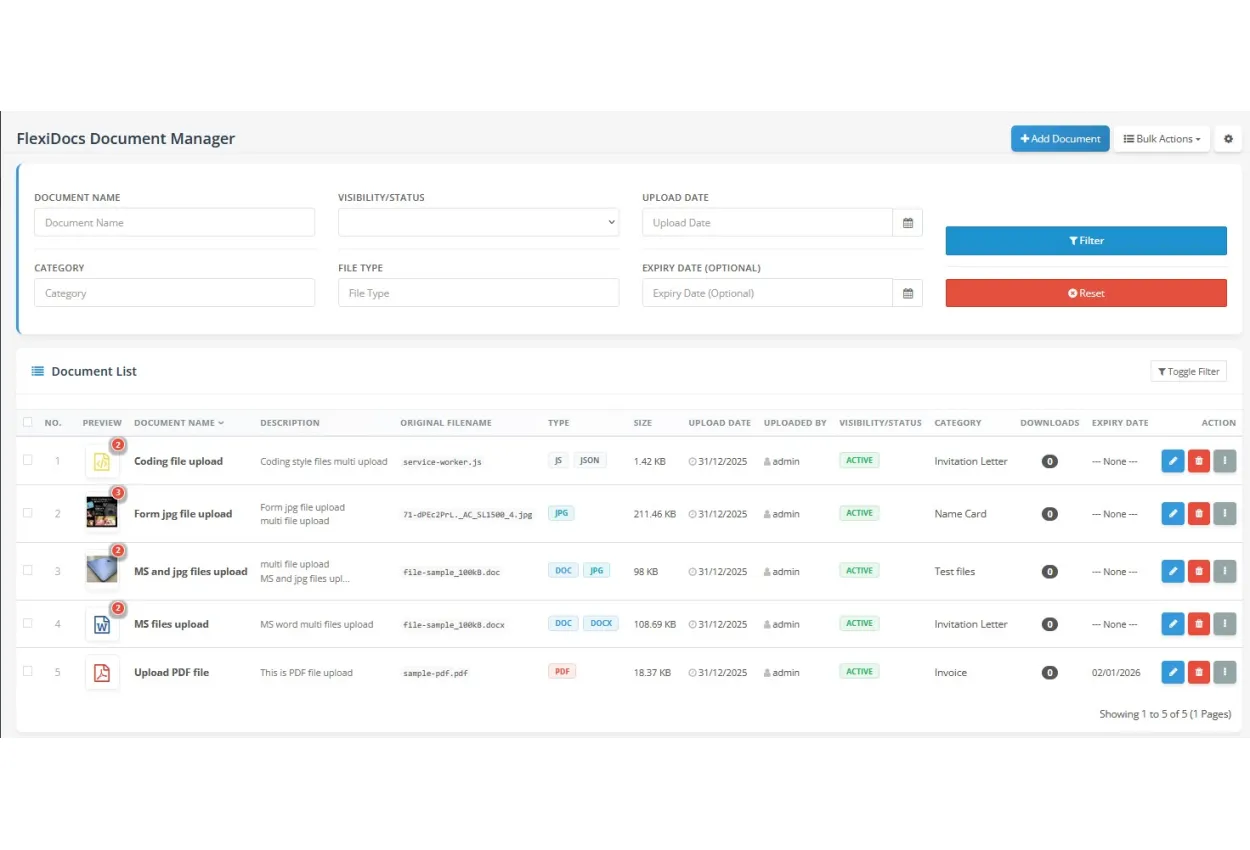
This is the main dashboard.
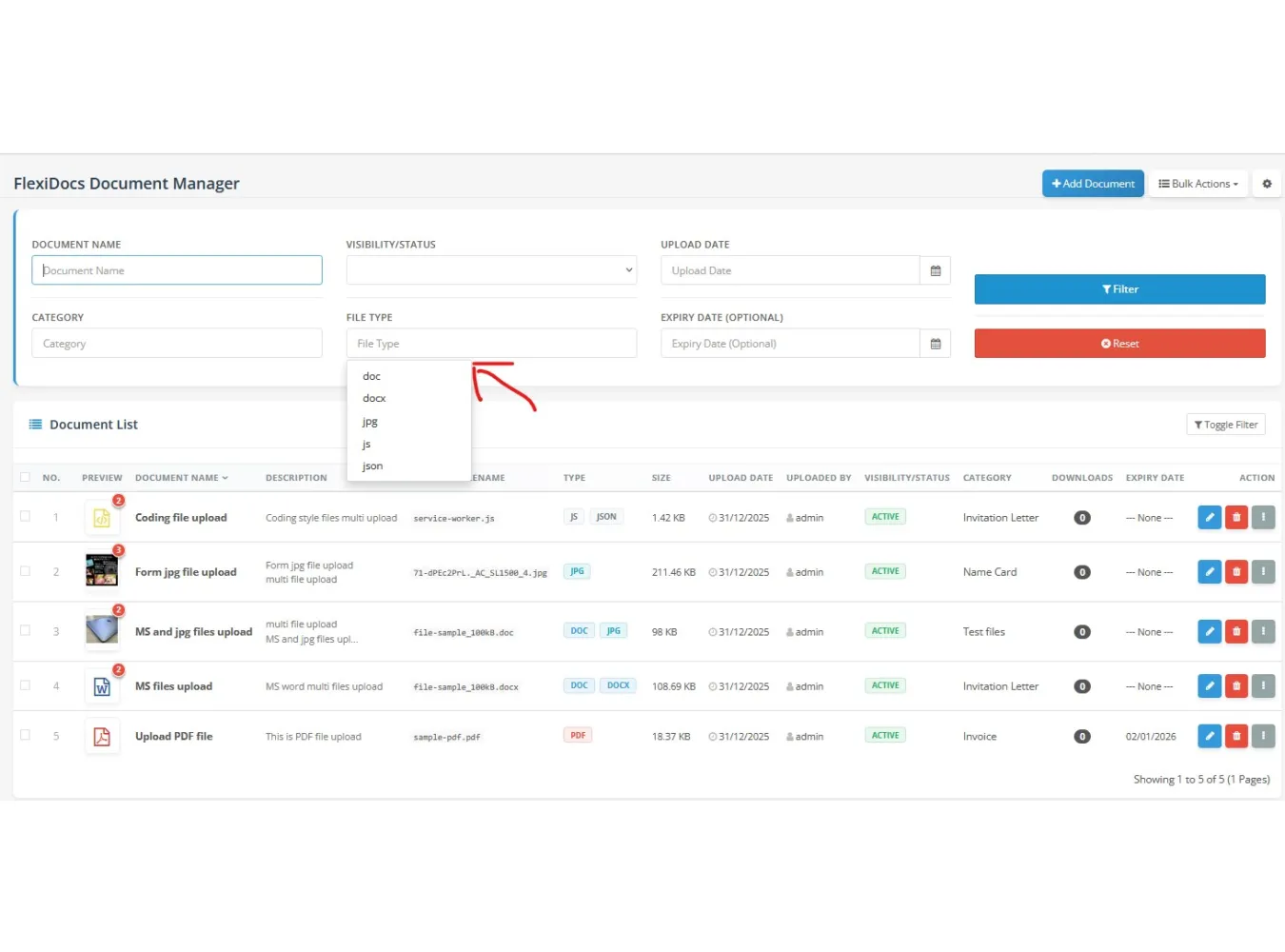
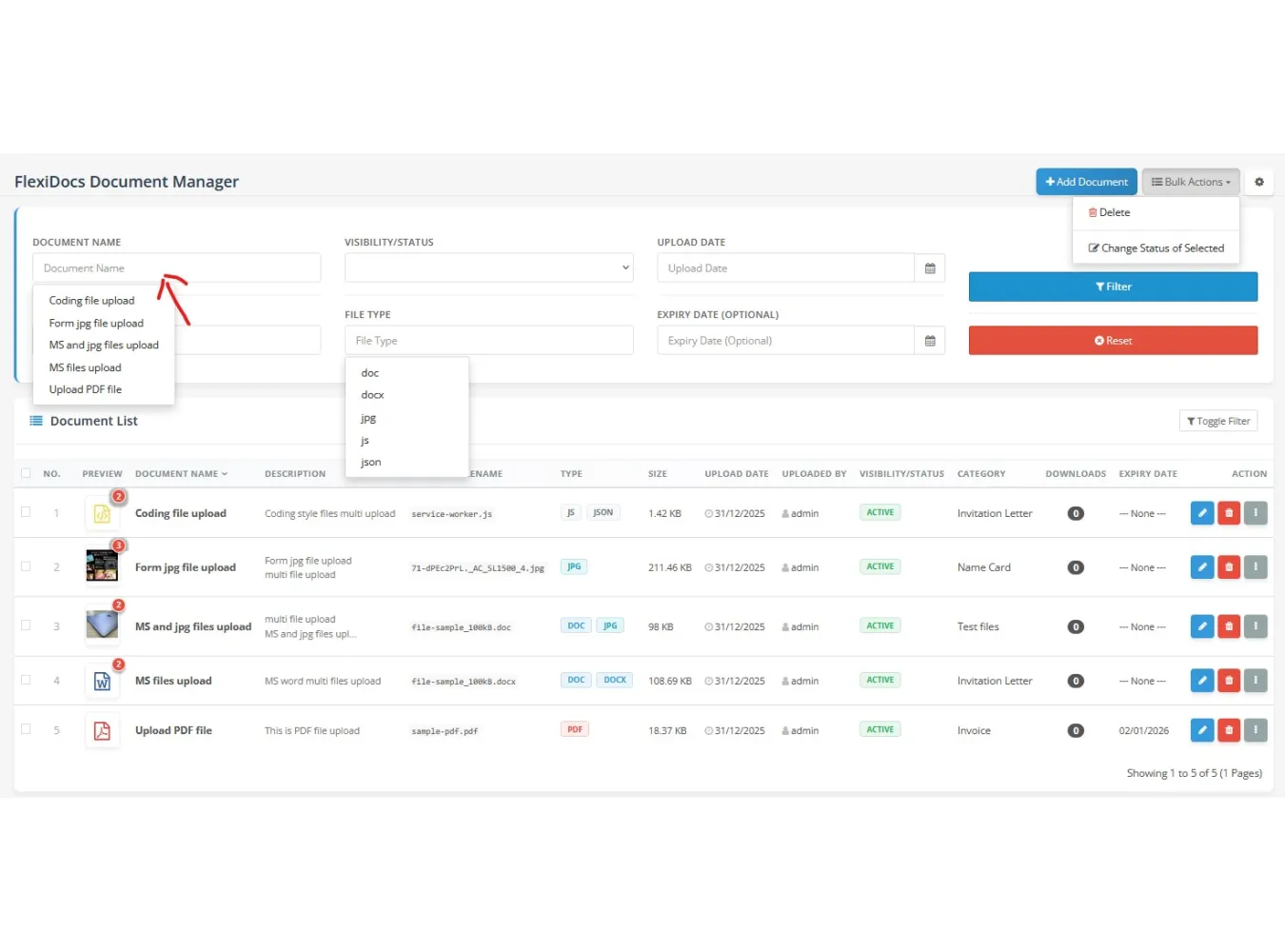
* **Filtering:** Use the top bar to filter by Name, Category, Status, File Type (e.g., PDF, ZIP), Upload Date, or Expiry.
* **Columns:**
* **Preview:** Shows a thumbnail for images or file-type icons. If multiple files are attached, it shows the count (e.g., "+3").
* **File Type:** Displays badges for all attached file types (JPG, PDF, JSON, etc.).
* **Downloads:** Total download count.
* **Visibility:** Only `Active` documents are accessible via public links.
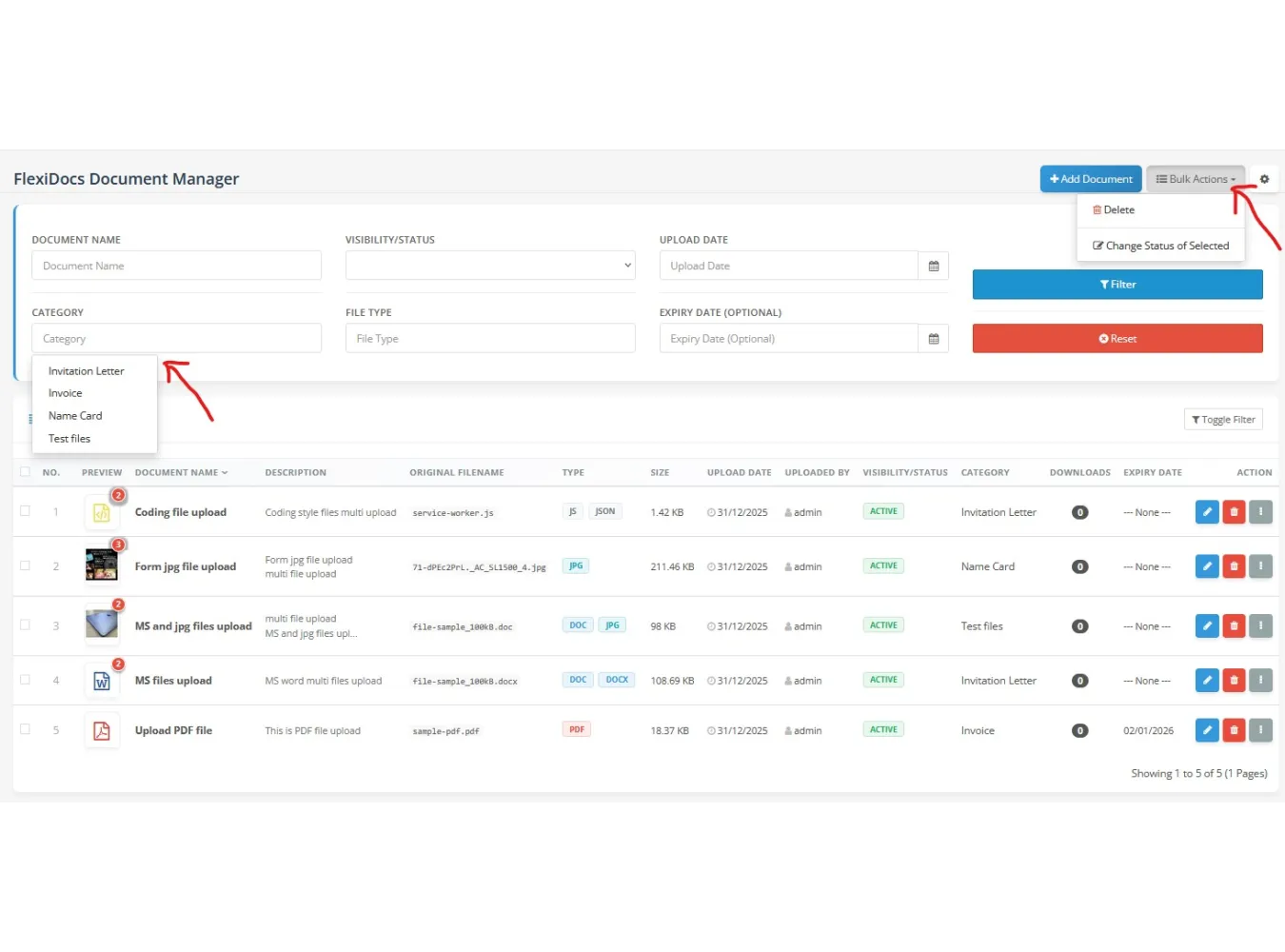
* **Bulk Actions:** Select multiple rows to **Delete** or **Update Status** (Active/Inactive) in bulk.
Adding / Editing a Document
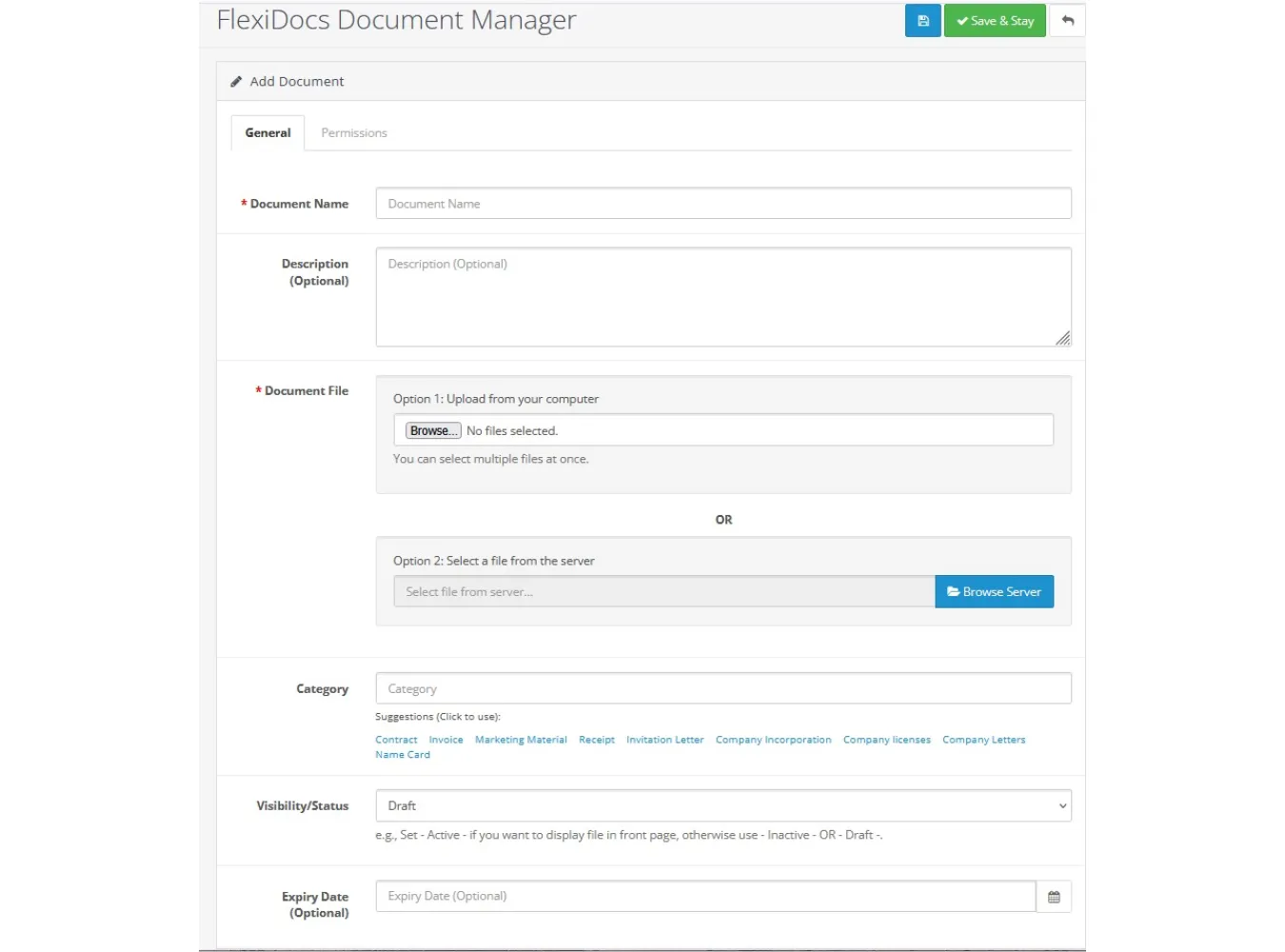
**Tab 1: General**
* **Document Name:** The title displayed to users.
* **Description:** Internal notes or public description.
* **Document File(s):**
* **Option 1 (Upload):** Click "Upload" to select one or **multiple** files from your computer.
* **Option 2 (Server):** Click "Browse Server" to select a file already existing in your OpenCart image directory.
* *Note:* You can mix and match. Uploading new files adds them to the existing list.
* **Category:** Type a category name (Auto-suggests existing categories).
* **Visibility Status:** `Active` (Public/Shared), `Inactive` (Admin only), `Draft`.
* **Expiry Date:** (Optional) The document becomes inaccessible after this date.
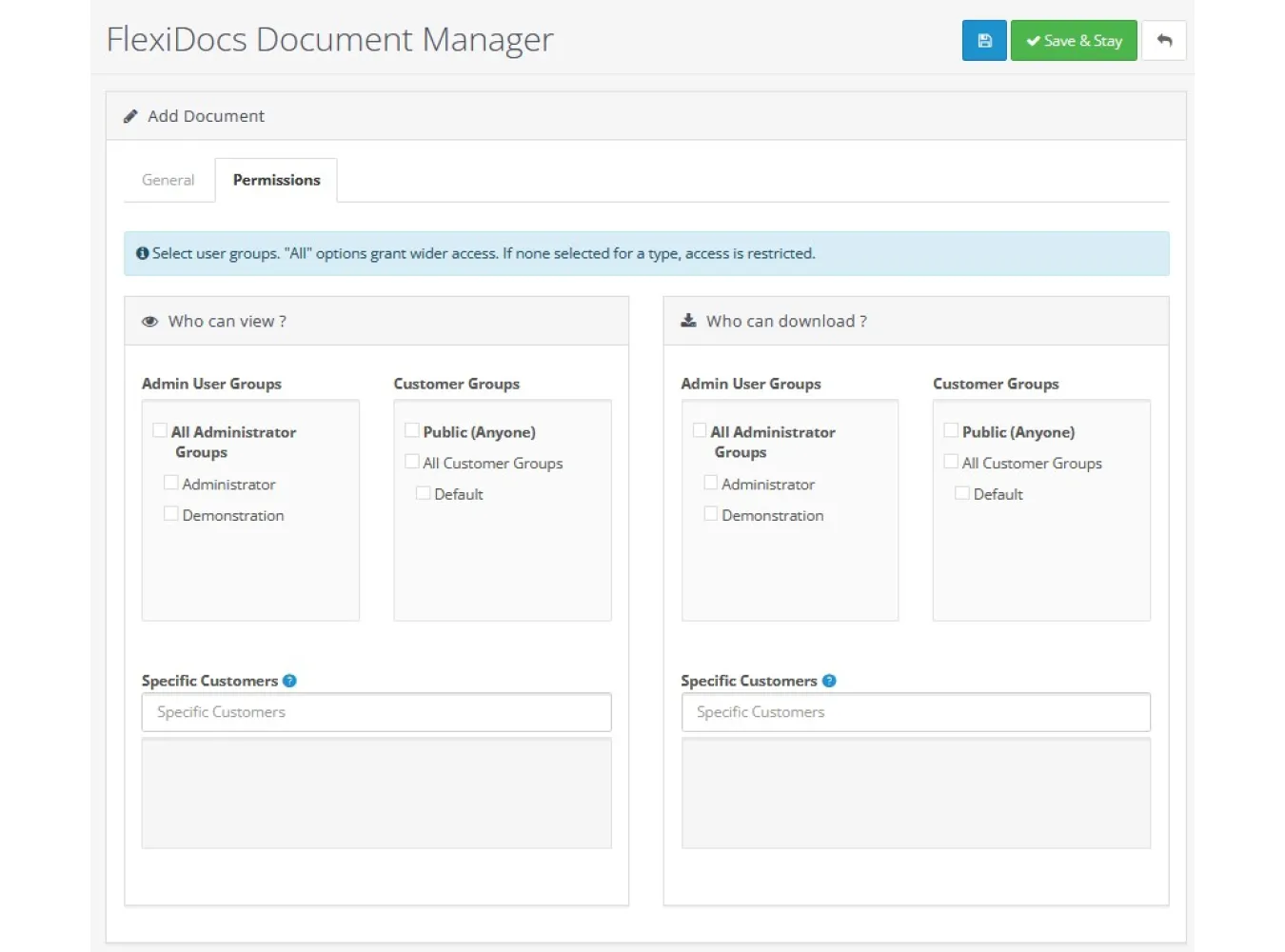
**Tab 2: Permissions**
* **Who Can View:** Controls who can see the preview page.
* **Who Can Download:** Controls who can click the download button.
* *Groups:* Select Admin or Customer groups (e.g., "Wholesale").
* *Specific Customers:* Search and select specific individual customers to grant exclusive access.
Preview & Sharing
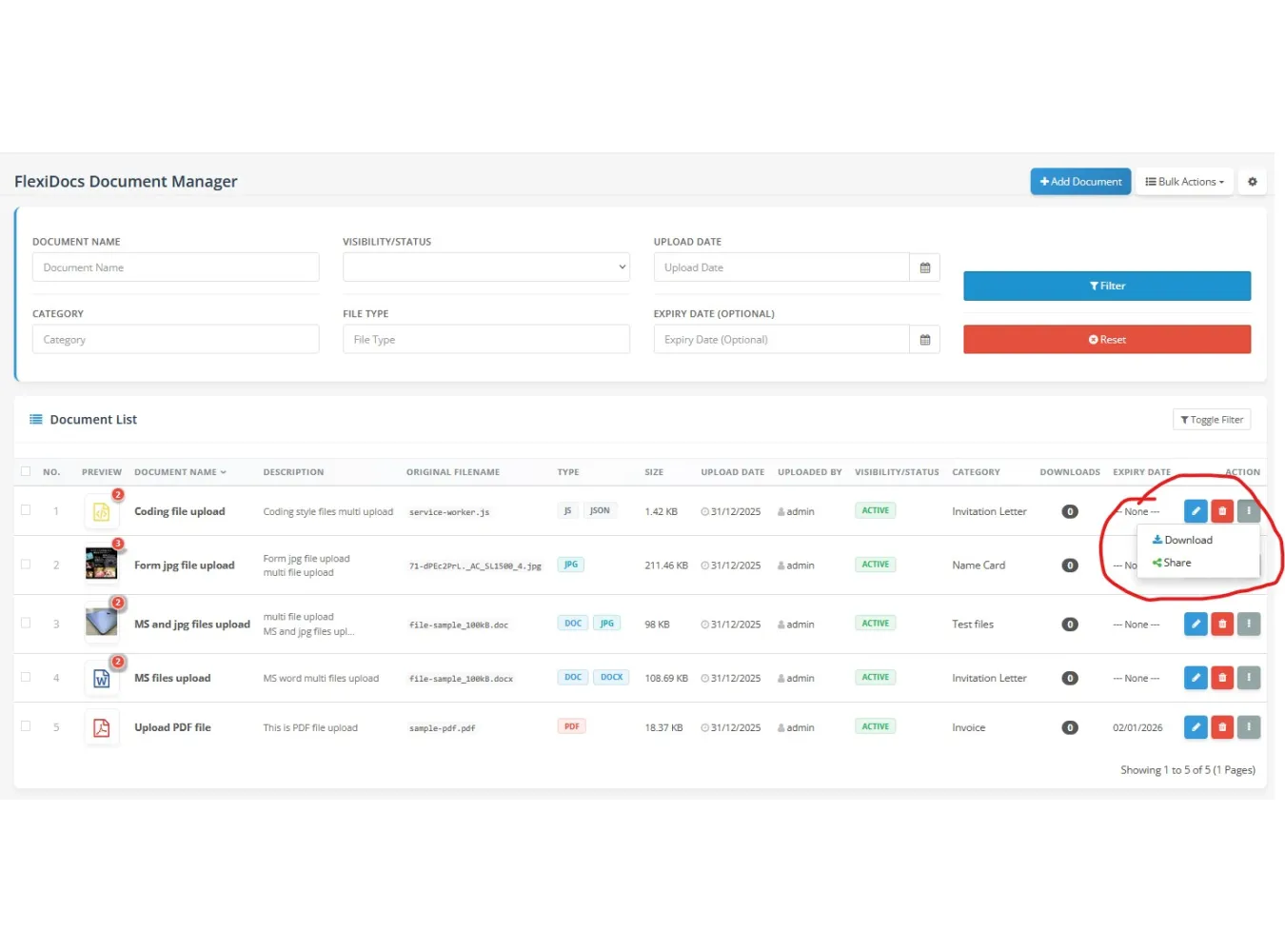
* **Share Link:** Inside the "Edit" screen or via the List view dropdown, click "Get Share Link". This generates a secure public URL.
* **Preview Mode:**
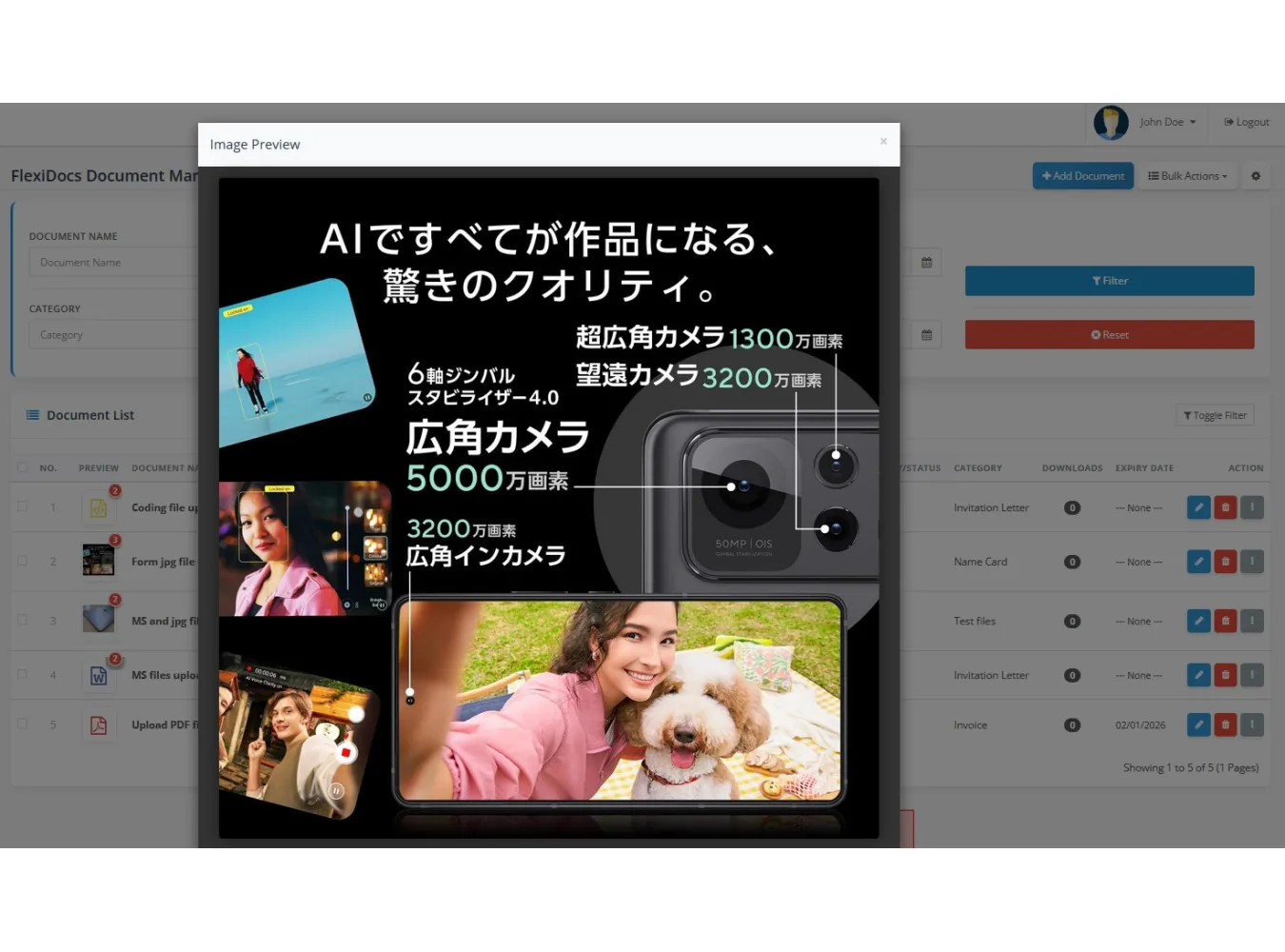
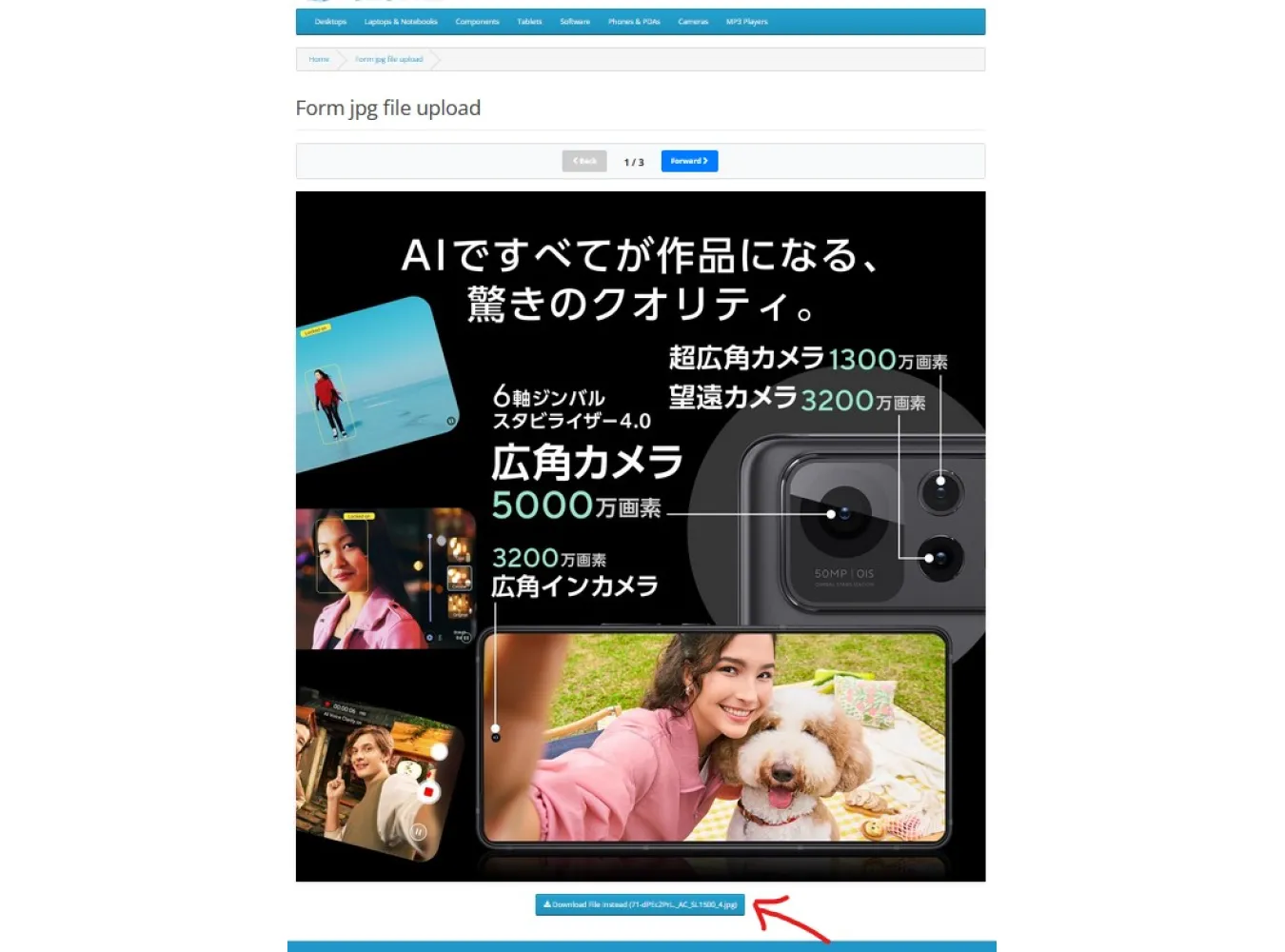
* **Images:** Displayed inline.
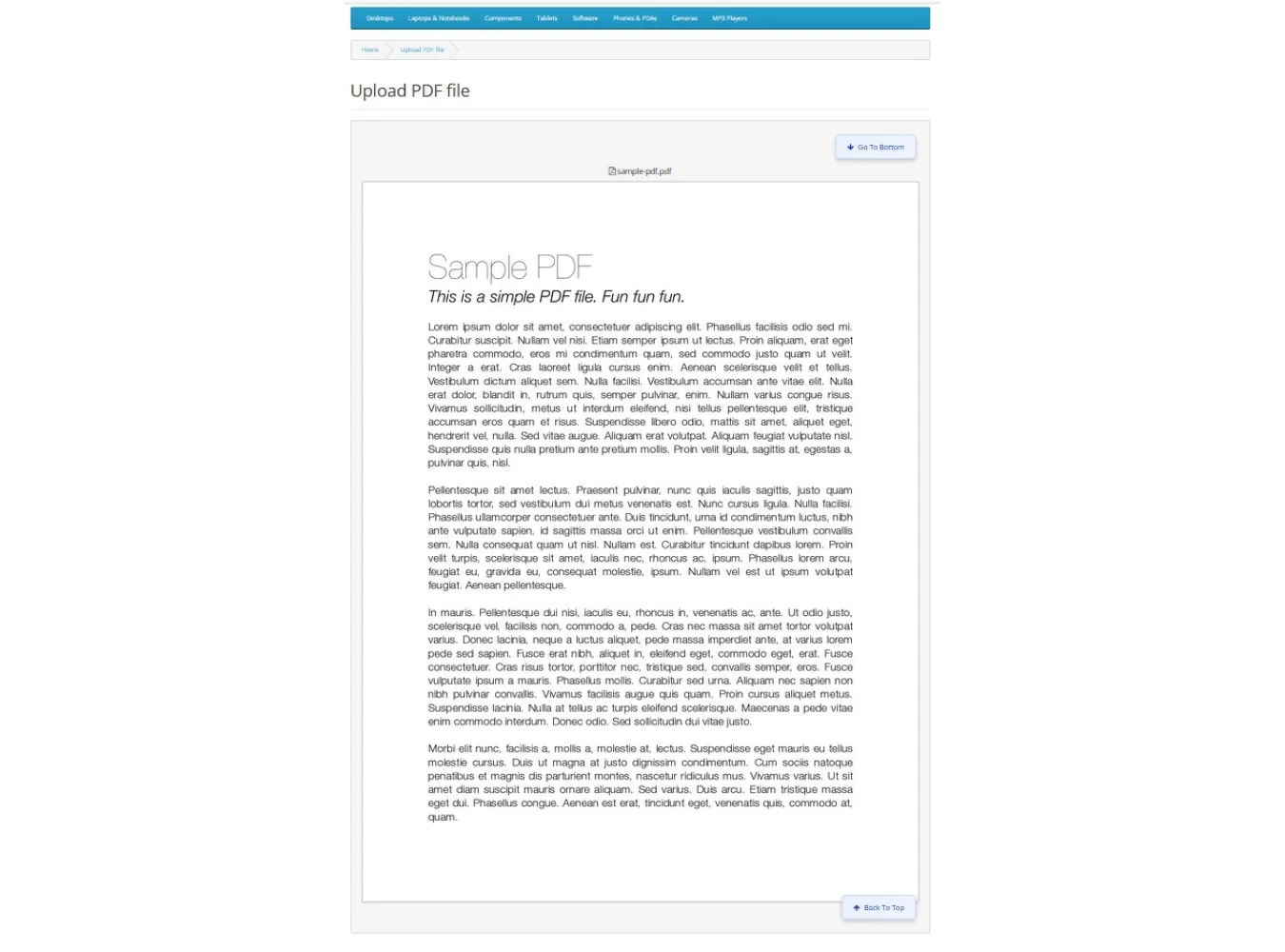
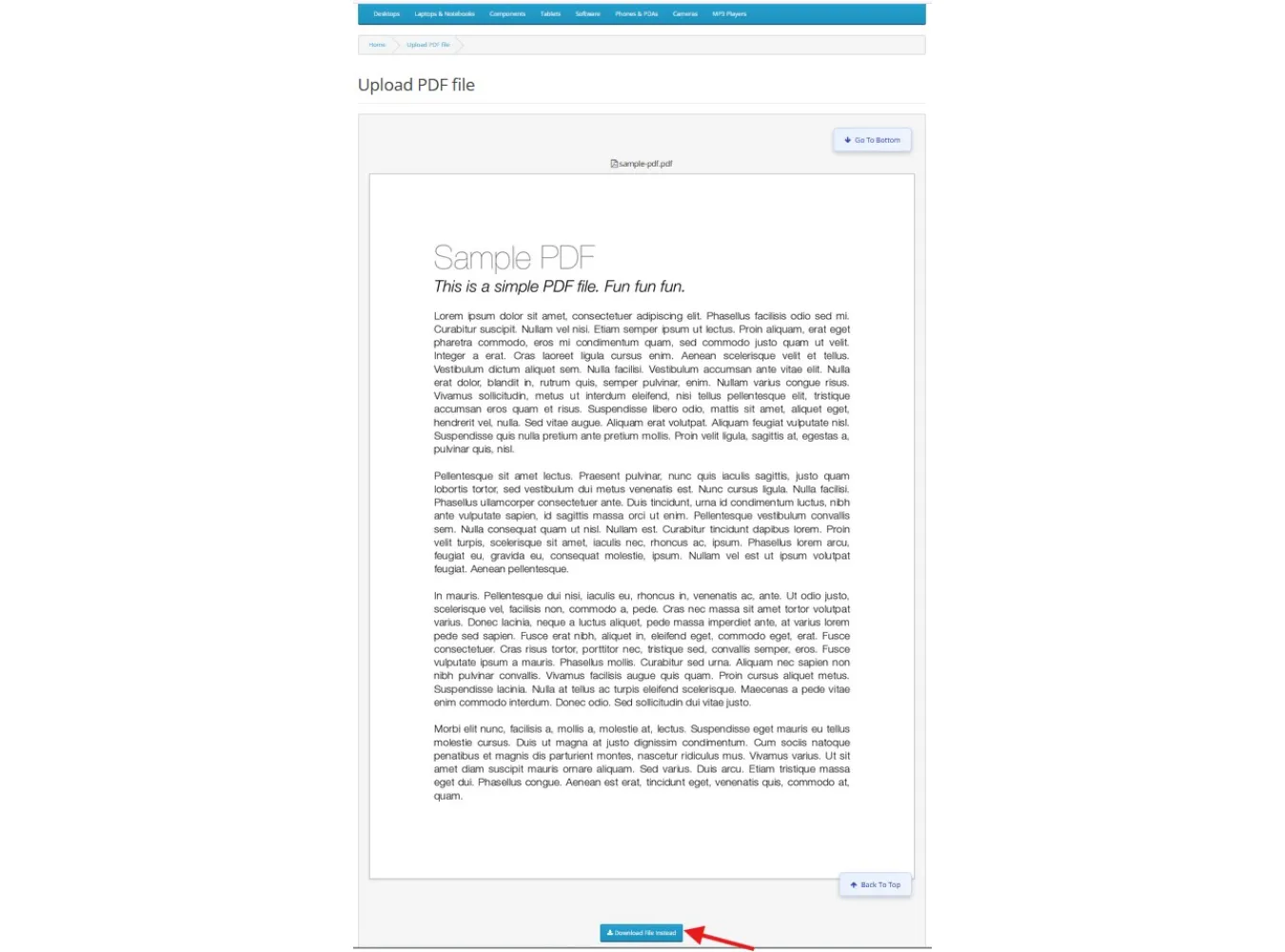
* **PDF:** Displayed with page-by-page preview.
* **Code (JSON/TXT/JS):** Displayed in a syntax-highlighted code block.
* **Archives (ZIP/RAR):** Show a download prompt only (no preview).
* **Multi-File Downloads:** If a document has multiple files, the user will see a list of files. They can download individually or click **"Download All as ZIP"**.
Settings & Import/Export
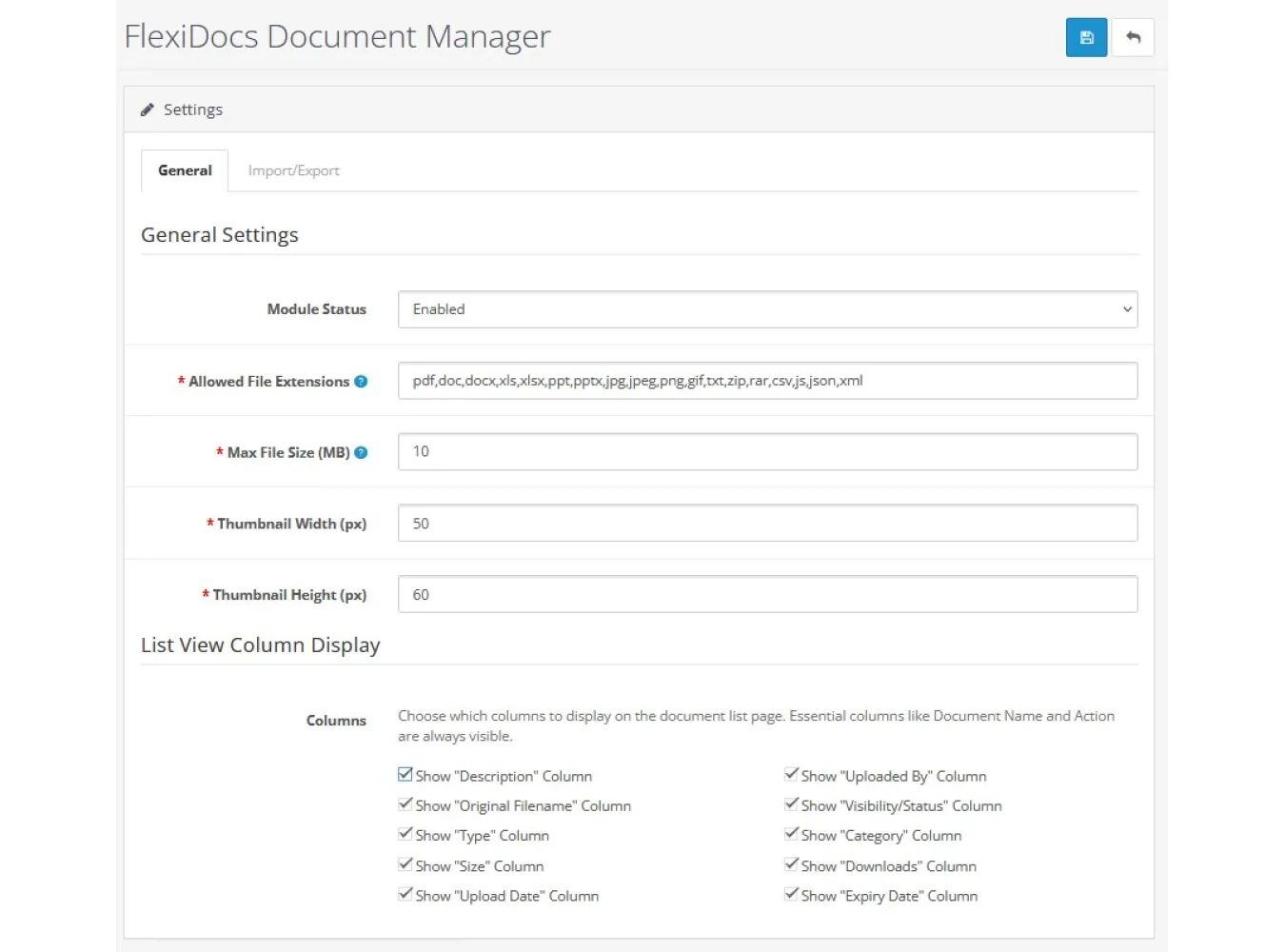
**Tab 1: General Settings**
* **Allowed Extensions:** Define what can be uploaded (comma-separated).
* **Max File Size:** Limit individual file upload size.
* **Thumbnail Size:** Adjust list view icon sizes.
* **Column Display:** Toggle visibility of columns in the main Document List (e.g., hide "Description" or "File Size" to save space).
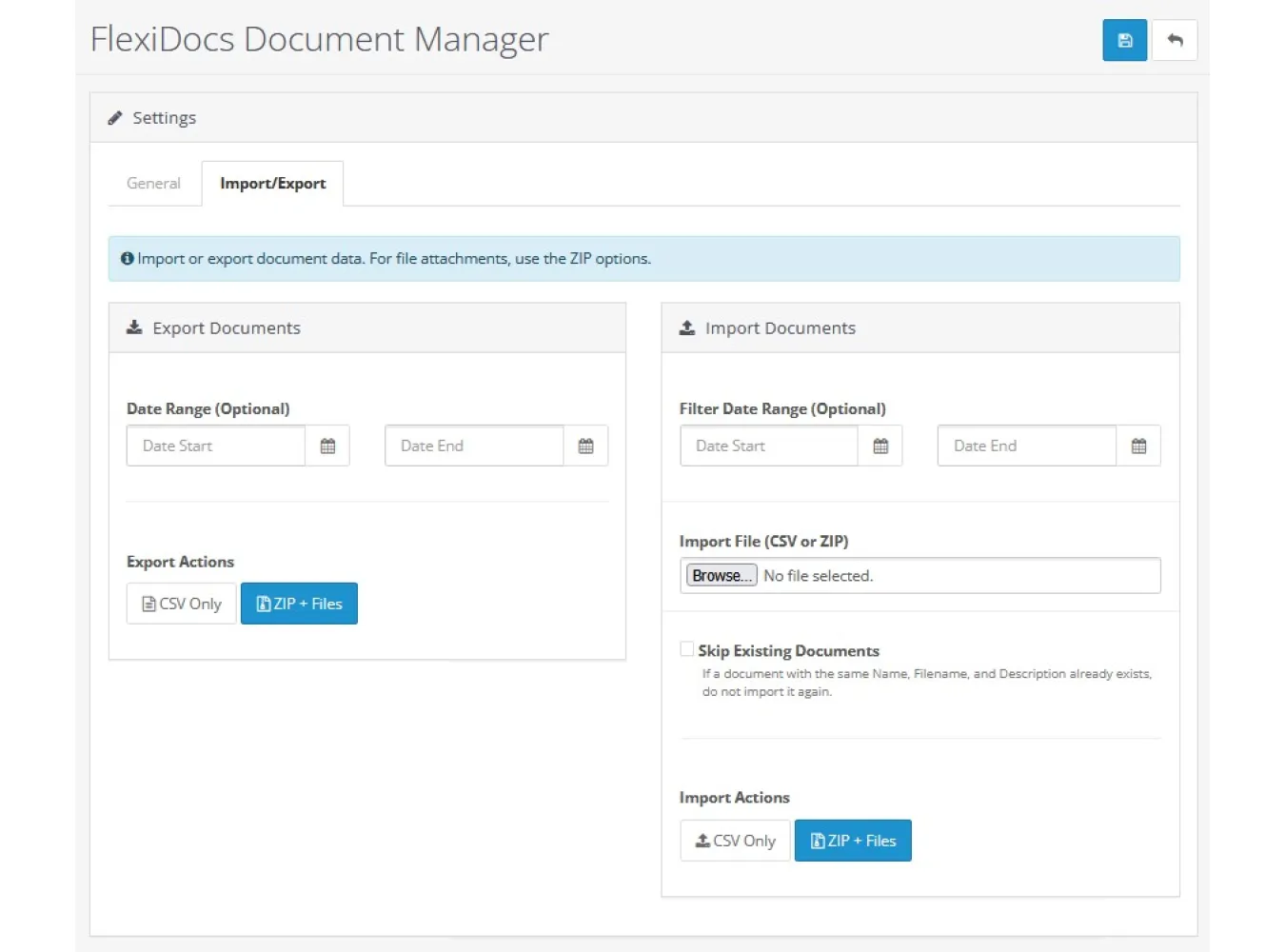
**Tab 2: Import / Export**
* **Export:**
* **Date Range:** Filter what to export.
* **CSV Only:** Downloads a spreadsheet of document metadata (names, descriptions, categories).
* **CSV + Files (ZIP):** Downloads a ZIP containing the CSV and all physical files organized in folders.
* **Import:**
* **CSV Only:** Creates document records (useful for bulk creating placeholders).
* **ZIP + Files:** Upload a ZIP structure (exported from FlexiDocs). The system will create the documents and physically attach the files found inside the ZIP.
* **Skip Duplicates:** Prevents creating duplicate records based on Document Name.
Troubleshooting
* **Upload Fails?** Check `upload_max_filesize` in your `php.ini`. Check the "Allowed File Extensions" in FlexiDocs Settings.
* **Preview Not Showing?** Ensure the file type is in the allowed preview list (Images/PDF/Text). ZIPs and Binaries do not have previews.
* **Access Denied?** Check the "Permissions" tab in the document edit screen. Ensure the user's group is checked, or the specific customer is added.
* **ModSecurity:** If uploads hang indefinitely, ask your host to whitelist the `flexidocs` extension in ModSecurity.
FlexiDoc Document Manager
Related Products

Extra Product and Video Tabs with Admin Memo
Normal 0 false false false EN-US JA X-NONE Extra Product and Video Tabs with Admin Memo This extensi..
SGD$45.00
Expense Ledger v2.3
Expense Ledger v2.3 for OpenCart 3.x Expense Ledger is a comprehensive and powerful OpenCart ..
SGD$50.00

Task Manager Pro v4.1
1. Extension Description Task Manager Pro is a powerful, fully integrated productivity tool fo..
SGD$58.00
Product Badge Manager
Description Product Badge Manager is a comprehensive OpenCart 3.x admin extension designed to boost ..
SGD$70.00 SGD$80.00