
Description
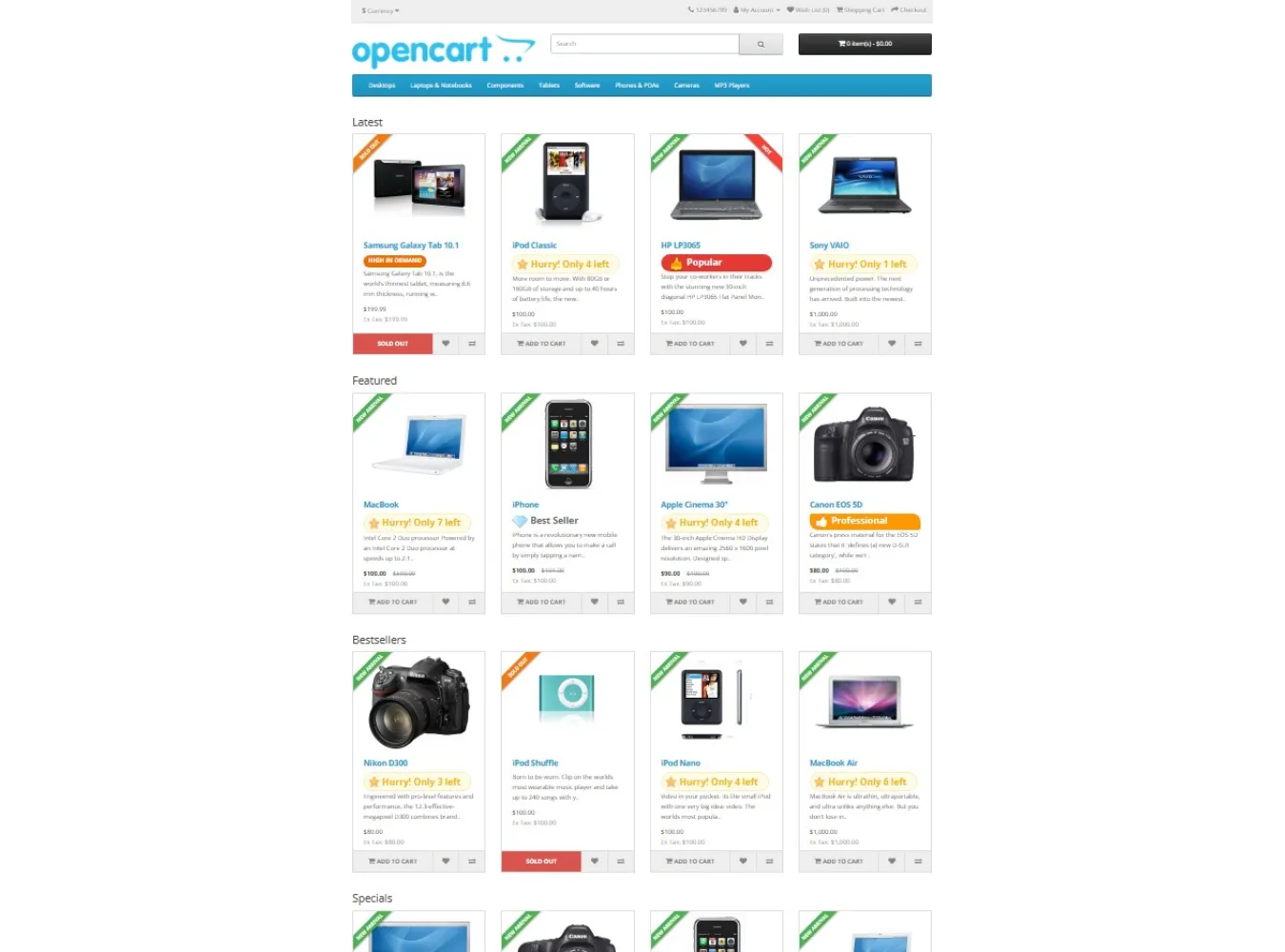
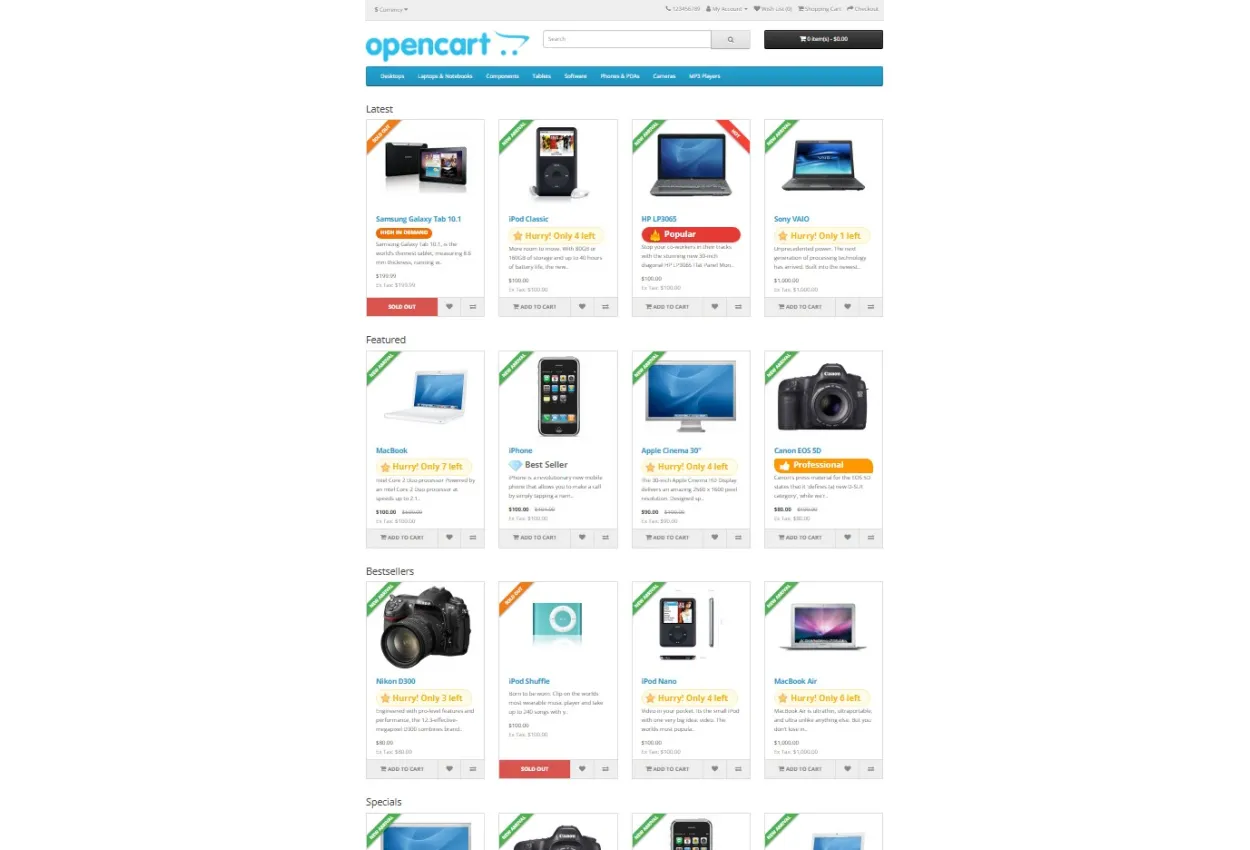
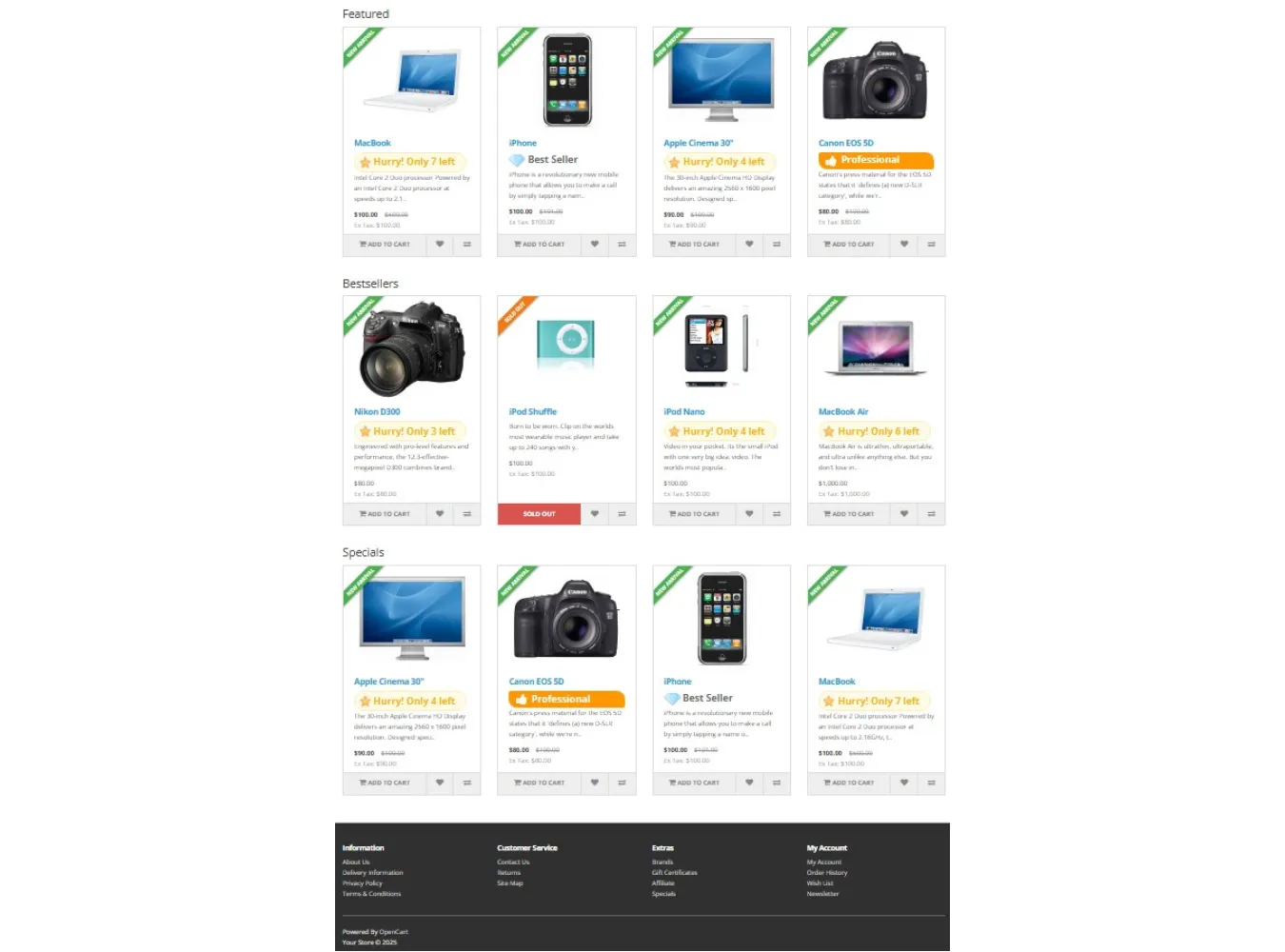
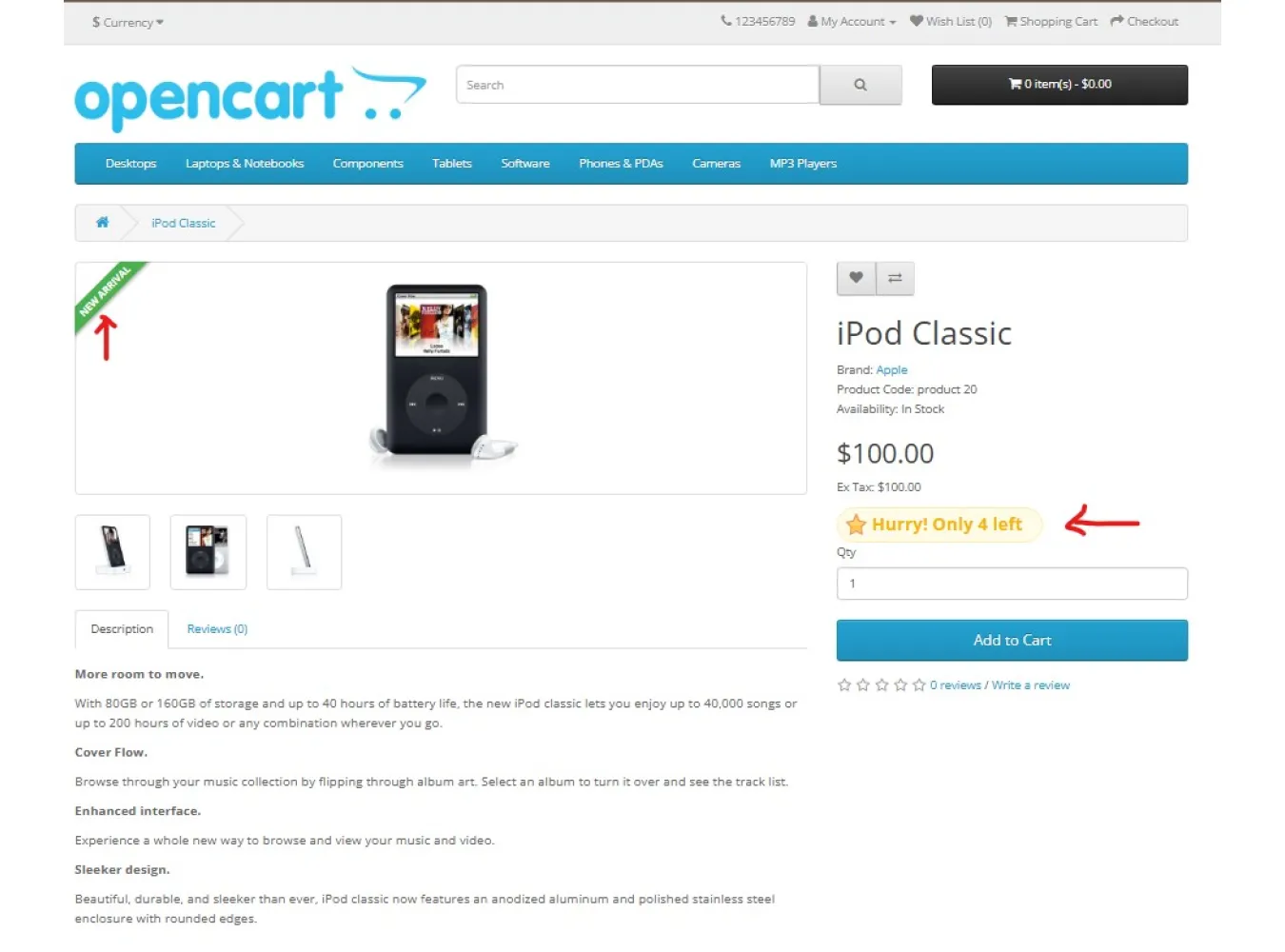
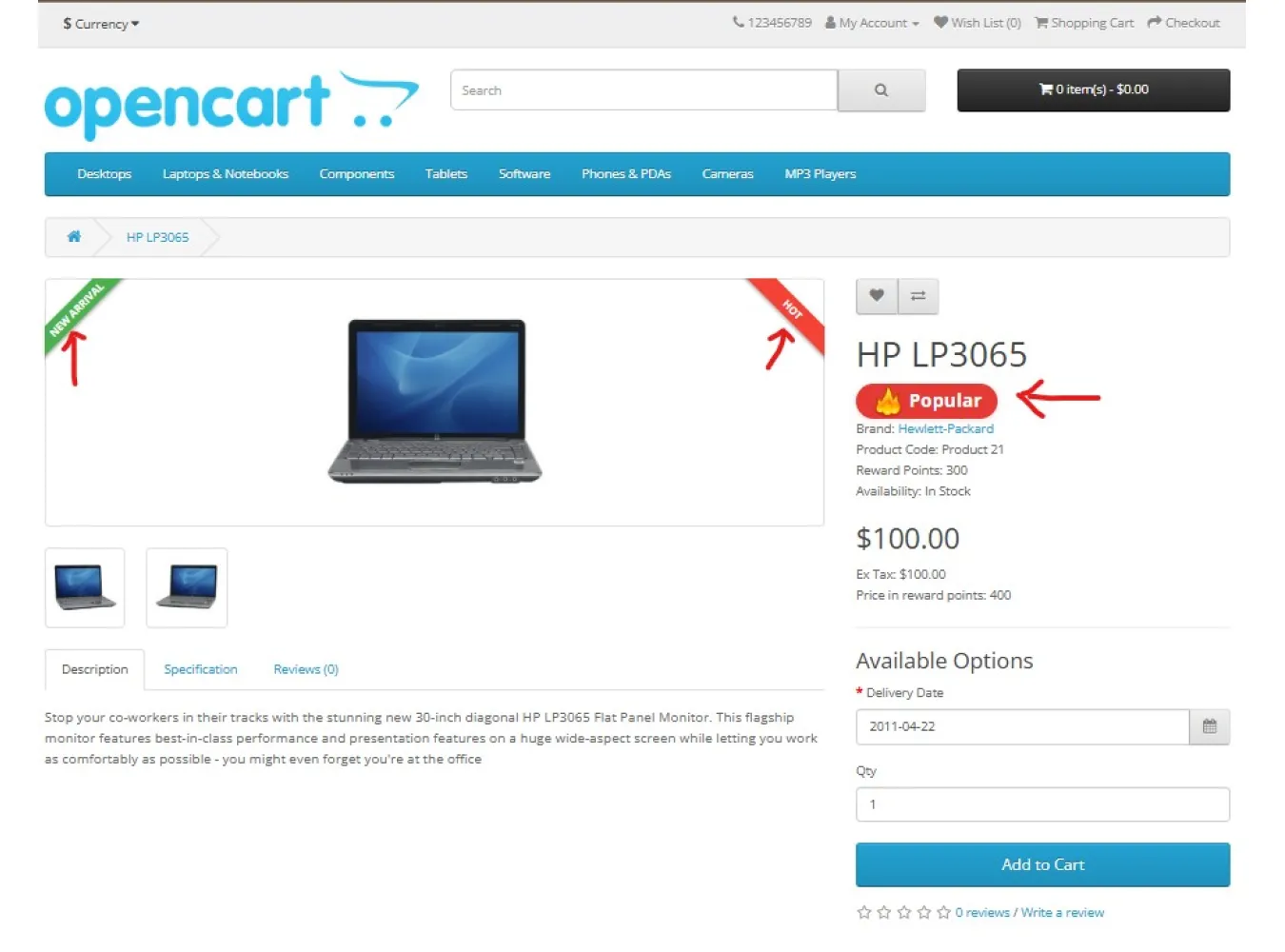
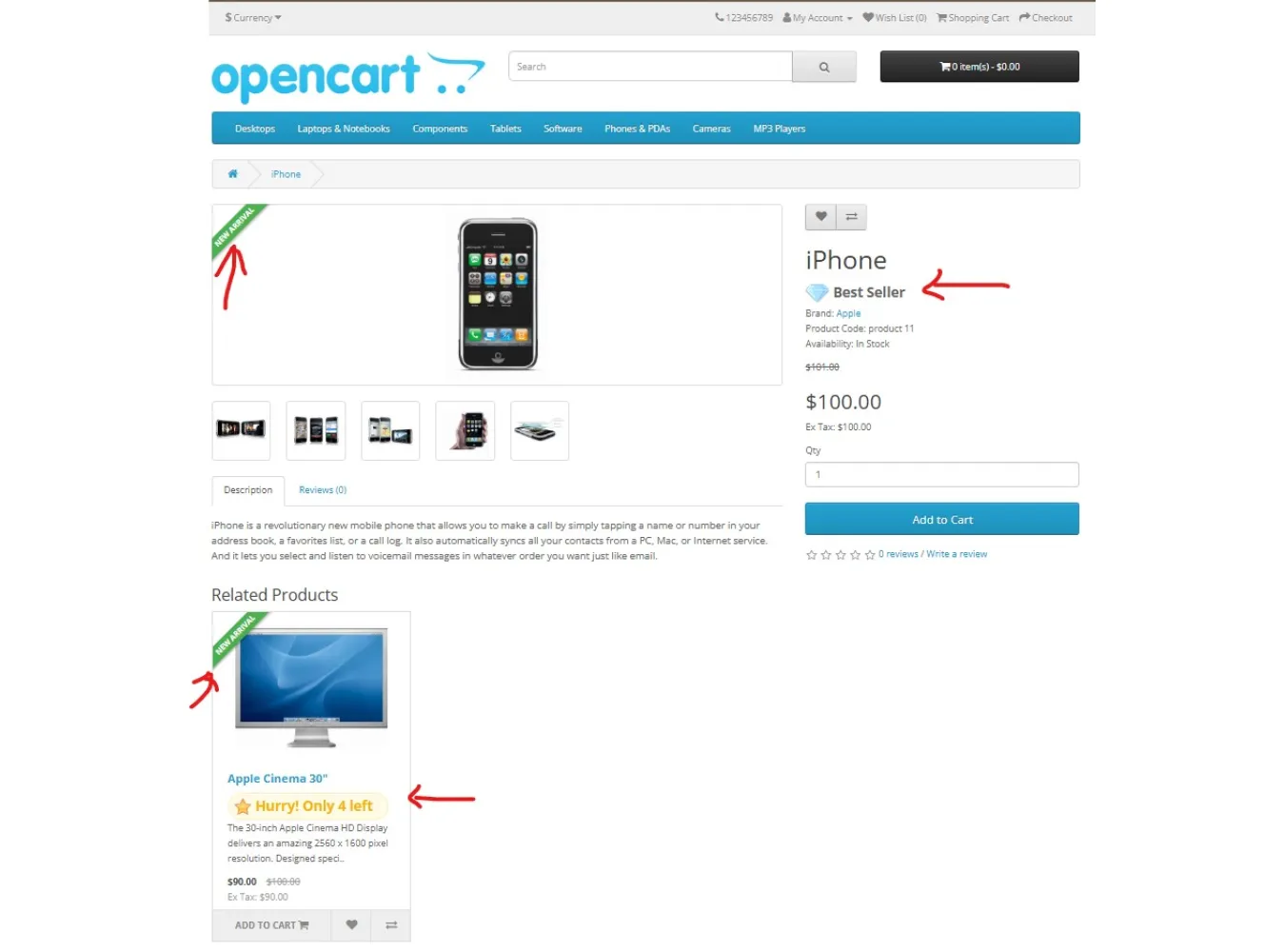
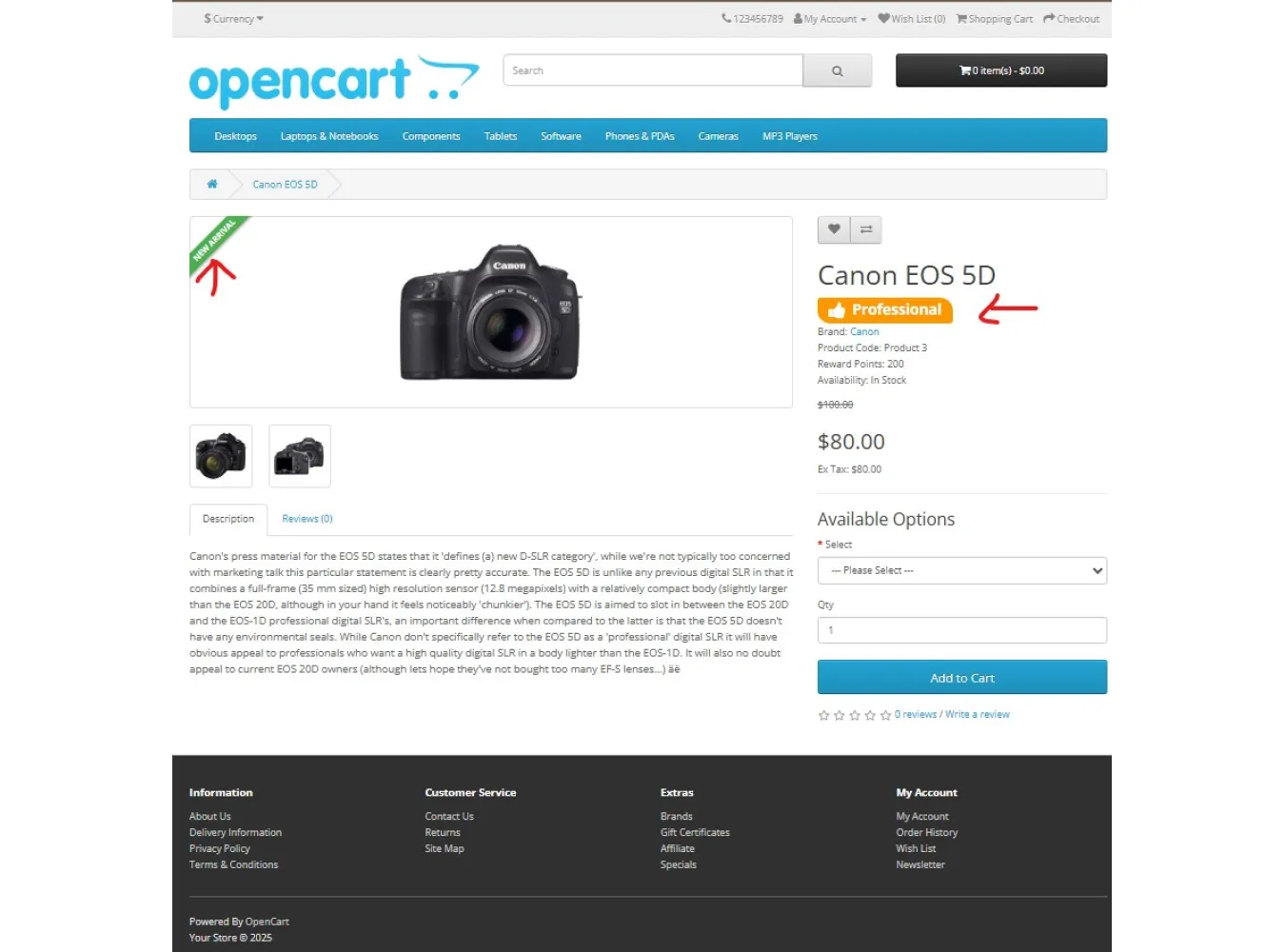
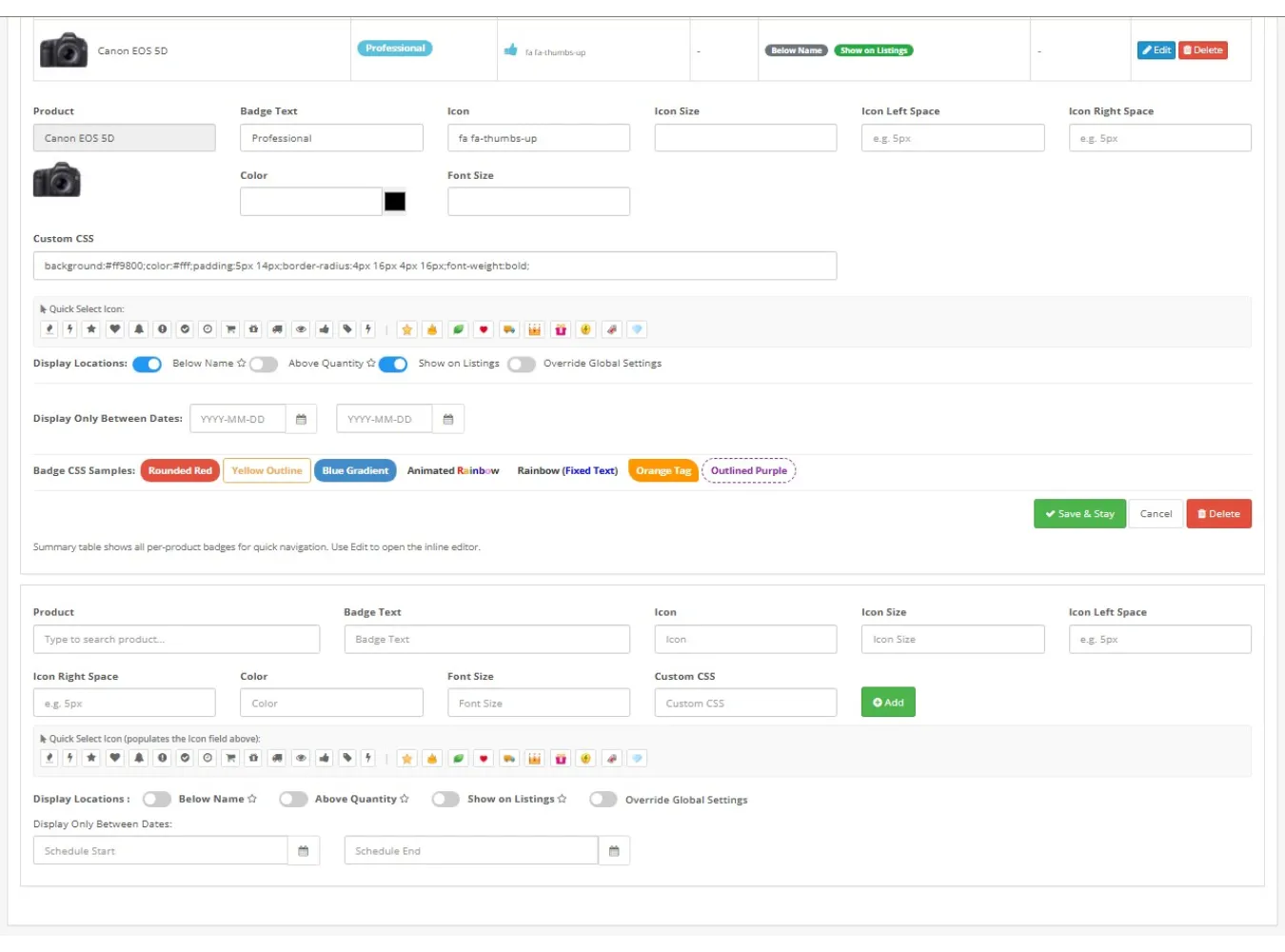
Product Badge Manager is a comprehensive OpenCart 3.x admin extension designed to boost conversion rates by adding visual urgency and social proof to your store. It allows store owners to create and manage various types of product badges: automatic stock status text (e.g., "Only 2 left!"), corner-triangle ribbons, per-product visual banners (New Arrival, Hot Deal), and functional status actions (like disabling "Add to Cart" for zero stock).
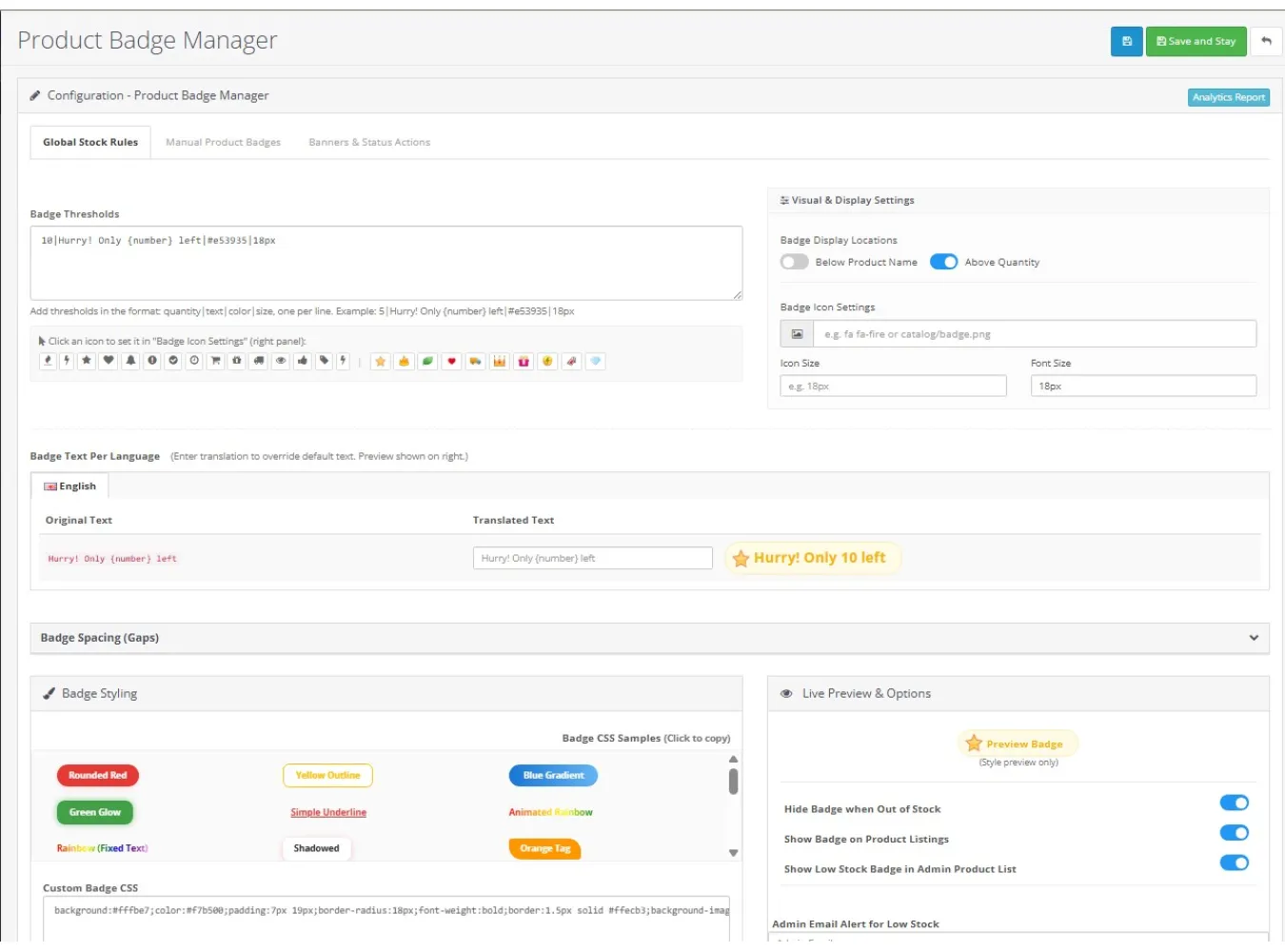
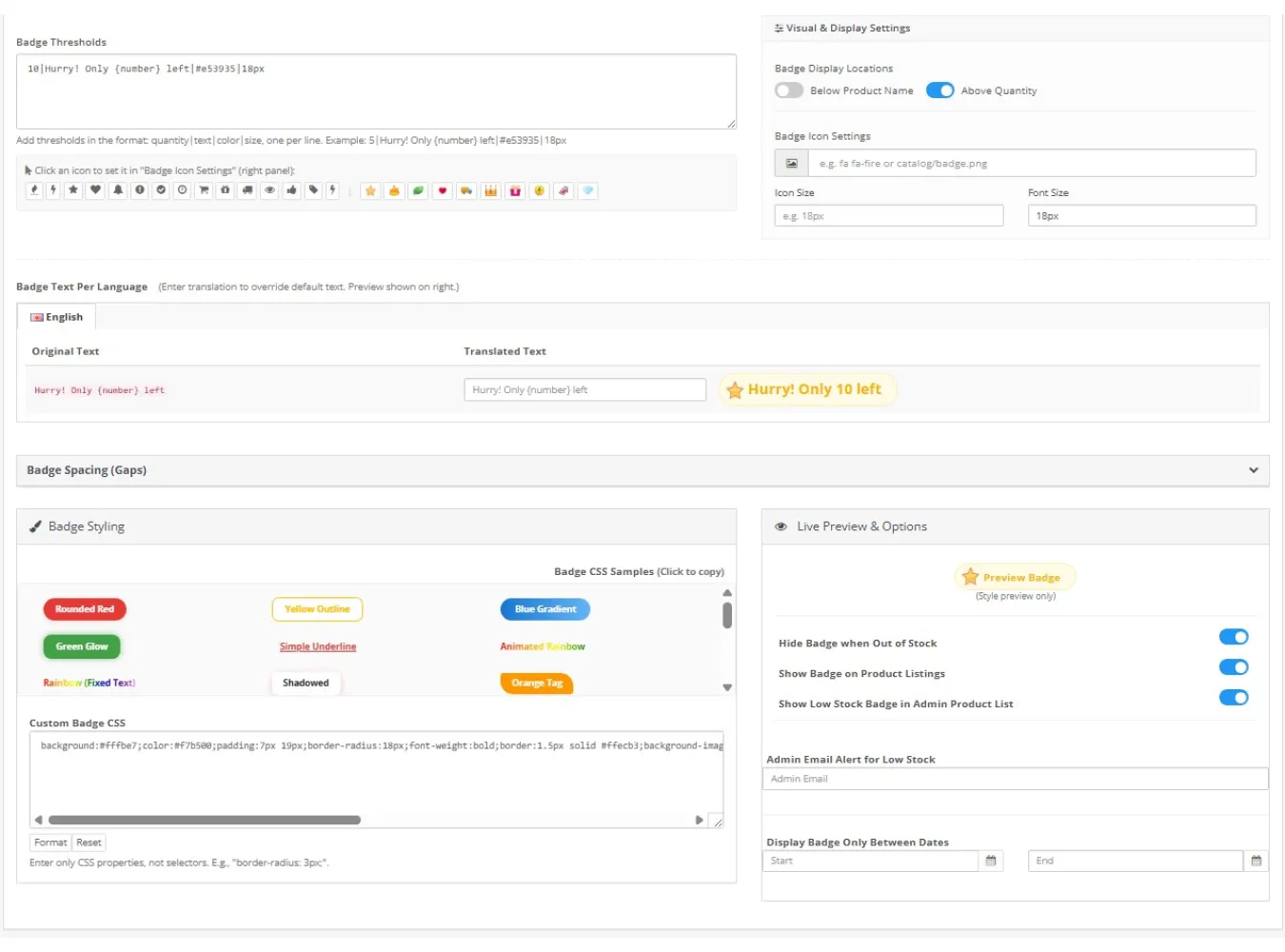
This extension centralizes all badge management into one intuitive dashboard. You can define global rules based on stock quantity, manually override settings for specific products, and schedule badges for time-sensitive promotions. The interface features a modern analytics report, live CSS previews, and granular control over display locations (Product Page, Category/Search Listings, and Module tiles like Bestsellers/Featured).
Use Cases
- Scarcity Tactics: Automatically show a "Hurry! Only {number} left" text badge when stock falls below a specific threshold (e.g., qty <= 5).
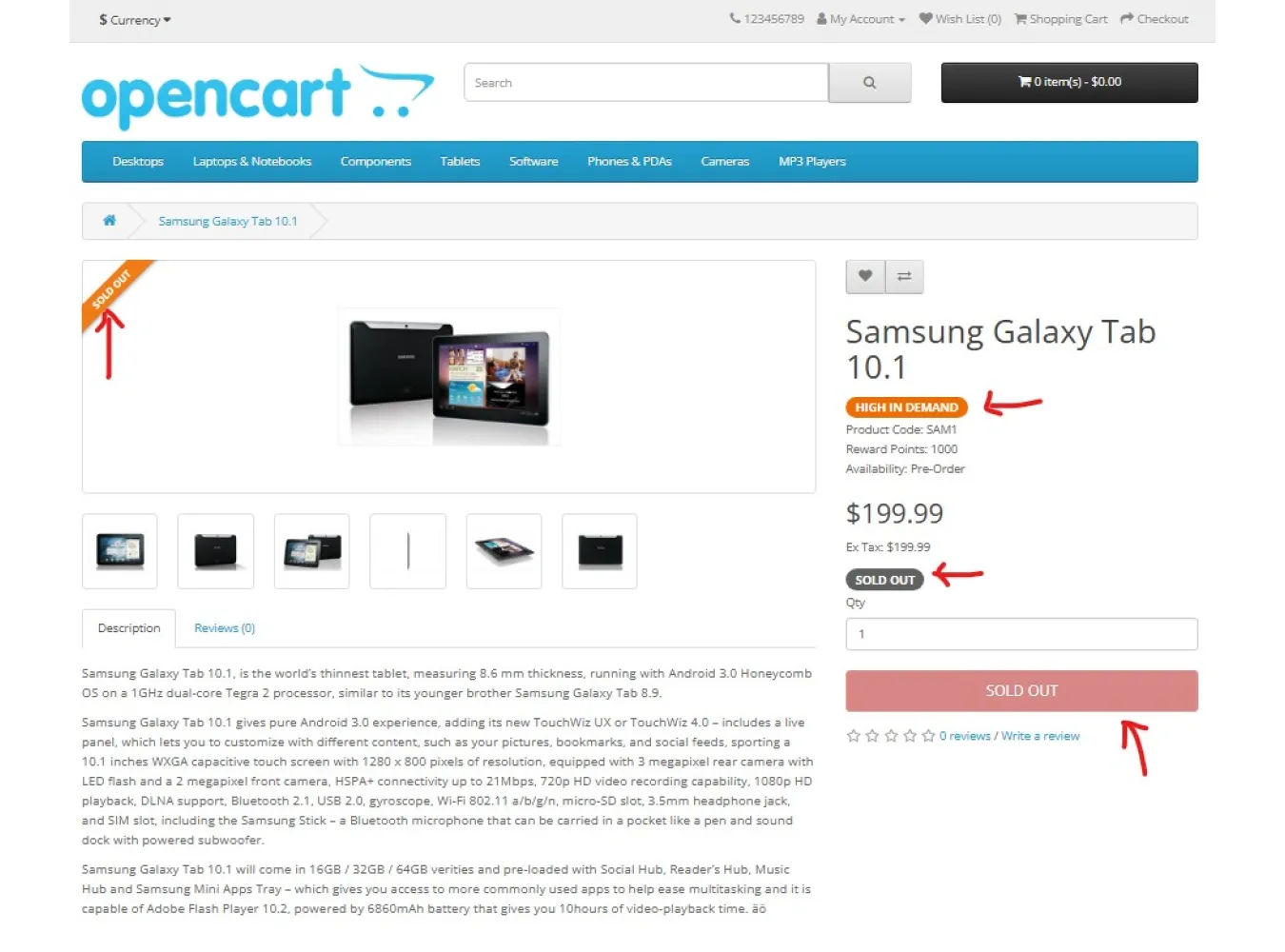
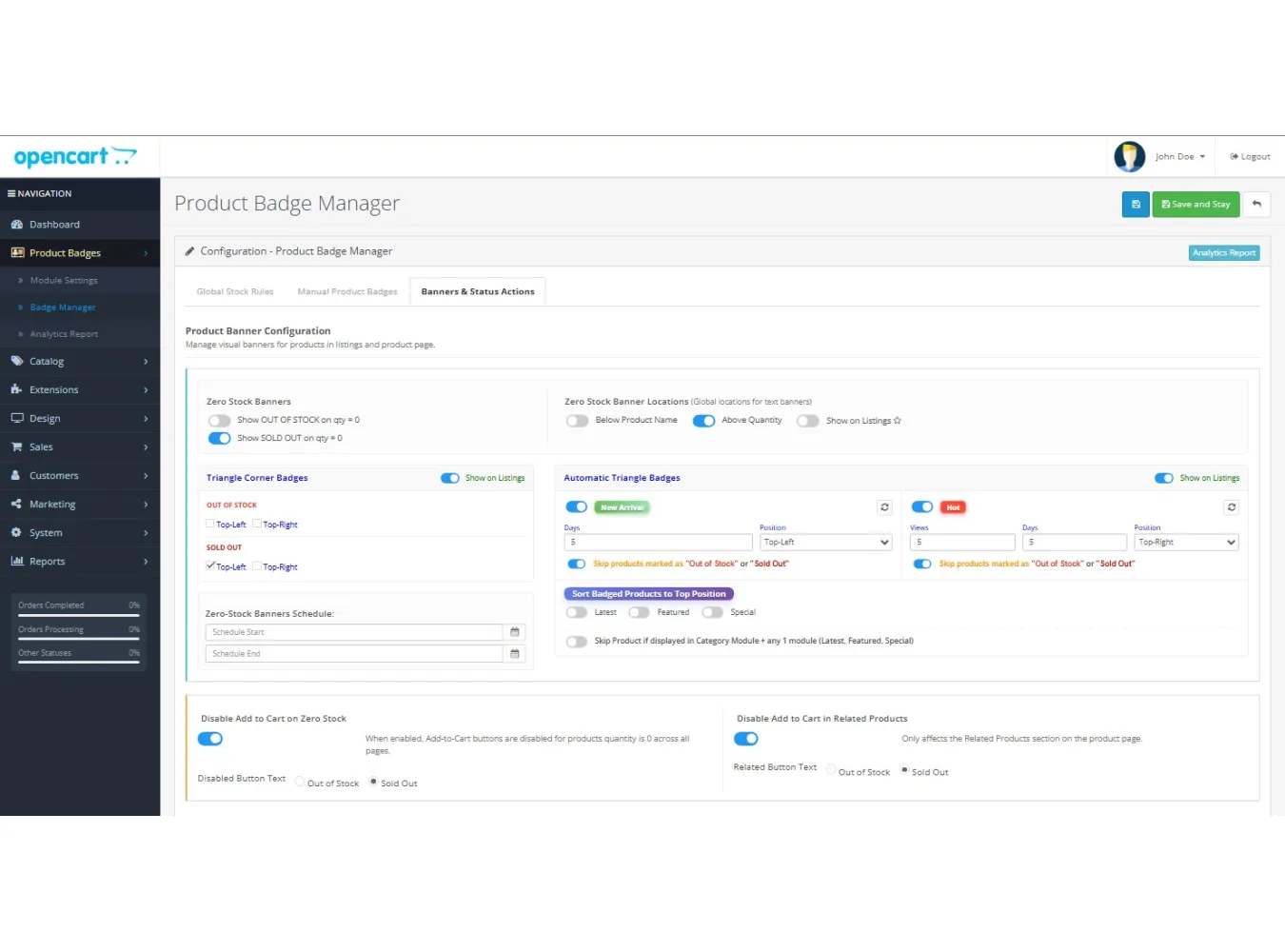
- Zero Stock Management: Automatically display "OUT OF STOCK" or "SOLD OUT" banners and corner triangles when quantity hits 0.
- Functional Restrictions: Disable the "Add to Cart" button automatically for items with 0 stock, changing the button text to "Sold Out" or "Out of Stock" to prevent back orders.
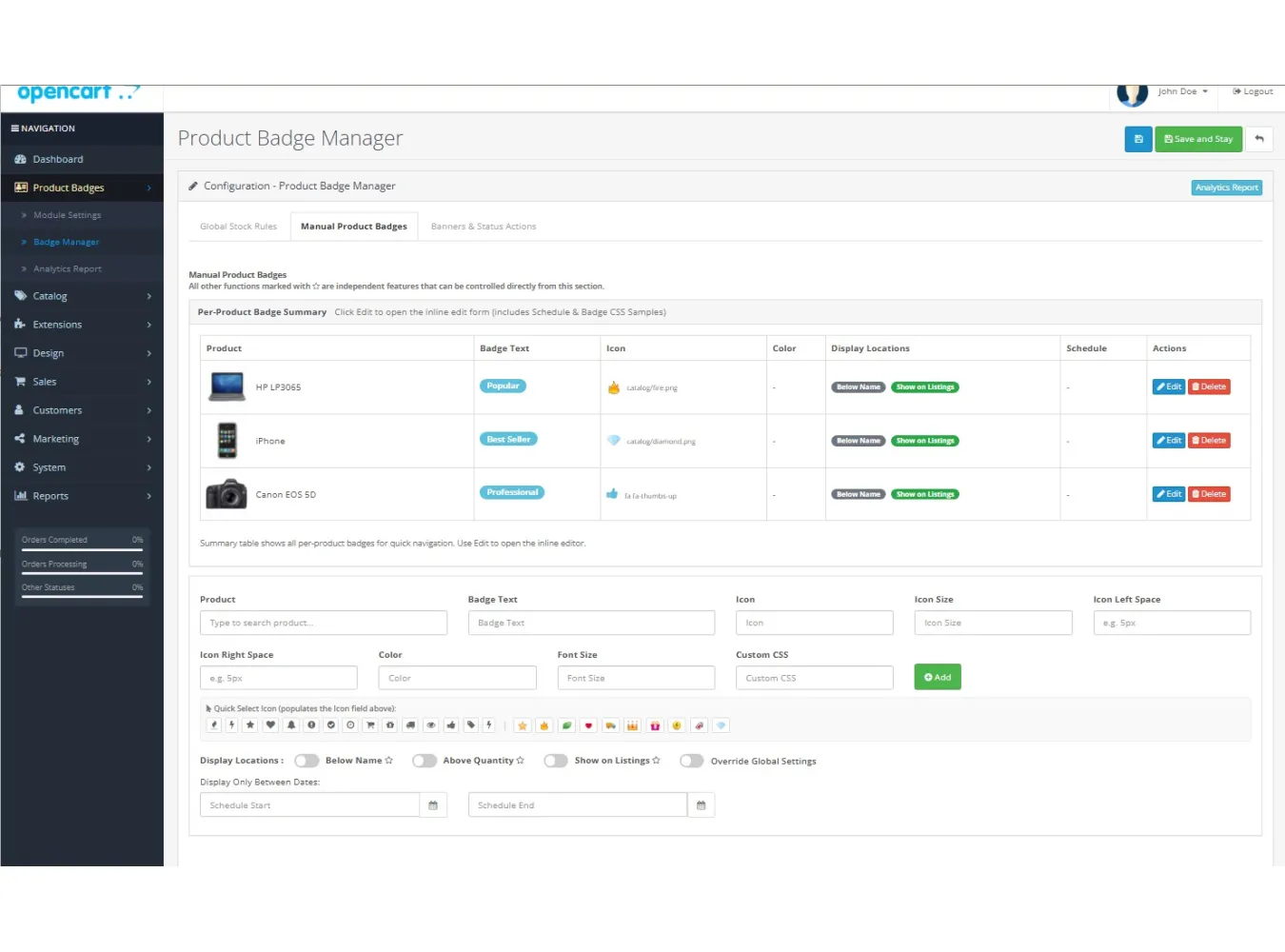
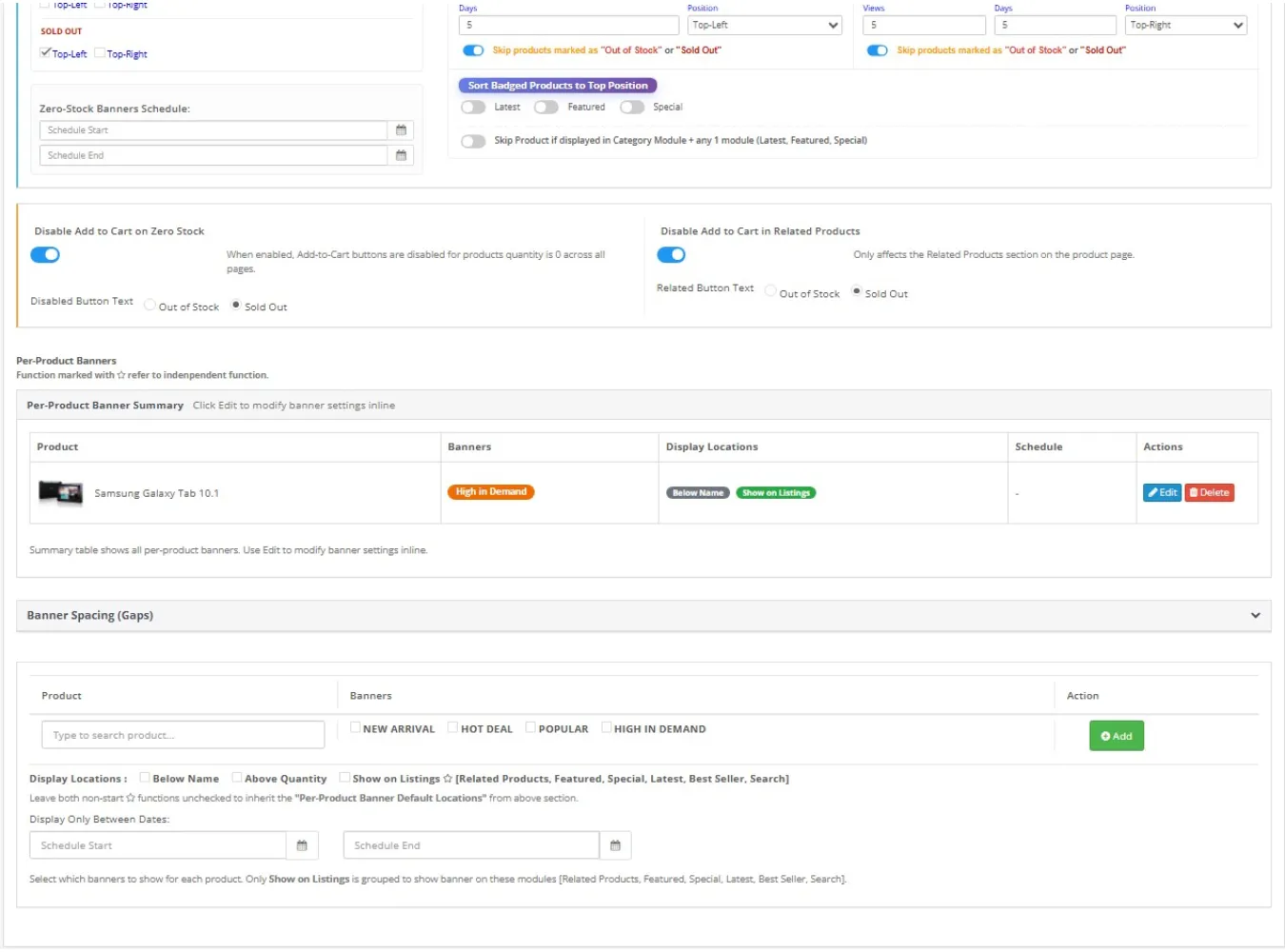
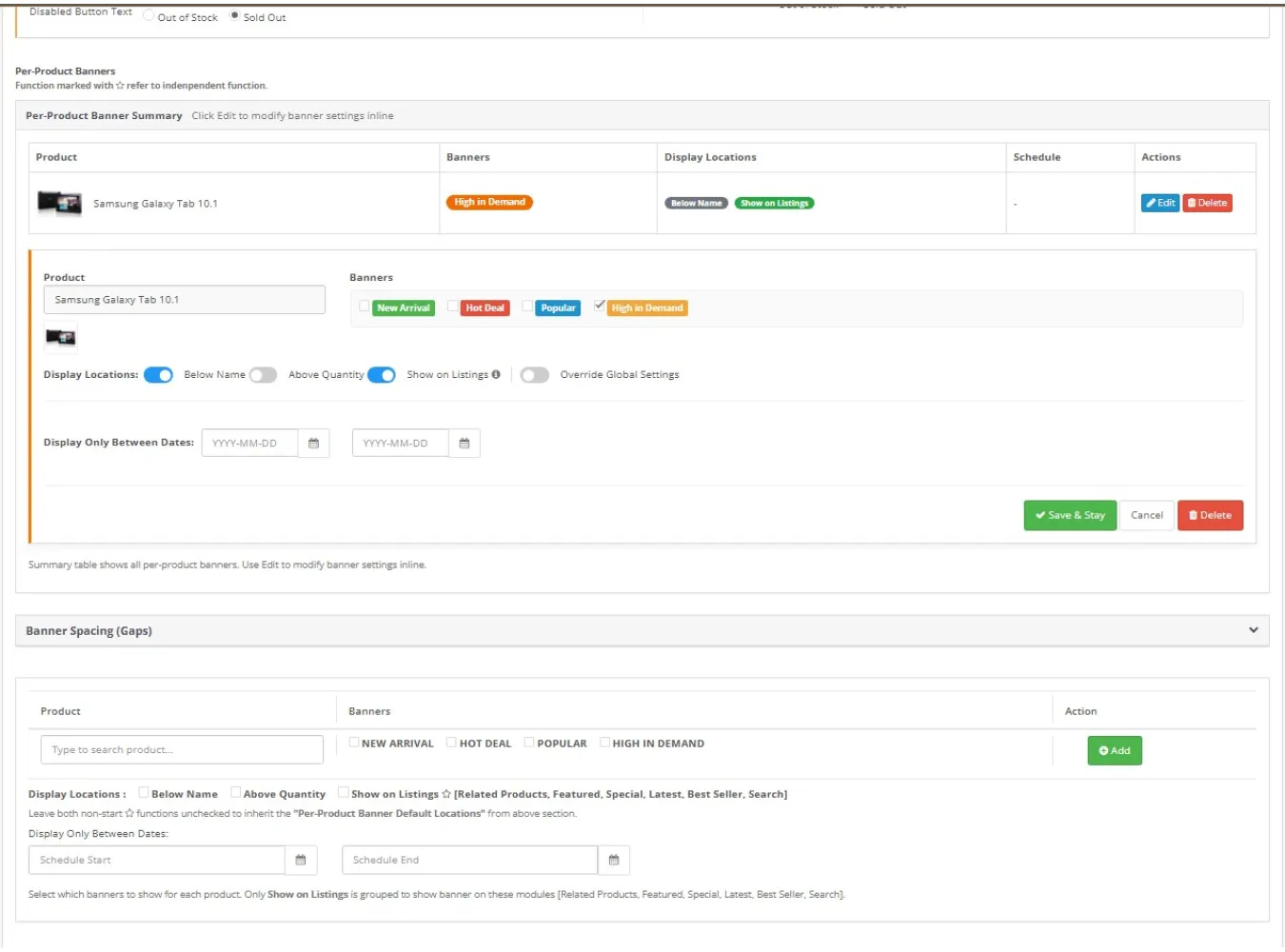
- Promotional Banners: Manually assign "NEW ARRIVAL", "HOT DEAL", "POPULAR", or "HIGH IN DEMAND" banners to specific products to highlight them in listings and on the product page.
- Main Image Badges: Display "Sold Out" or "Out of Stock" triangle ribbons directly on the main large product image on the product detail page.
Benefits
- Centralized Control: Manage global rules, manual overrides, and banner styles from a single tabbed interface.
- Smart Injection: badges are injected via OpenCart Events (OCMOD/V.Q.Mod not required for core logic), keeping core files clean.
- Visual Customization: Includes a built-in CSS styling tool with one-click presets (Rounded Red, Blue Gradient, Animated Rainbow, etc.) and Font Awesome icon support.
- Context-Aware Display: Control exactly where badges appear—Below Product Name, Above Quantity input, or on Category/Search listings.
- Responsive & Safe: Enhanced JavaScript logic ensures badges appear correctly on standard OpenCart themes as well as custom themes (Journal support via selector logic) without breaking layouts.
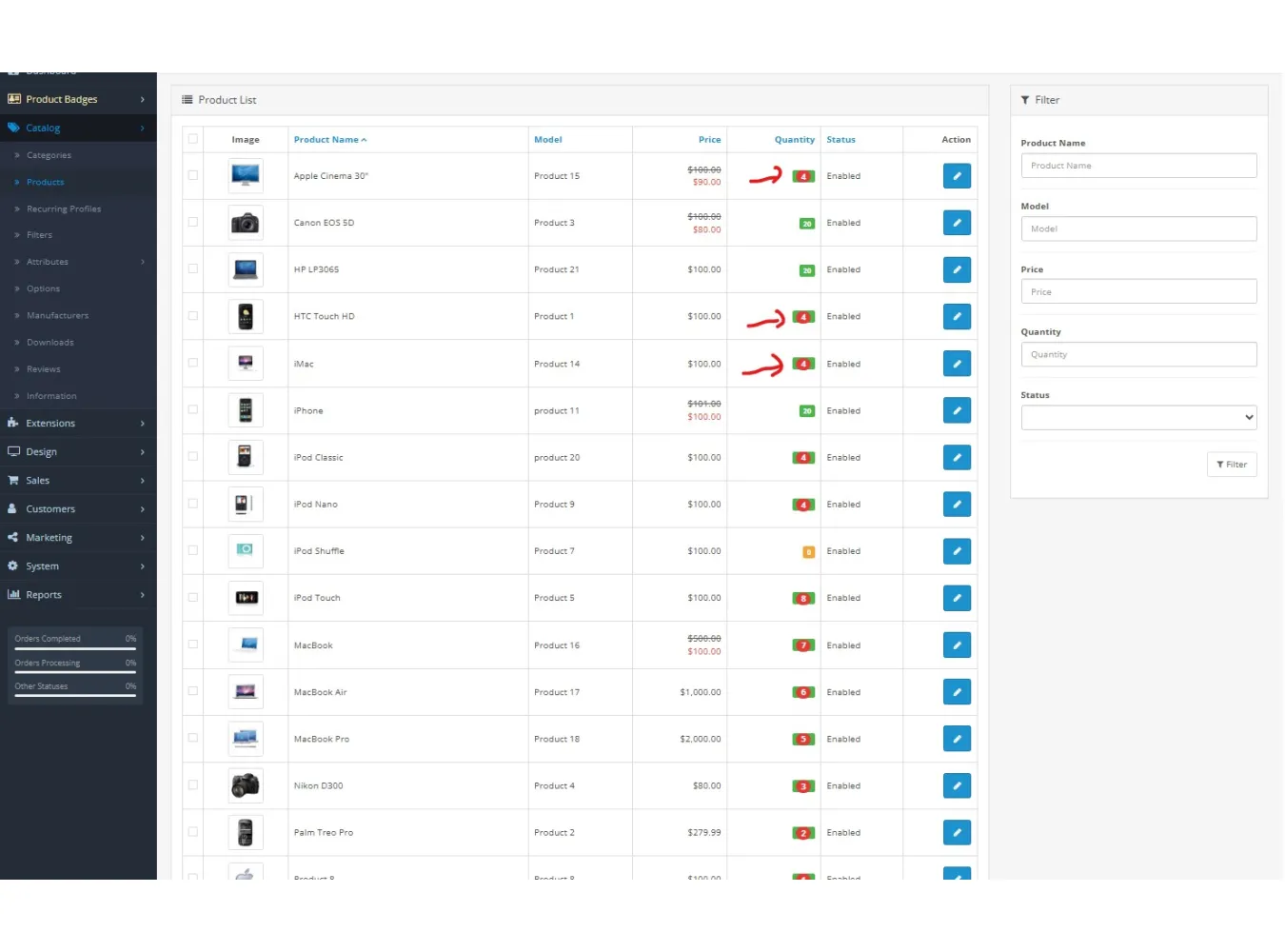
- Analytics Dashboard: A dedicated report page showing how many products are triggering thresholds and a breakdown of active per-product badges.
Quick Feature Summary
- Global Stock Rules: Define quantity thresholds (e.g., Qty <= 5) to trigger automatic text/icon badges.
- Triangle Corner Badges: Auto-inject "Out of Stock" or "Sold Out" triangles on the top-left/top-right of product images.
- Zero-Stock Actions: Option to disable the "Add to Cart" button and change its label when stock is zero.
- Smart Color Inputs: Real-time color preview that supports both Hex codes and named colors (e.g., "orange", "blue").
- Per-Product Overrides: Manually assign badges, icons, and schedules to specific products, overriding global rules.
- Product Page Main Image: Special support to place corner badges on the large main product image, not just thumbnails.
- Analytics Report: Visual charts and stats to monitor stock triggers and badge usage.
Installation Manual
1. Download: Ensure you have the `stock_xxx_xxx.ocmod.zip` package.
2. Upload: Go to Admin → Extensions → Installer → Upload the zip file.
3. Refresh: Go to Admin → Extensions → Modifications → Click Refresh (blue button top-right).
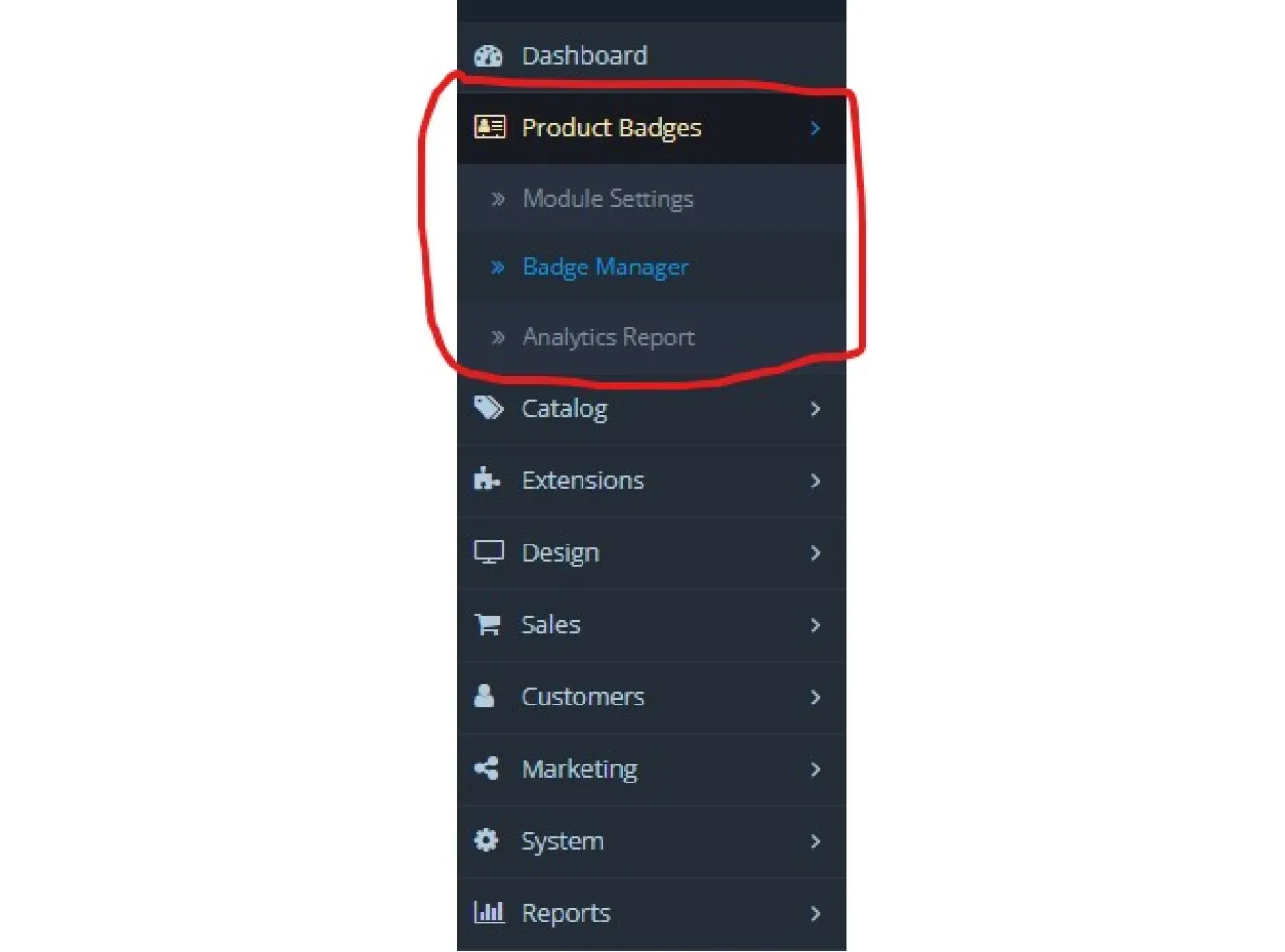
4. Permissions: Go to Admin → System → Users → User Groups → Edit Administrator → Select `extension/module/stock_left_badge` in both Access and Modify lists → Save.
5. Install: Go to Admin → Extensions → Extensions → Choose "Modules" → Find "Product Badge Manager" → Click Install (+).
6. Configure: Click Edit (pencil icon) to open the configuration dashboard.
Post-Install Configuration
1. Global Rules: Go to the "Global Stock Rules" tab. Add a threshold like `5|Only {number} left!|#d9534f|14px` to show urgency.
2. Banners: Go to "Banners & Status Actions" tab. Enable "Show OUT OF STOCK on qty = 0" and configure "Triangle Corner Badges".
3. Save: Click "Save and Stay" to apply changes.
4. Verify: Check a product with low stock on the front end to see the badge appear.
Uninstall / Remove
1. Go to Admin → Extensions → Extensions → Modules.
2. Click Uninstall (red bar icon) for "Product Badge Manager". This automatically removes all event hooks.
3. (Optional) Delete the extension files if no longer needed.
Product Badge Manager
Related Products

Extra Product and Video Tabs with Admin Memo
Normal 0 false false false EN-US JA X-NONE Extra Product and Video Tabs with Admin Memo This extensi..
SGD$45.00

Task Manager Pro v4.1
1. Extension Description Task Manager Pro is a powerful, fully integrated productivity tool fo..
SGD$58.00
FlexiDoc Document Manager
Extension Description FlexiDocs is a comprehensive, professional-grade document management system bu..
SGD$70.00 SGD$80.00